
Table Of Content
- HeartMula & LTX2: Tips to Enhance AI Video Prompts
- LTX2 image to video workflow overview
- Inputs - image and audio
- The prompt trick I use
- Using the LTX prompt enhancer instruction with other LMs
- Always include the transcript in your text prompt
- Frames, IC Laura detailer, and motion intent
- Quick run - step by step
- What to expect
- Final Thoughts
HeartMula & LTX2: Tips to Enhance AI Video Prompts
Table Of Content
- HeartMula & LTX2: Tips to Enhance AI Video Prompts
- LTX2 image to video workflow overview
- Inputs - image and audio
- The prompt trick I use
- Using the LTX prompt enhancer instruction with other LMs
- Always include the transcript in your text prompt
- Frames, IC Laura detailer, and motion intent
- Quick run - step by step
- What to expect
- Final Thoughts
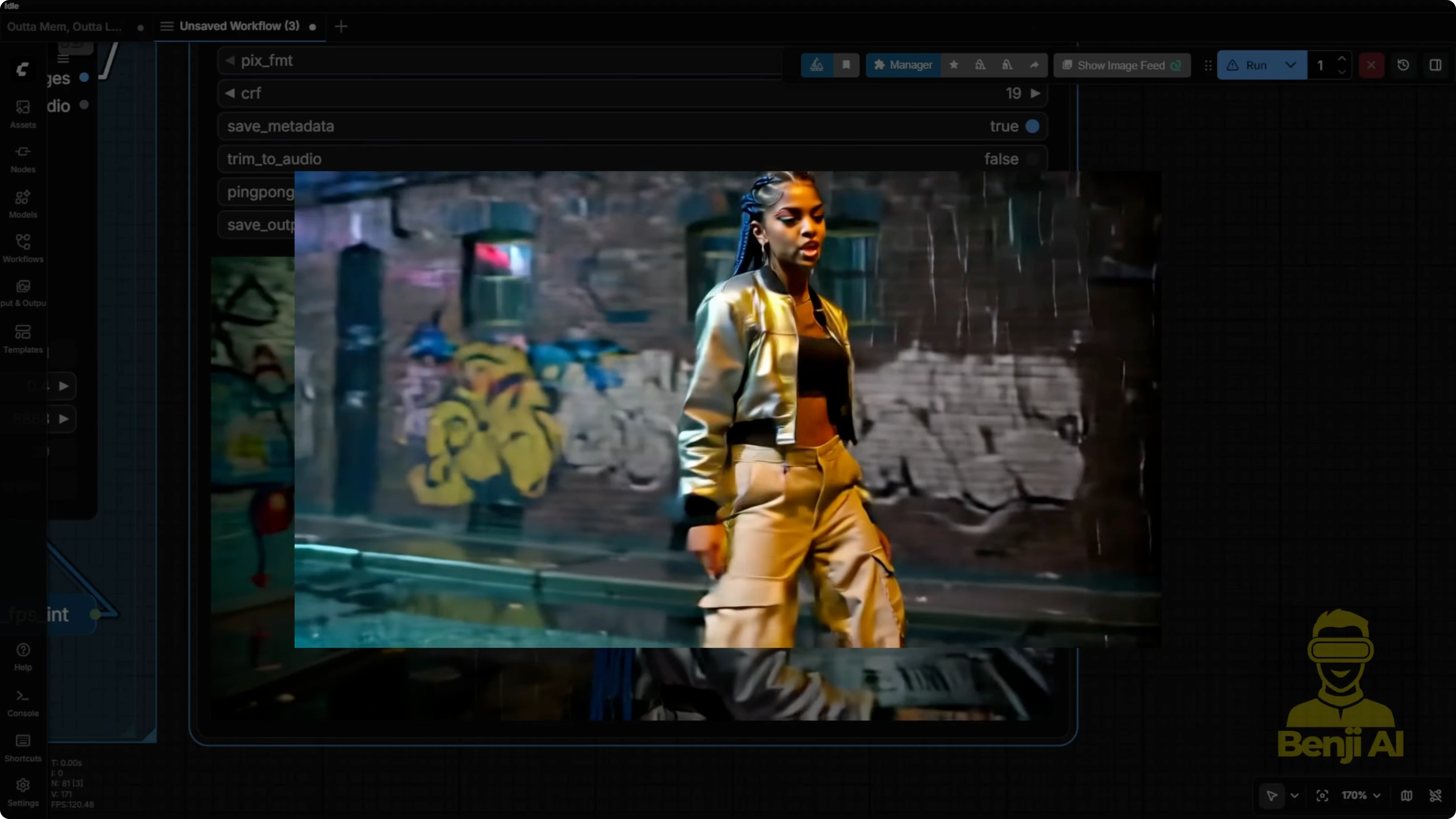
Here are some little tricks on how to use a HeartMula transcript and LTX2 image to video features and make them work for AI video creation so you can get better multi-angle camera motion like in the example I show. You can also use your own audio input. That means you're not restricted only to the text prompts you put into LTX video.
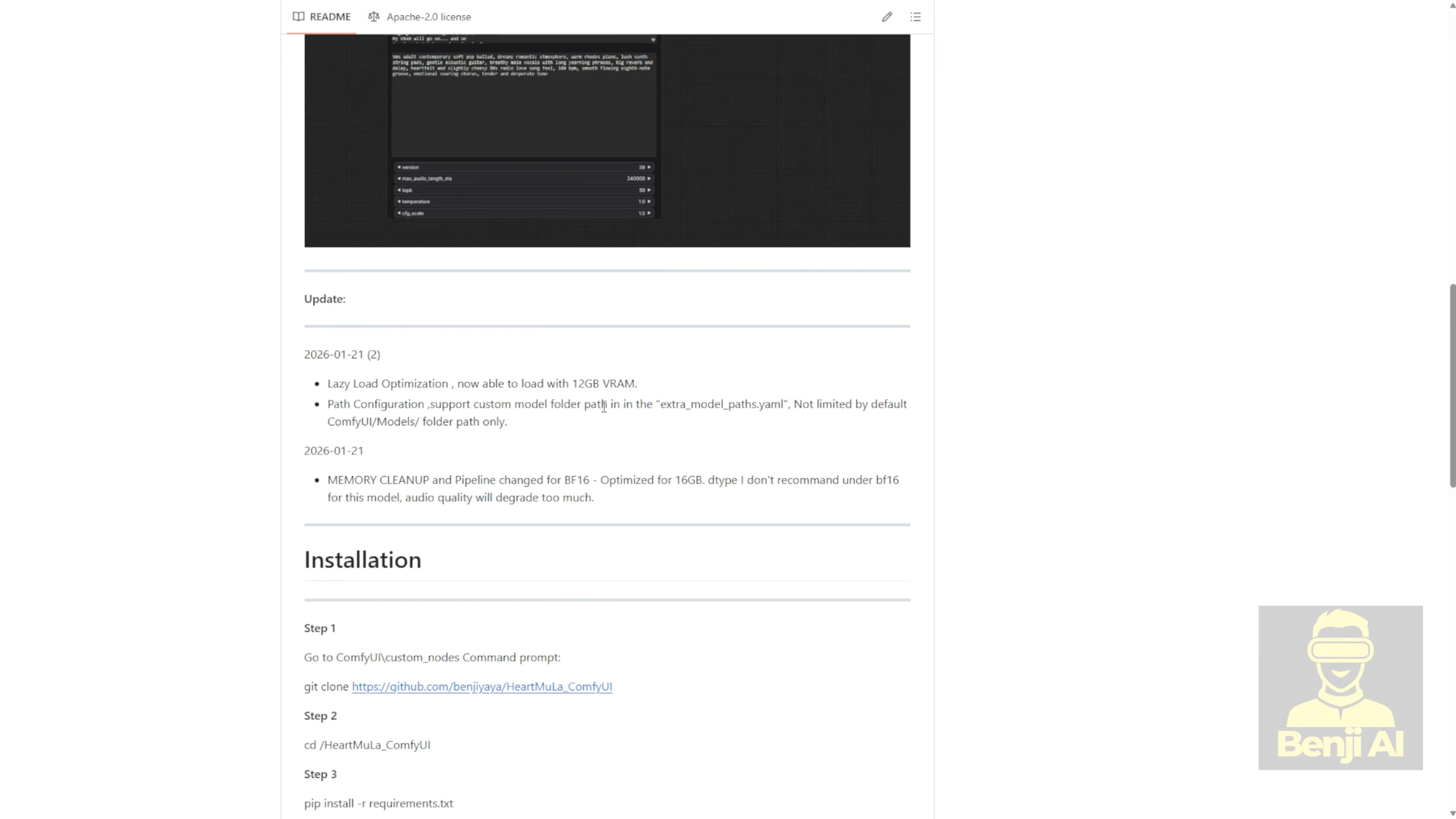
The custom nodes I made for HeartMula offer a really easy, clean way to create music with this AI model. Those custom nodes have been actively developed and keep improving thanks to the GitHub community. A lot of people are helping out. The current updated versions can run on a 12 GB VRAM GPU thanks to memory optimizations, and they also include some extra features suggested by both the GitHub community and my Patreon community.
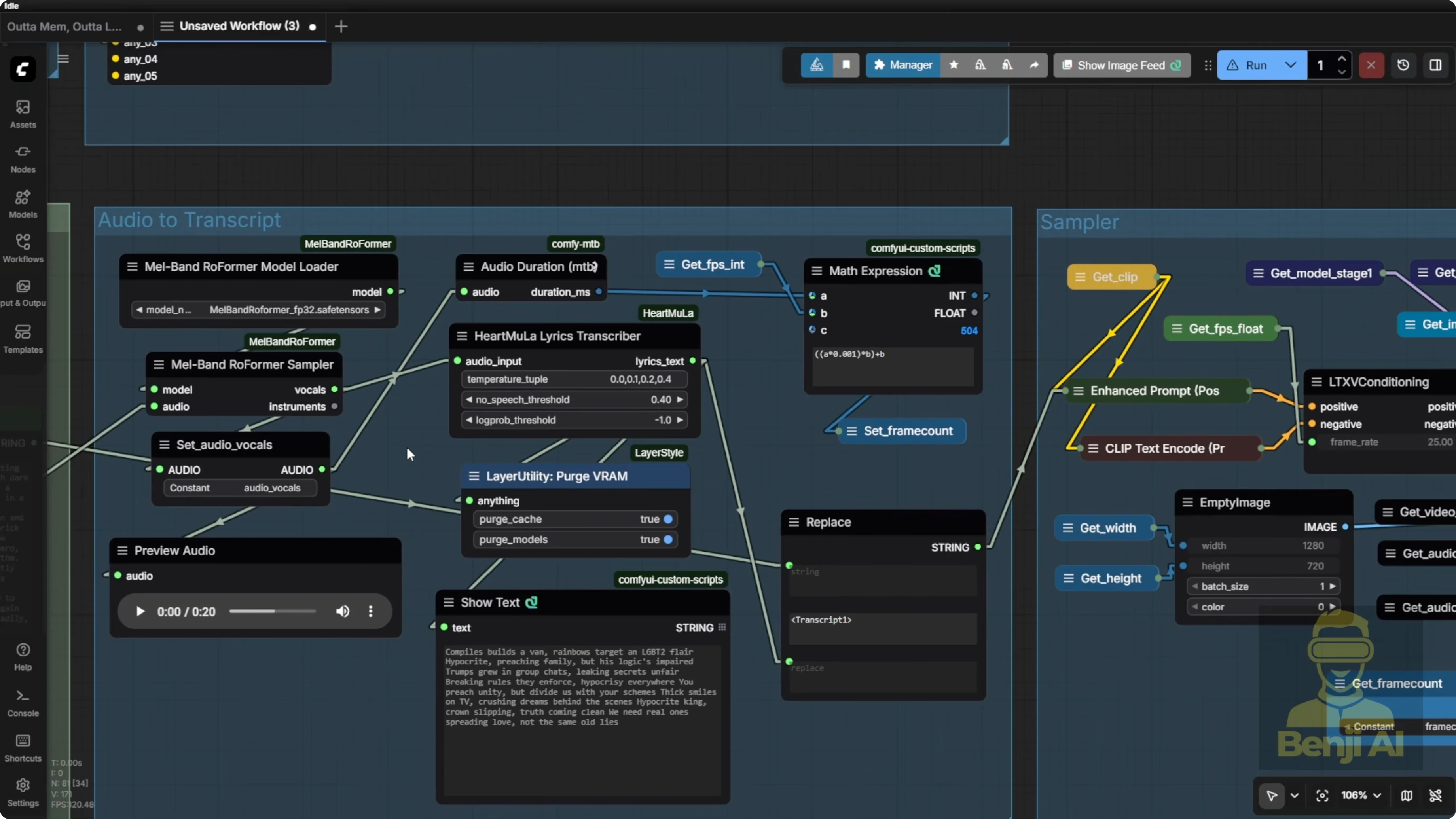
Right now I'm using the latest version of these custom nodes to play around with this audio. We’ve got all the lyrics. We’re capturing the full sound of the song. That vocal is the key thing I bring into LTX.
HeartMula & LTX2: Tips to Enhance AI Video Prompts
LTX2 image to video workflow overview
This LTX workflow is pretty simple. It’s straightforward for an image to video workflow. Up top you’ve got groups for handling high VRAM or low VRAM model loading.
Why are there two text encoders
- The one labeled Gemma 3 is the model loader from the LTX custom nodes pack, created by the LTX team.
- The very top one is the native node from the Comfy UI team. Their Comfy UI update includes this one, but it can only handle single saved tensor files and it won’t run Gemma 312B model inference.
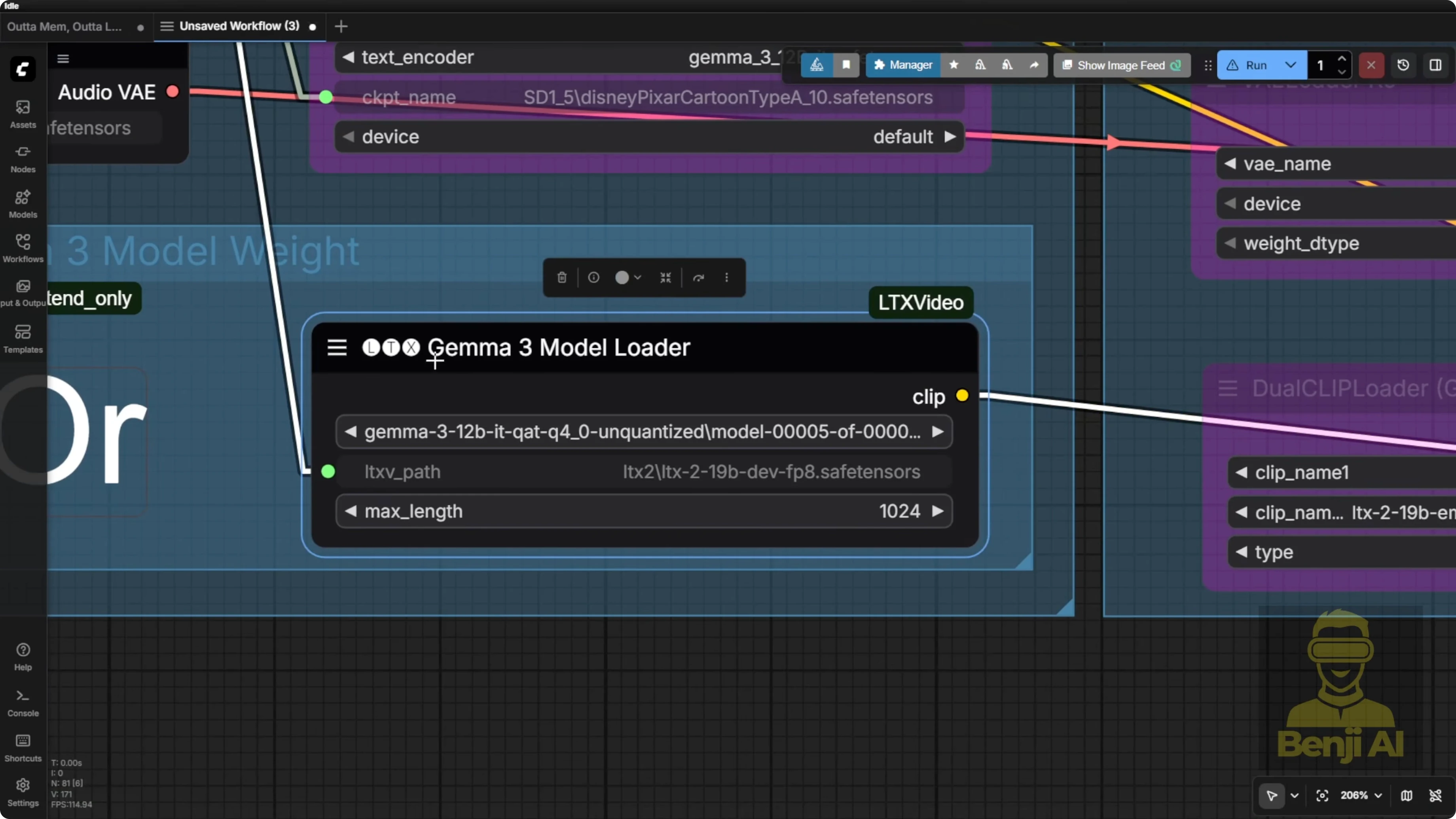
Either one works, but I prefer the Gemma 3 model from the LTX team because their custom nodes come with a prompt enhancer. I like that feature, so I keep using it.
Inputs - image and audio
On the left side, you’ve got your dimensions, steps, numbers, etc. In the input group, it handles both the image and the audio files.
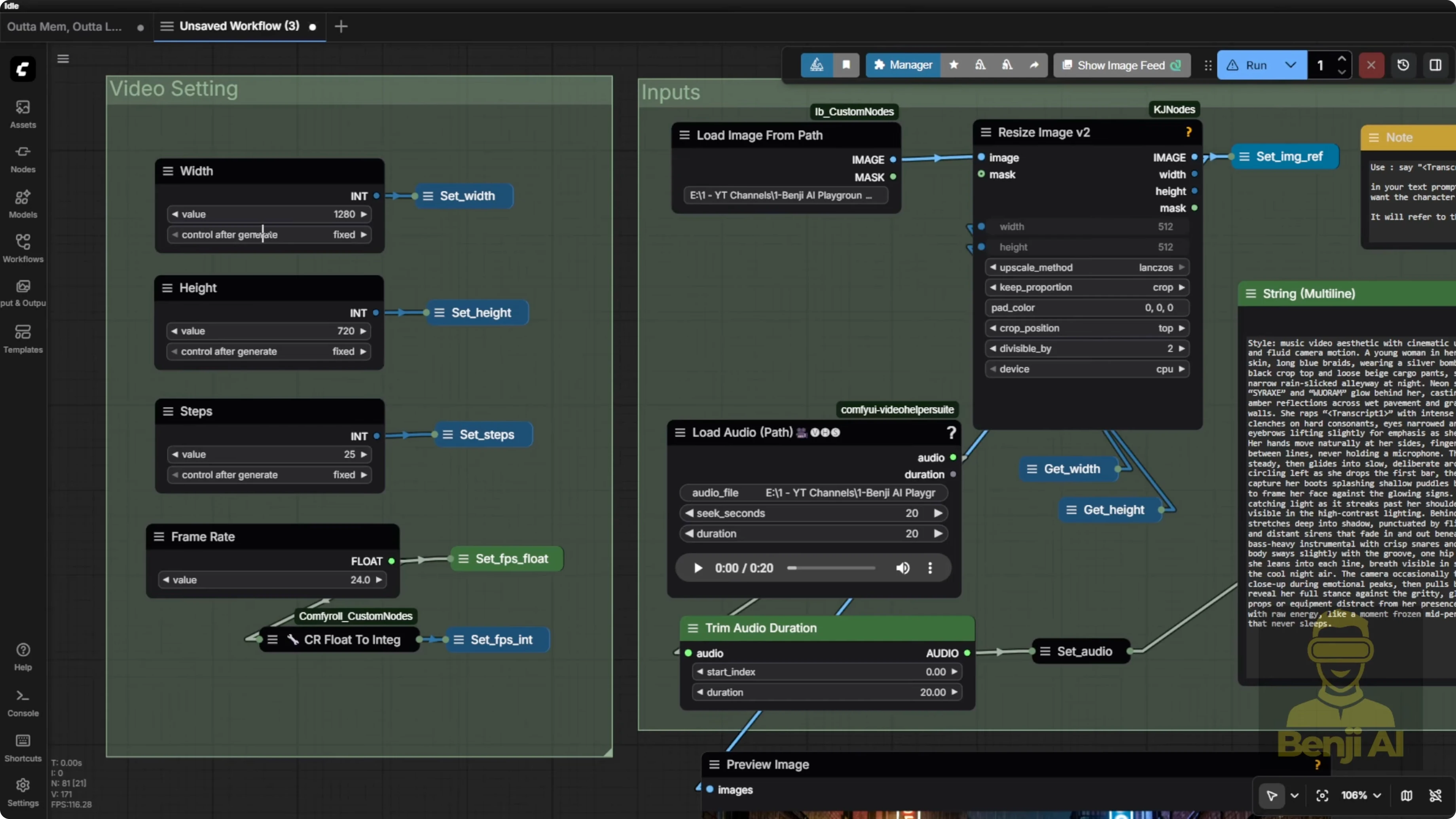
- Image: bring in your image however you like. If you want to use a load image node, go ahead. Most of the time, I prefer using the file path for images since I save a ton of them. I stash them in another folder, then load them back in here.
- Audio: I usually generate multiple audio clips and pick the best one first using the HeartMula music generator, then bring it back into the load audio node.
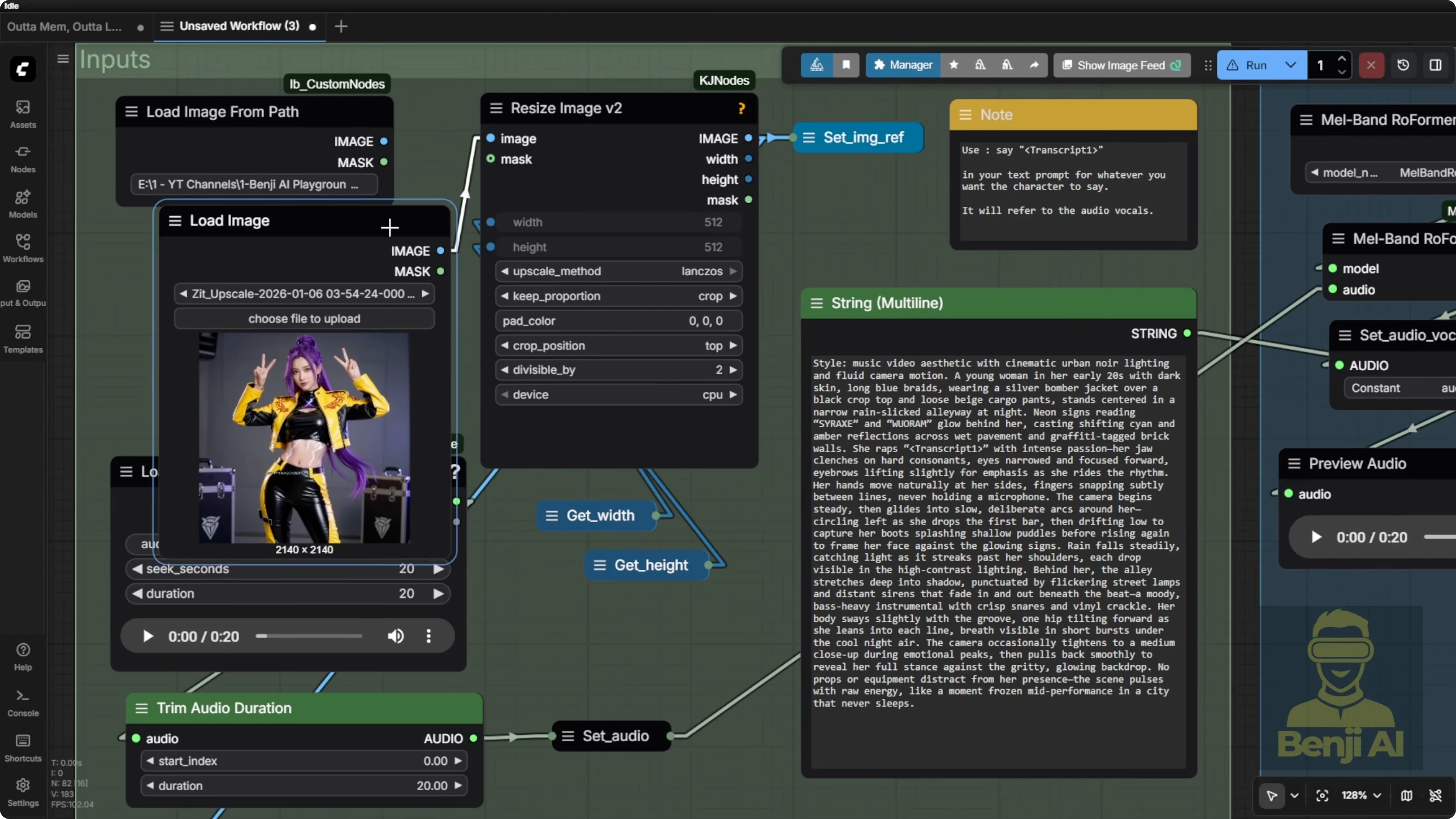
I could connect the music generator directly into this workflow, but you often need to fine-tune your lyrics a few times and try a few generations with different seed numbers or different setting combinations to get something really good out of this AI model. Sometimes it’s hit or miss. Maybe you don’t like the lyrics or you’re not vibing with the vocal voice. Switch up the seed numbers and try again to get a better result.
The prompt trick I use
The prompt itself is actually very simple. I take that basic prompt and enhance it using a language model based on the image.
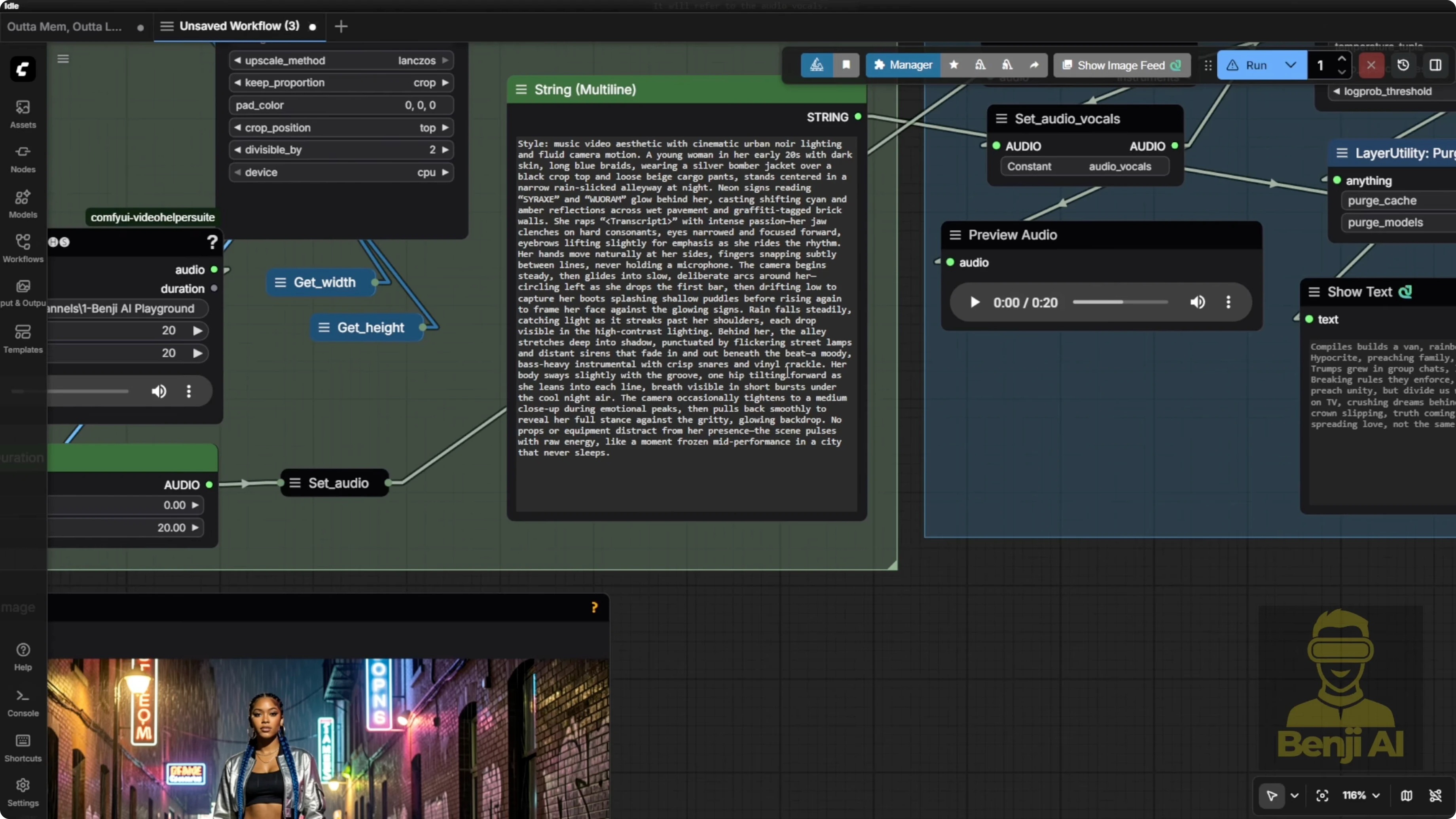
- If you’ve got a high VRAM setup, try the LTX custom nodes and use the LTX enhancer, the prompt enhancer built right in. This gives you text prompts fine-tuned the way LTX2 models like to receive them.
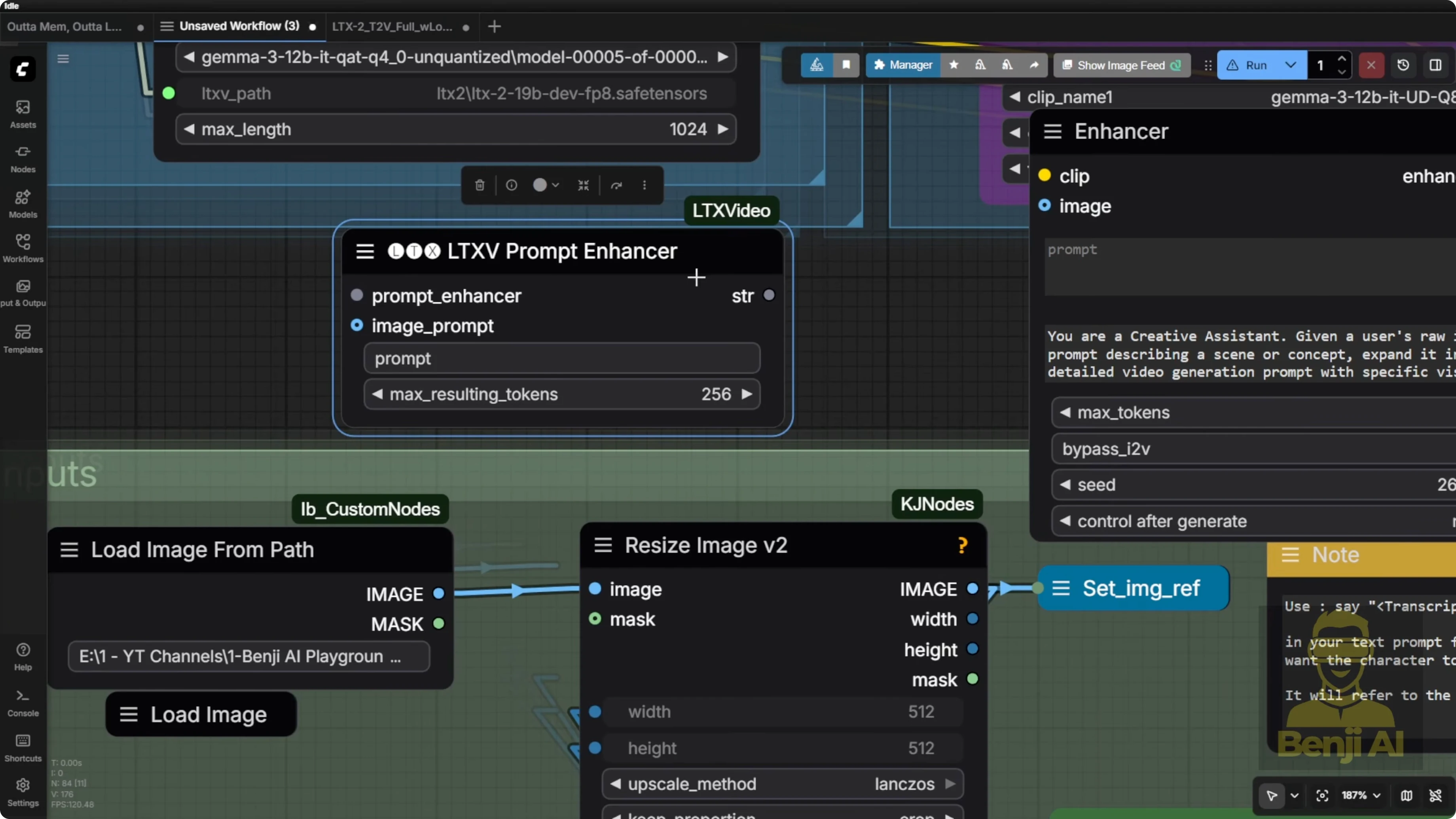
- This enhancer only works with the LTX custom nodes Gemma 3 model loader, which loads the full model with the language model. It also has vision capabilities, so you plug your image input into that as well.
- On average or low VRAM, you might not be able to run the prompt enhancer at the same time as the full workflow in a single runtime. In that case, use another language model or a vision language model like I do with three max. I feed it a predefined instruction prompt that gives clear examples of what the output text prompts should look like along with a set of rules.
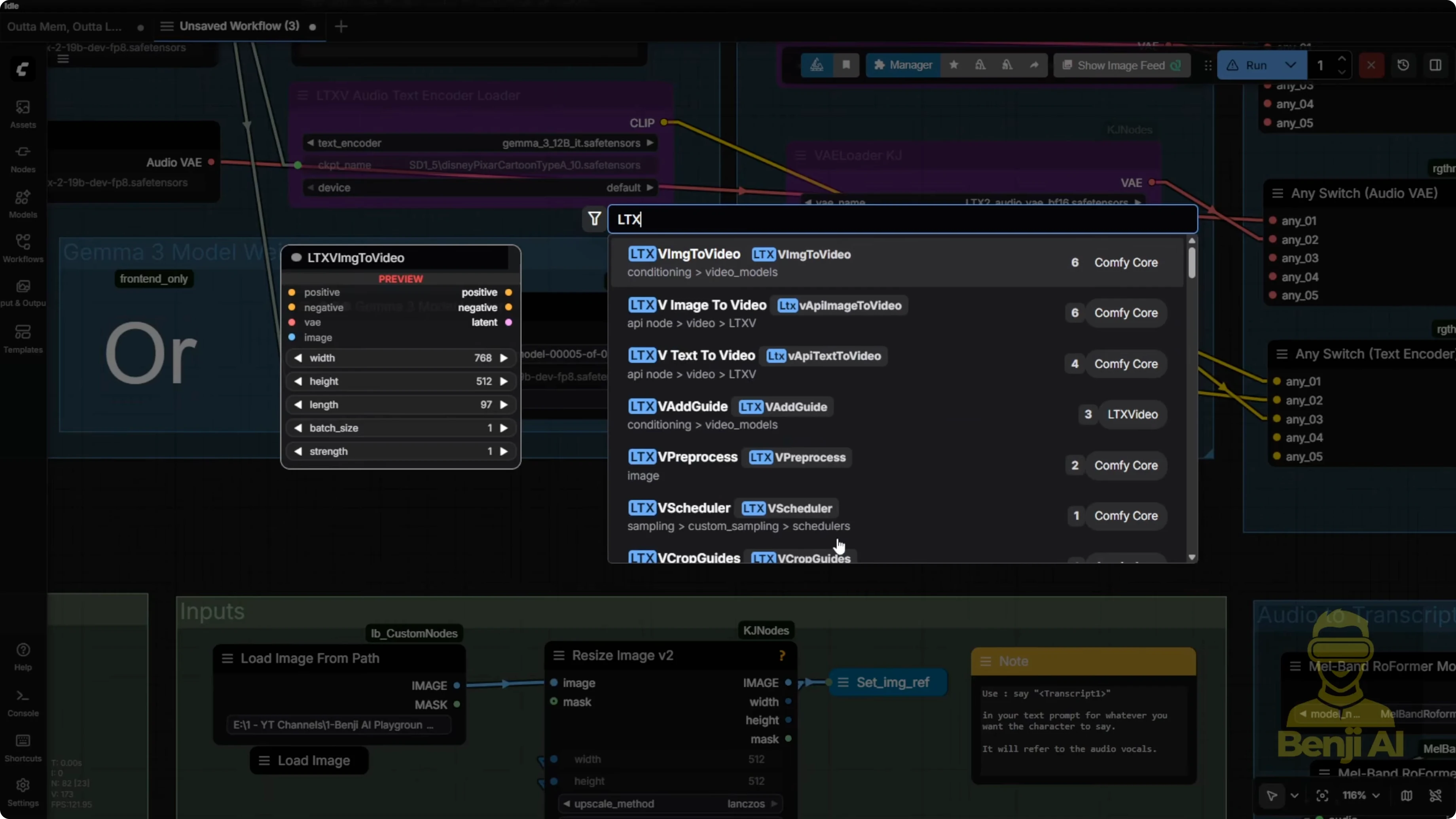
Using the LTX prompt enhancer instruction with other LMs
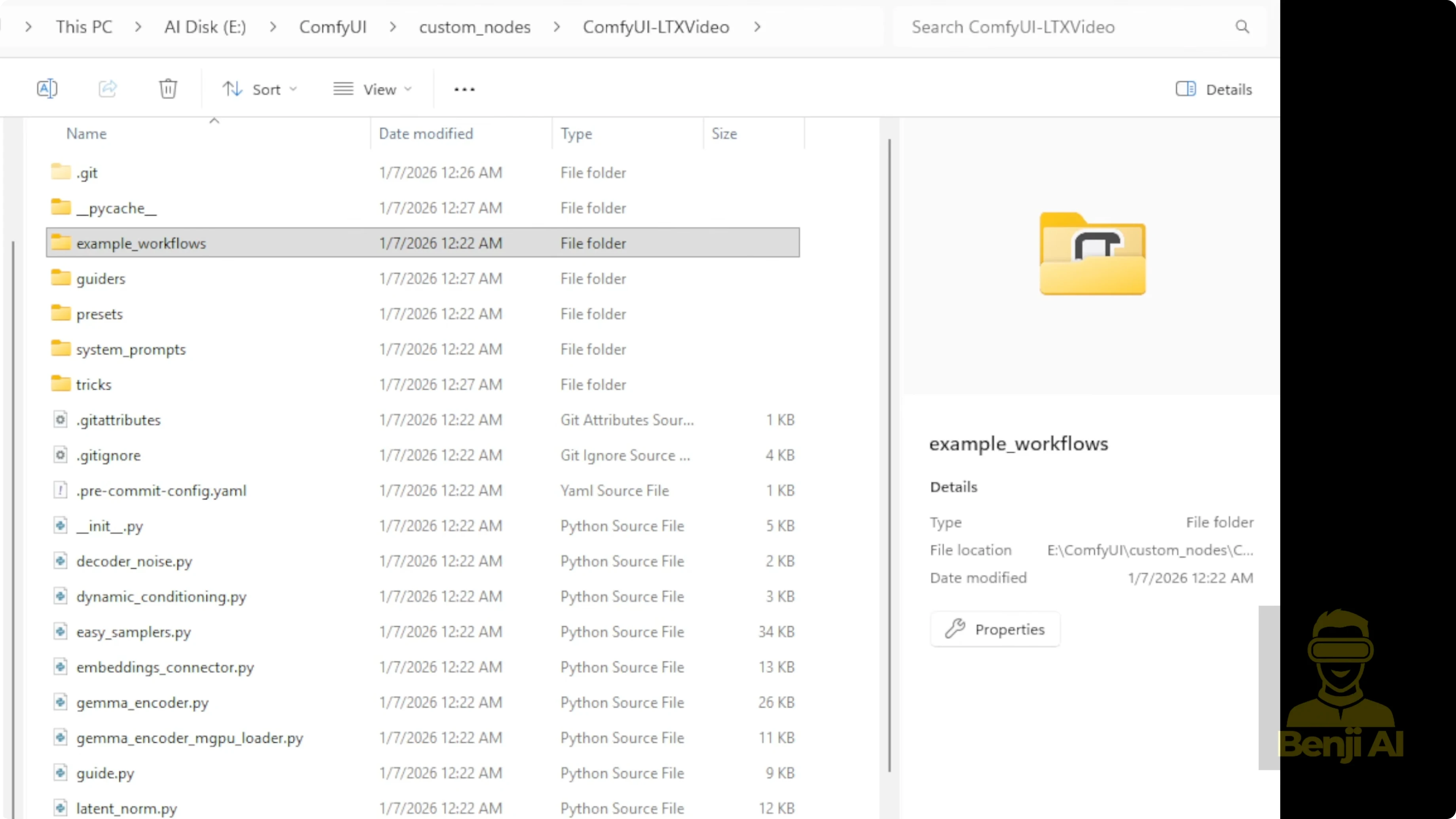
These pre-text prompts are available in the prompt enhancer template. If you’ve downloaded the Comfy UI LTX video connect custom nodes created by the LTX team, they include example workflows. Click into one of those, say the text to video workflow, drag it into your Comfy UI interface, and you’ll see the enhancer.
There are two different versions of the LTX prompt enhancer. I suggest using the new updated version because it’s specifically designed for the LTX2 model and by default it already has a predefined text prompt instruction built in. I copy that instruction text and use it with other language model tools like Quen AI and paste it into the instruction field. That way, whatever image or idea I input next, the AI gives me an enhanced text prompt in response, which I can drop straight into LTX2 or tweak however I like.
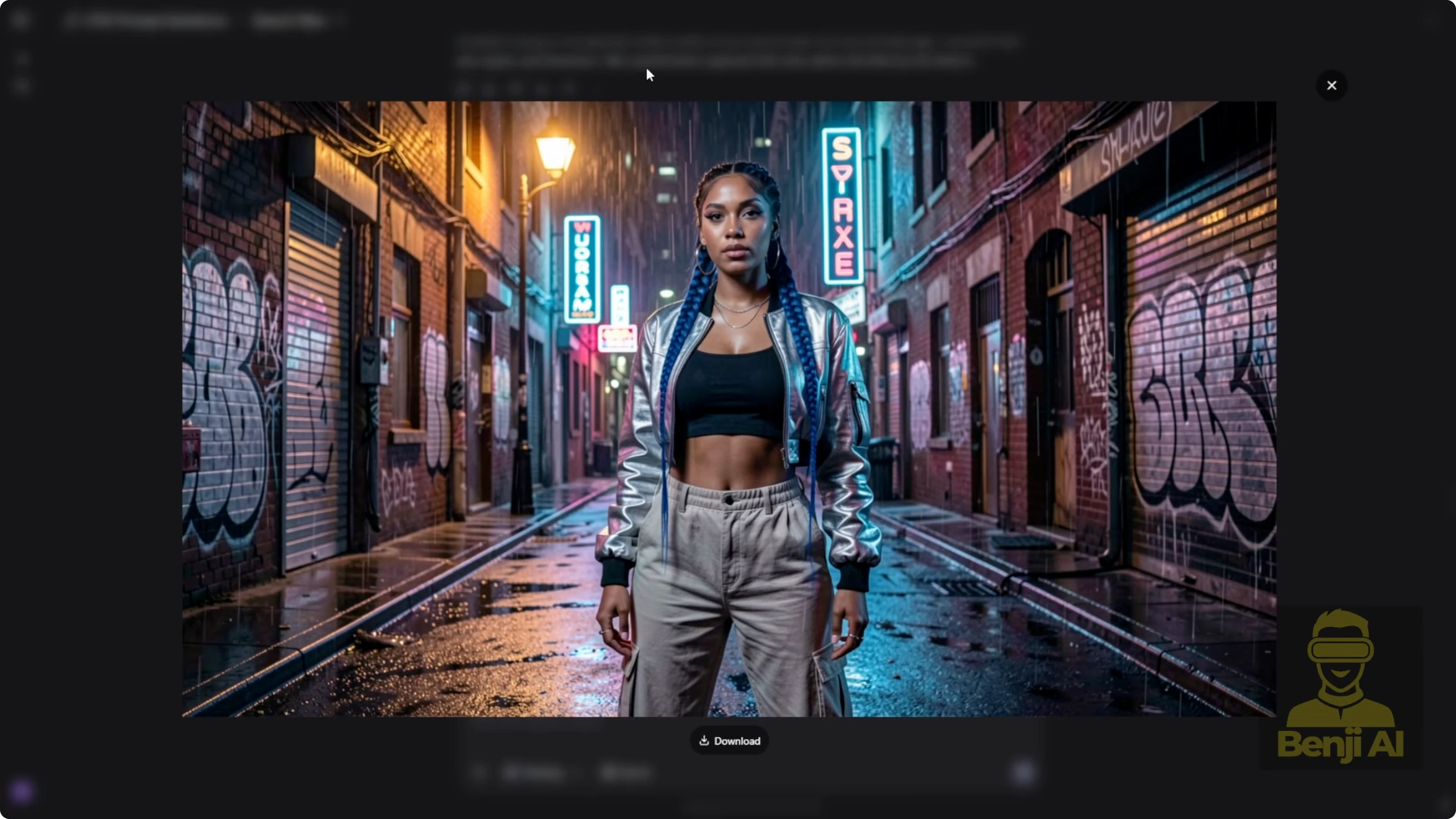
Example: I upload an image, give it a super simple 50 word or so prompt, maybe just one or two sentences describing what I want, and it responds with a super detailed optimized text prompt tailored for the LTX2 model. Then I copy that response from Quen 3 and paste it into the input field.
Always include the transcript in your text prompt
Since we’ve got audio, with LTX2 it’s best to include the transcript or the spoken words from the audio directly in your text prompts. I always add a transcript tag. That tag gets used later for text strength replacement in the next steps.
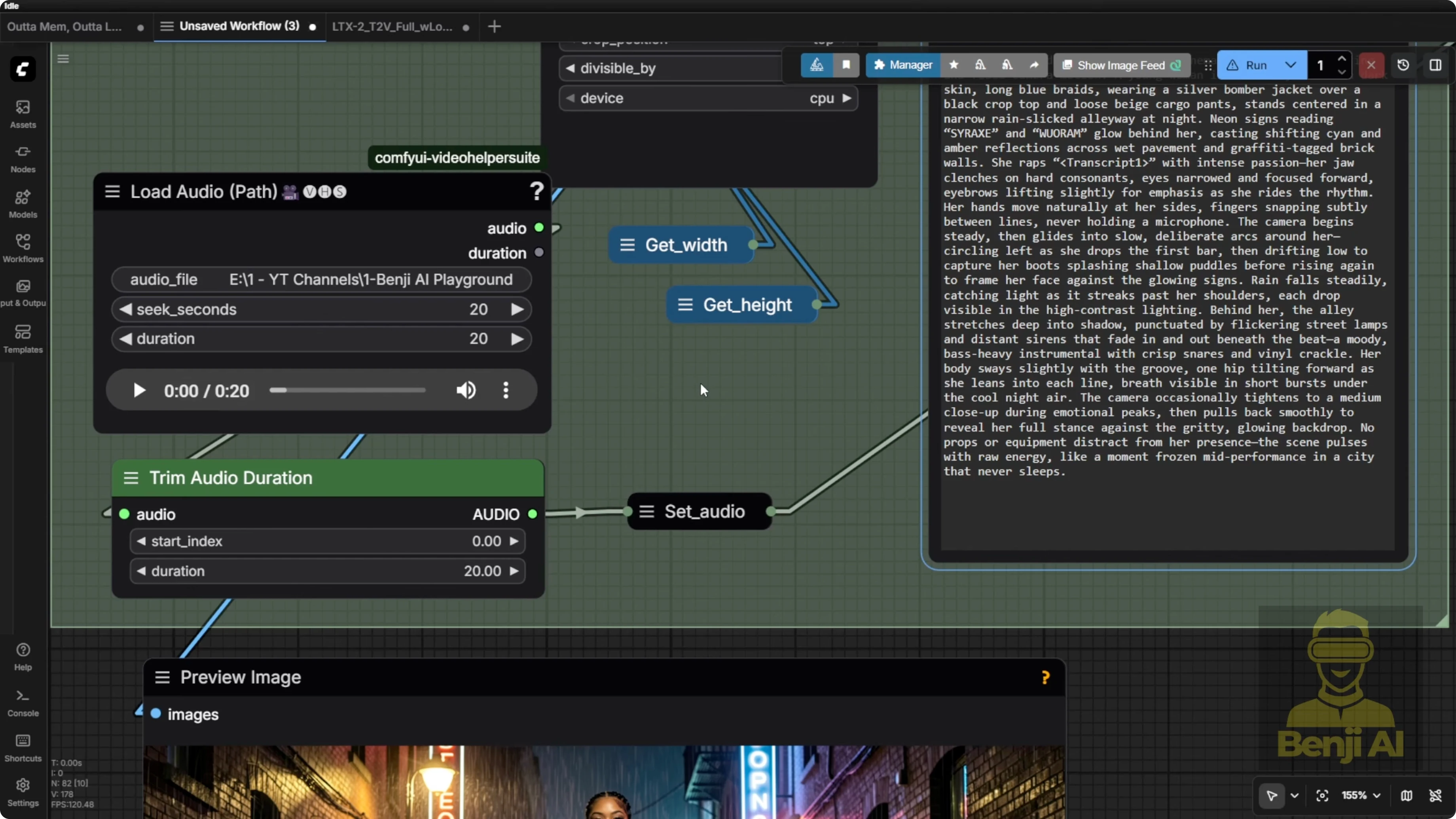
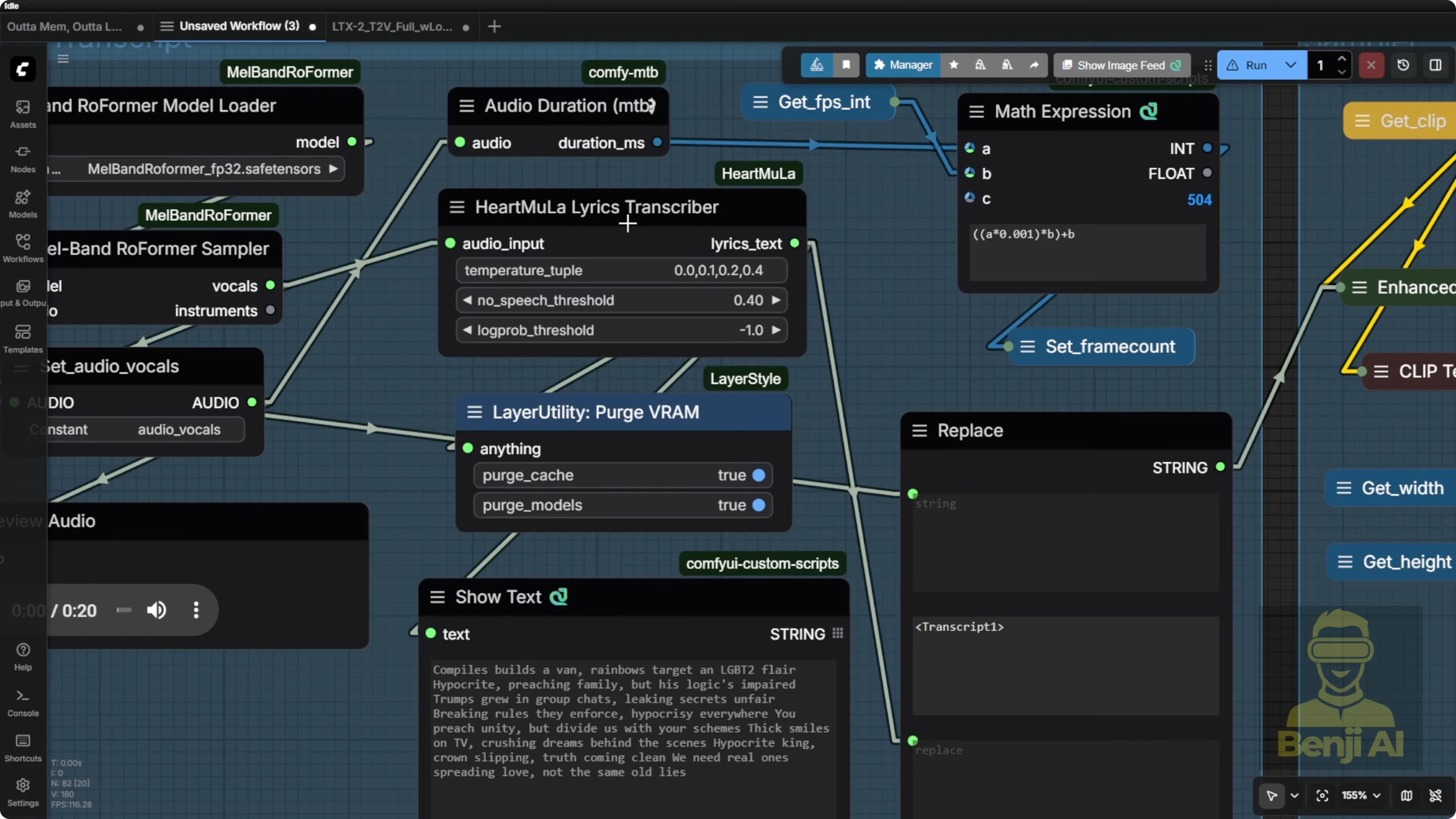
I’m using the HeartMool Lyrics Transcriptor to replace the one I used before. If you’re familiar with Vox CPMTTS, that works too. But the Heart Moola Lyrics transcriptor loads way faster. It just pops up the lyrics or the audio to text result right away.
Frames, IC Laura detailer, and motion intent
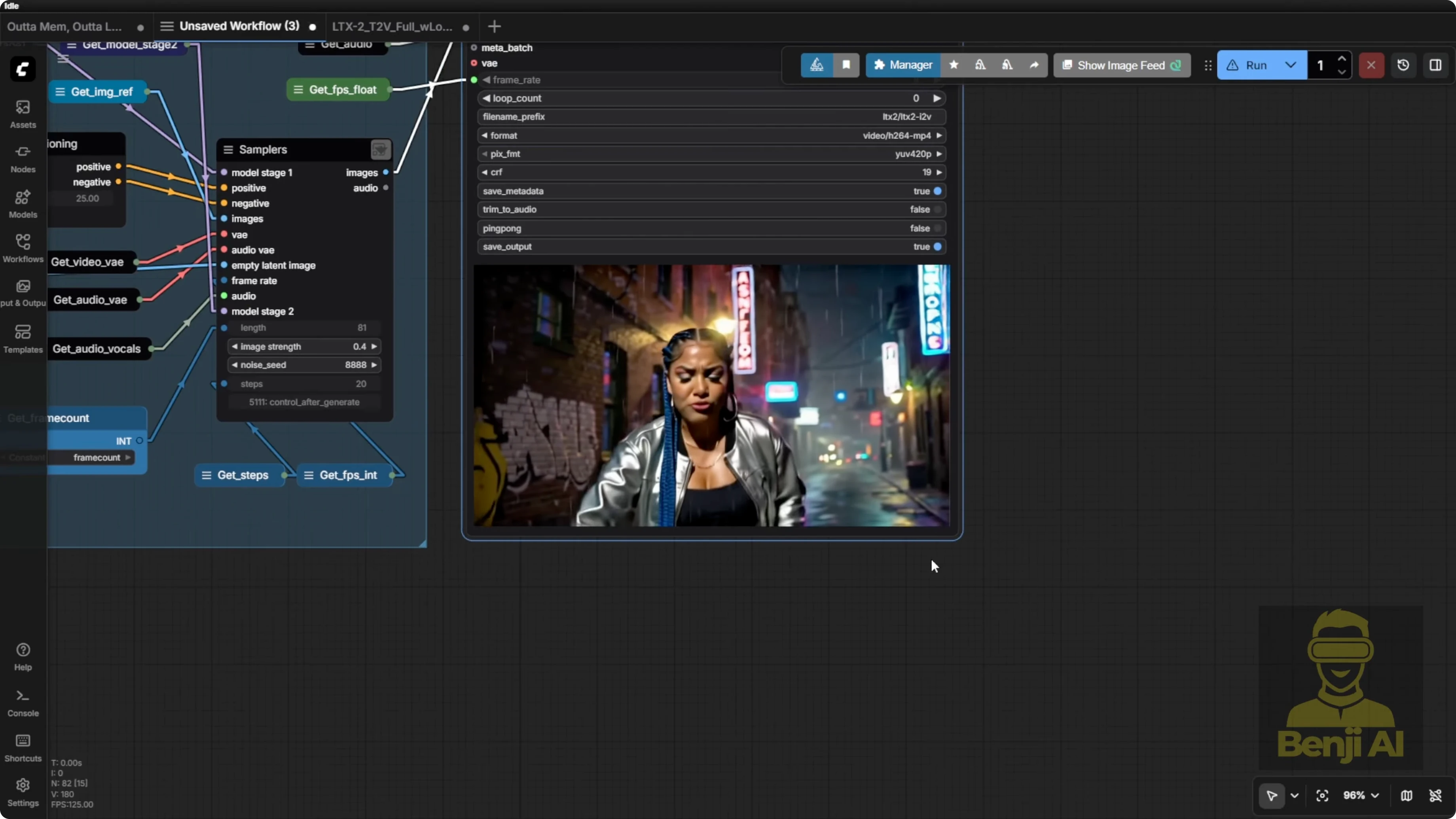
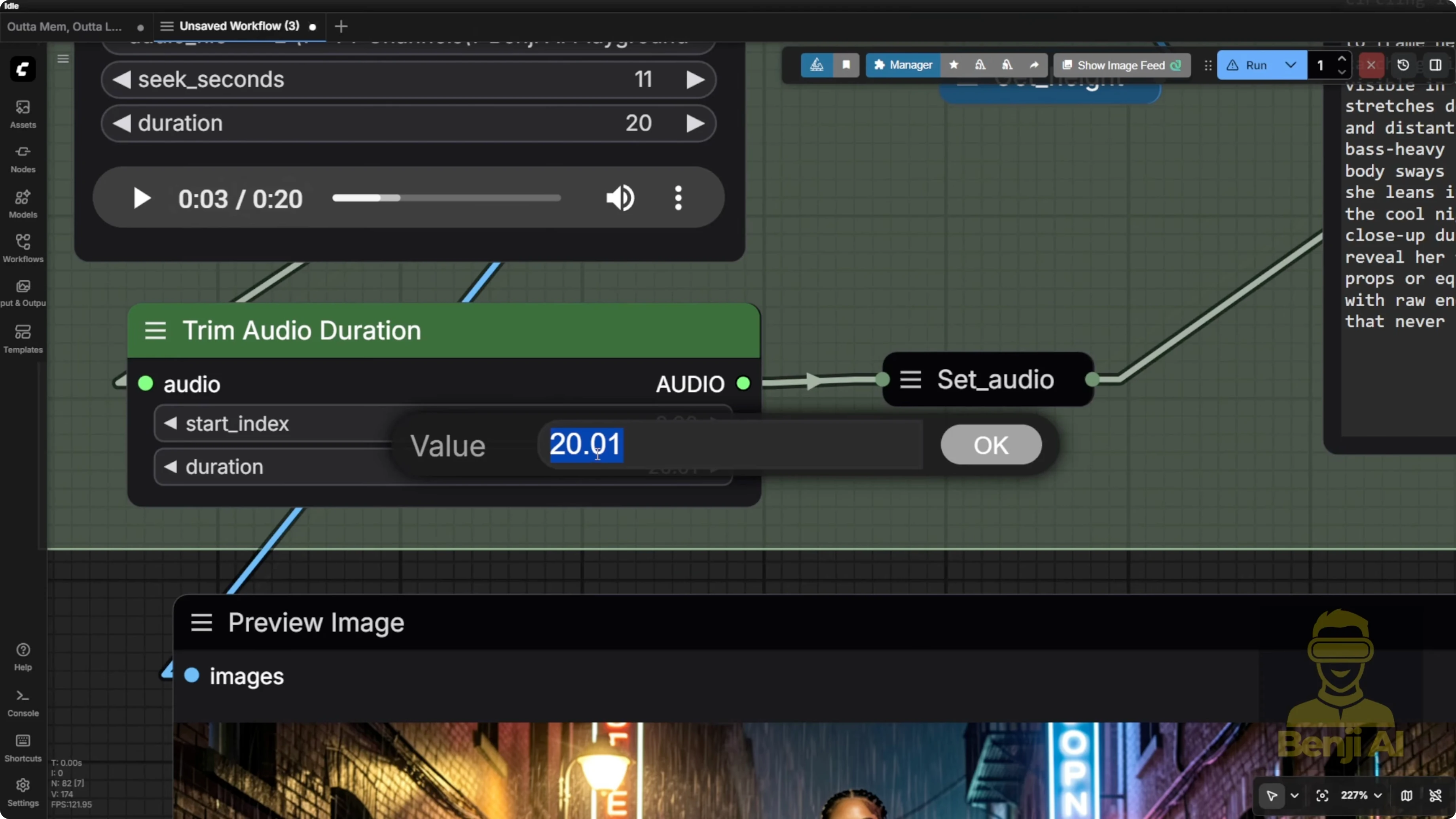
In this example, since the audio is 20 seconds long, the system bases the output on that length and calculates the number of frames accordingly. That’s how we end up with a video output like this.
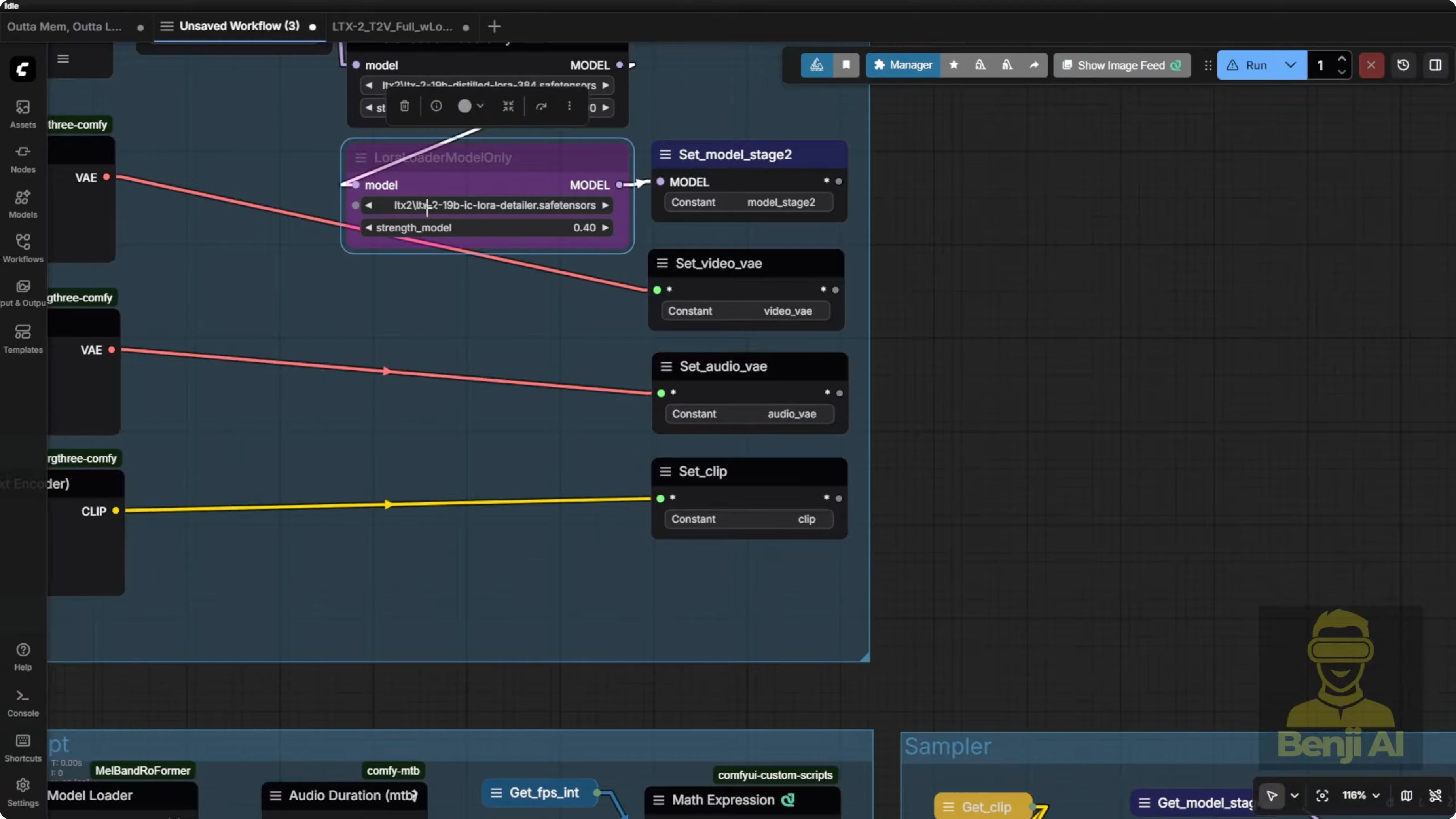
I’ve tried using the IC Laura detailer with LTX2 connections for the second modeling stage. Sometimes it looks good and sometimes it’s over contrasty. It really depends on the graphics. Turn it on and off and test it. Some images perform really well with it, others don’t.
For multiple angles and camera rotation, it’s based on the input prompt. I wanted music video style camera motions, so I focused on the character through those camera motions. That’s how the language model generates more descriptive text prompts that enable these kinds of movements. If I’m not using the prompt enhancer, it can still do this, but the graphics can morph a bit or have errors and the visuals don’t always play back smoothly. It’s better to go through the prompt enhancer. That’s exactly what the LTX2 guidelines recommend.
Quick run - step by step
- Pick or prepare your audio
- I used a demo rap verse. The lyrics were just for demo. Don’t take them personally.
- Choose about 20 seconds. That’s where the AI models tend to perform best. Even 10 seconds is fine for most machines.
- Save the audio in a separate folder. I keep it out of the Comfy UI output folder for organization.
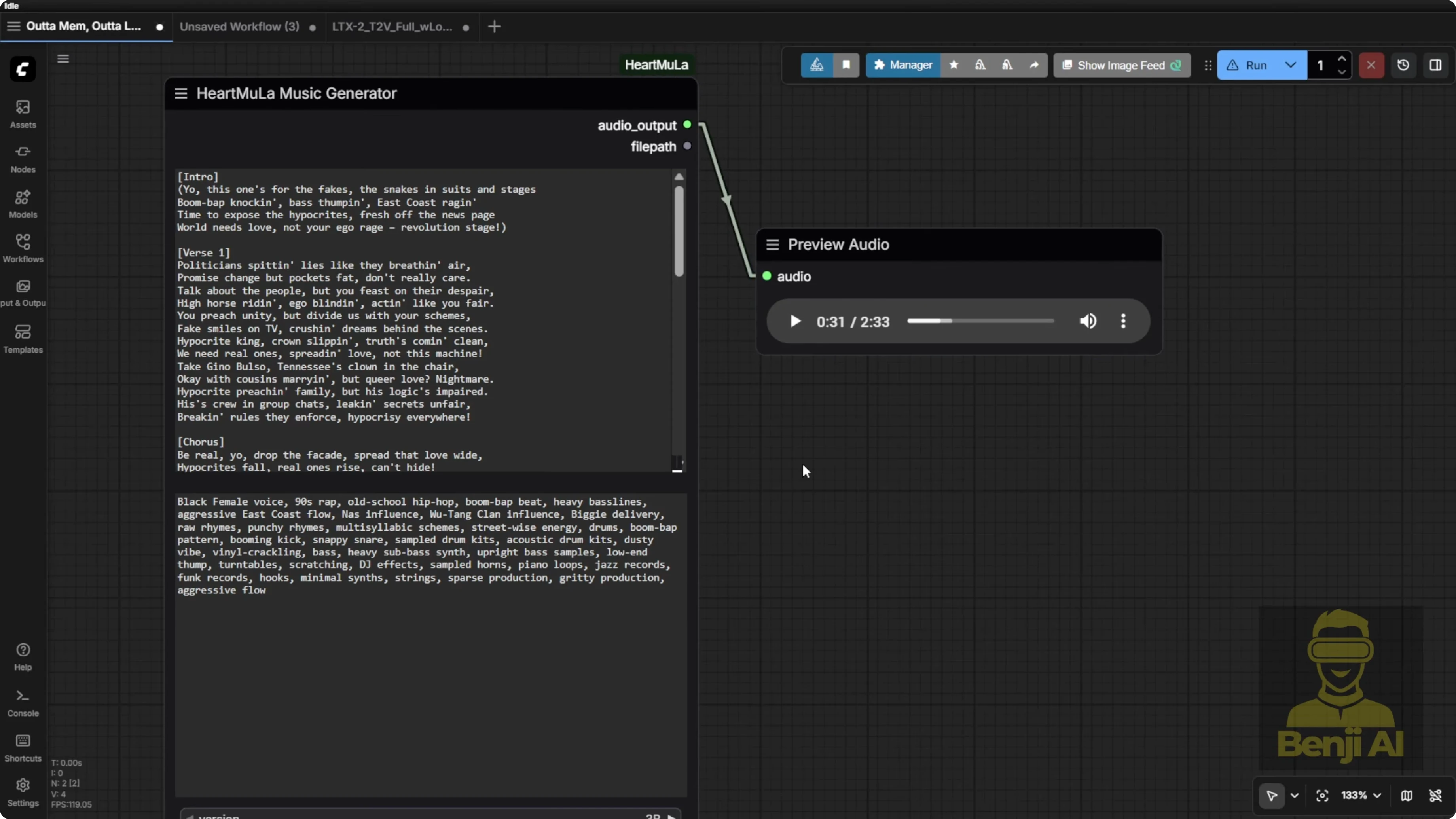
- Load inputs
- Load the audio file into the load audio node.
- Keep your chosen image. You can use a load image node or file path.
- Snip out a few seconds and find the best spots where a new line starts in the lyrics. That makes trimming each section easier.
- For quick tests, run 5 seconds to preview. If you’re confident, go with 20 seconds.
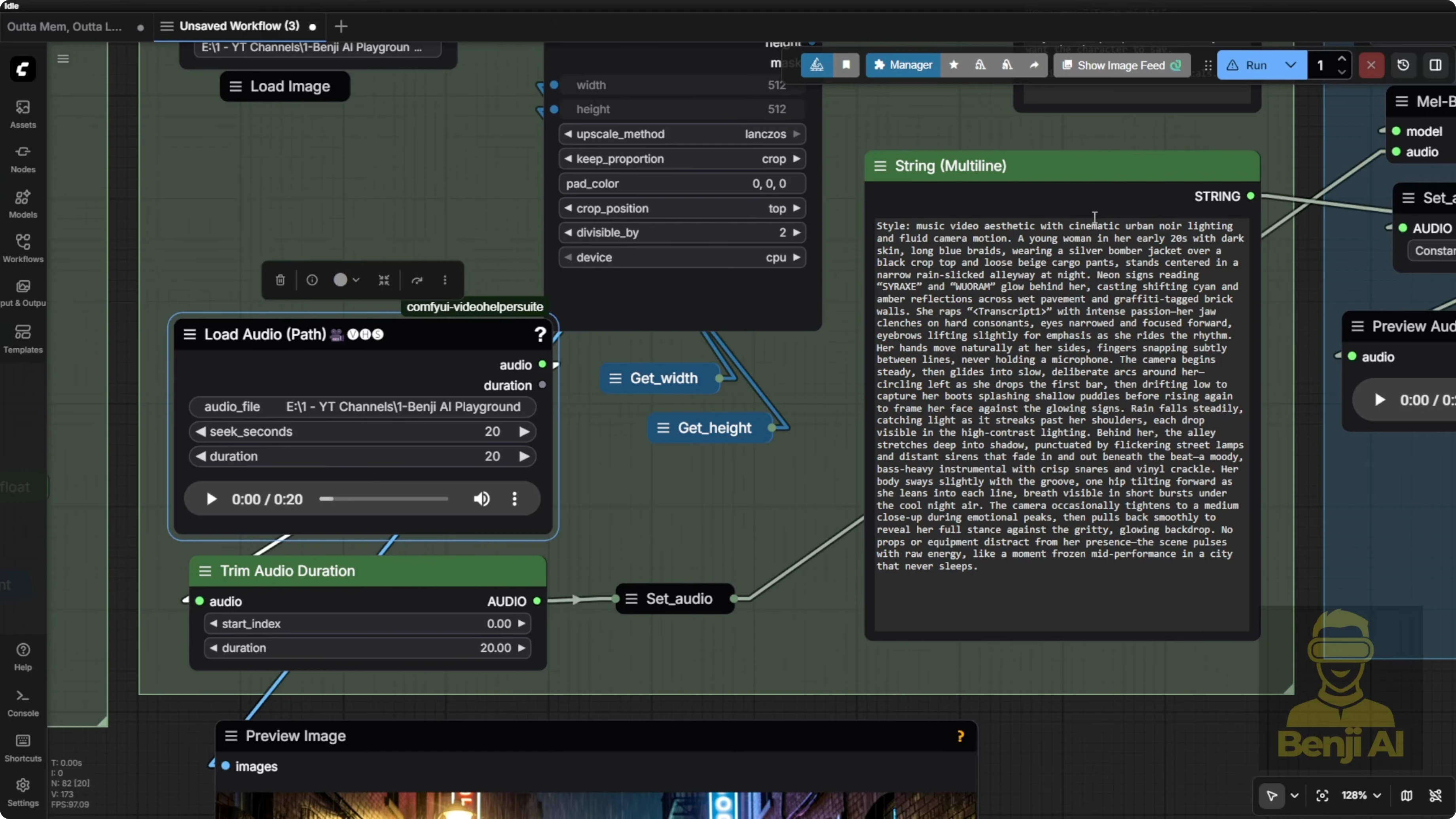
- Prepare the enhanced prompt
- Use the enhanced text prompts from the LTX video custom nodes or another language model.
- Add the prompt enhancer system prompt node to the workflow so the instruction text is handy.
- If you want to use other language models, paste that instruction into their system field and generate the enhanced prompt from your image and short description.
- Always include a transcript tag with the spoken words.
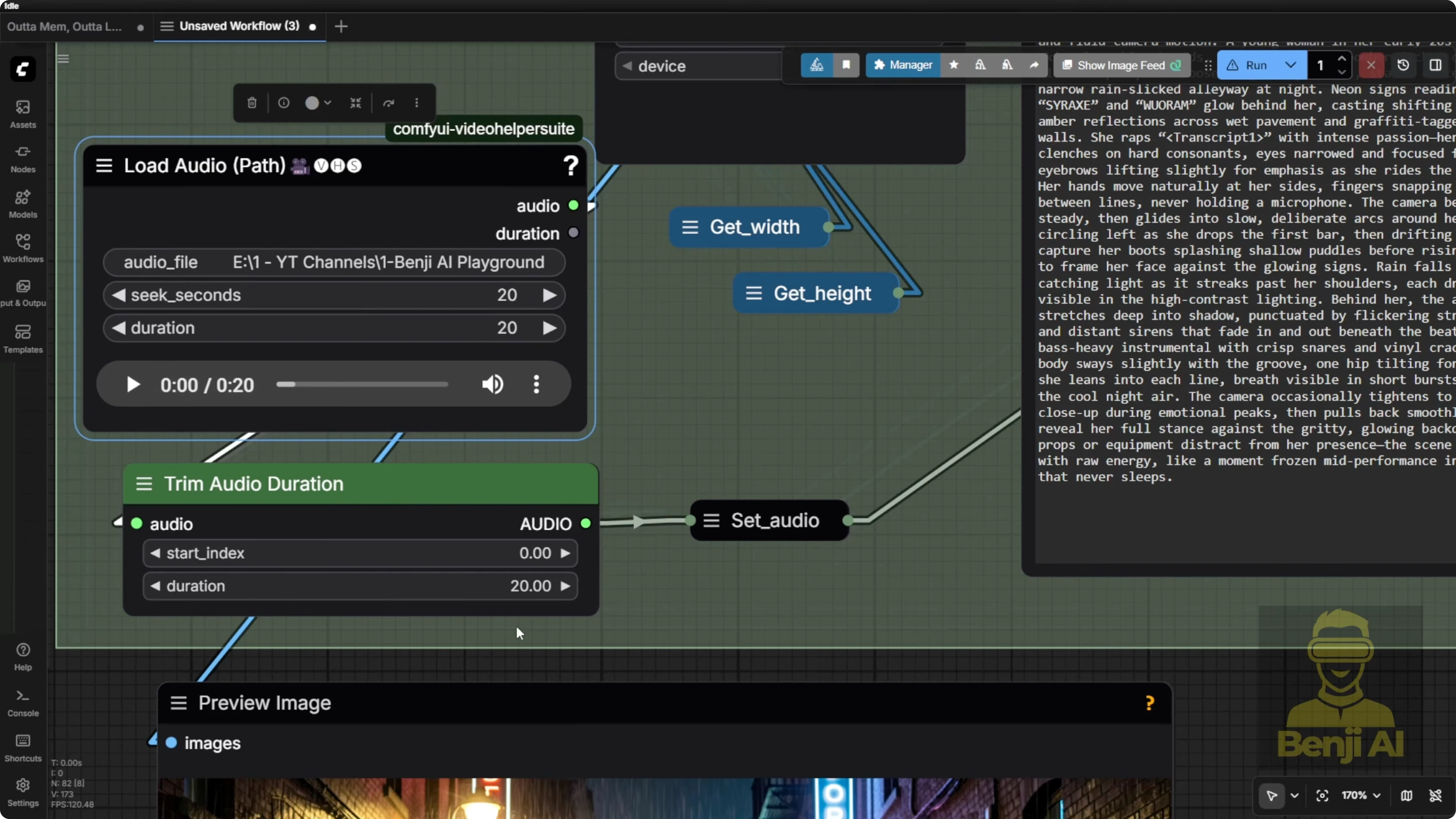
- Transcribe first, then sample
- Process the audio transcript first. It pops up fast.
- Enable the sampling group and run. It loads the models, gets diffusion going, and generates the video.
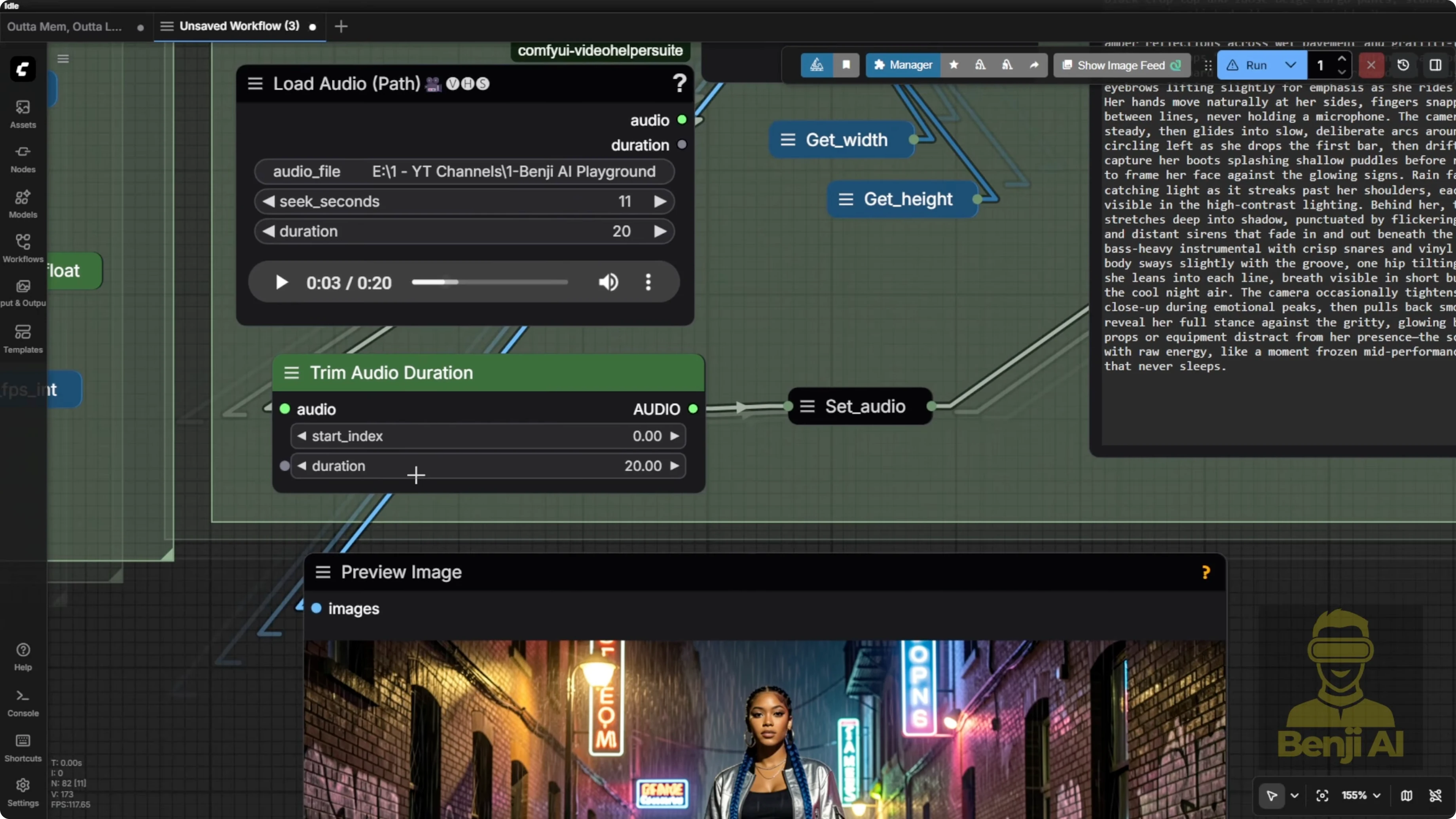
What to expect
- LTX2 can hold longer sequences like 20 seconds if you have enough memory. That’s a big plus.
- Enhanced prompts give better camera angles, smoother character motion, and overall cleaner results.
- Even without the enhancer or an upscaler, you can get decent lip syncing and natural character movements across different angles.
- Add your own upscaling or fine-tuning to push quality further.
Final Thoughts
Using a HeartMula transcript with LTX2 image to video gives you control over motion and timing, especially when you include the actual lyrics or spoken words in the prompt. The LTX prompt enhancer is the key add-on that shapes prompts in a format the model responds to best. On high VRAM, run it inside the LTX custom nodes. On lower VRAM, copy the instruction and run it in another language model, then paste the result back. Keep your audio and image inputs clean, test 5 to 20 second cuts, and toggle extras like IC Laura detailer based on your graphics. With those little tricks, you’ll get more consistent multi-angle motion, smoother character movement, and cleaner outputs from LTX2.
Subscribe to our newsletter
Get the latest updates and articles directly in your inbox.

Related Posts

8 Best Claude Code Plugins in 2026 (You Need to Know)
8 Best Claude Code Plugins in 2026 (You Need to Know)

7 Best Claude Code Skills (You Need to Know)
7 Best Claude Code Skills (You Need to Know)

Claude Code Desktop IDE Features (You Need to Know)
Claude Code Desktop IDE Features (You Need to Know)