
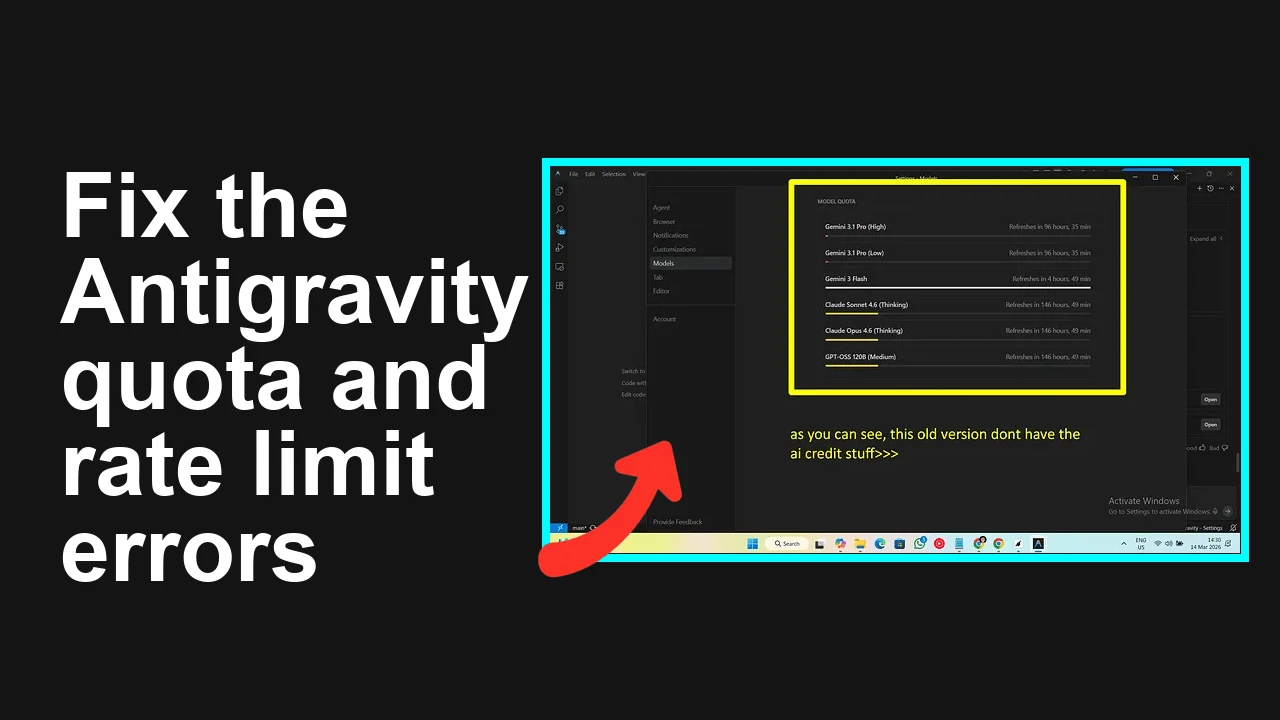
How to fix Google Antigravity quota issues?
You updated to Google Antigravity v1.20.5 and now you’re getting “quota refresh limit” errors even with minimal usage. Models stop responding and you may have been told to wait ~7 days for reset.
How to fix Google Antigravity quota issues?
Many users report that after upgrading to Anti‑Gravity 1.20.5, a new Settings → Models option called AI Credits causes credits to burn rapidly and then triggers quota errors. Symptoms include the “quota refresh limit” message and models like Gemini or Claude not responding. Rolling back to version 1.19.6 restores normal behavior for most users.
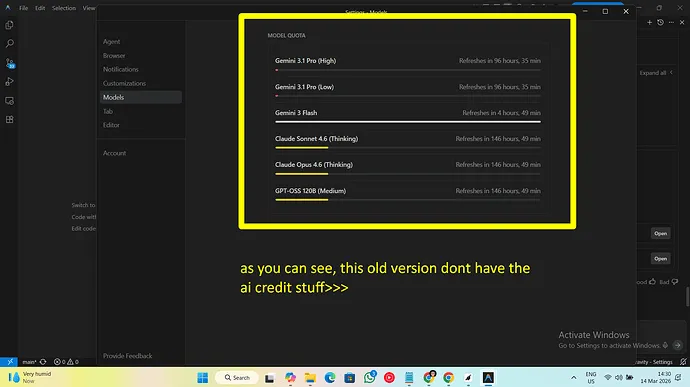
For background on common causes and patterns of this issue, see this quick breakdown.
Solution Overview
| Aspect | Detail |
|---|---|
| Root Cause | AI Credits toggle in v1.20.5 rapidly consumes credits, leading to quota lockouts |
| Primary Fix | Disable AI Credits (Settings → Models) and, if still affected, roll back to v1.19.6 |
| Complexity | Medium |
| Estimated Time | 10–20 minutes |
How to fix Google Antigravity quota issues?
Step-by-Step Solution
1) Turn off AI Credits in Settings → Models
- Open Antigravity.
- Navigate to Settings → Models.
- Locate the AI Credits toggle and switch it Off to return to standard model quota.
- Fully quit and relaunch the app, then test a simple prompt.
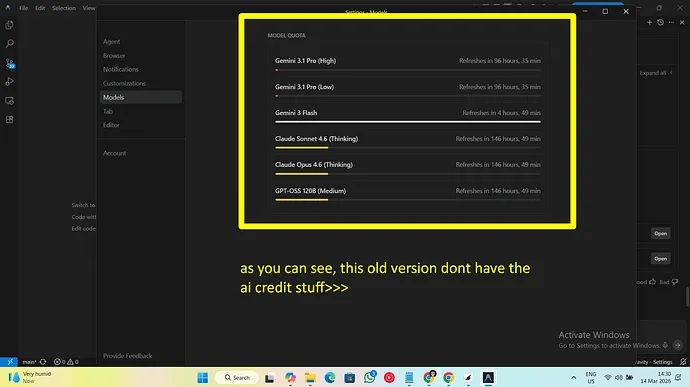
Tip: After disabling AI Credits, give it a minute and retry. Some users reported the error clears quickly; others needed to restart the app.
2) Sign out/in and clear any pending queued jobs
- Sign out of your Antigravity account.
- Close the app completely.
- Reopen, sign back in, and retry a single request.
- If you had multiple queued or auto-retry tasks, pause them first to avoid spiking usage again.
If you need a complete checklist with screenshots, see our short step-by-step guide to fix Antigravity quota issues.
3) Roll back to Antigravity v1.19.6 (temporary fix) If the toggle doesn’t help or your quota is already locked:
- Uninstall the current Antigravity app.
- Download and install v1.19.6 from the official release archive (the build from around Feb 28, which does not include the AI Credits option).
- On first launch, when prompted to update, decline for now.
- Confirm model requests work again.
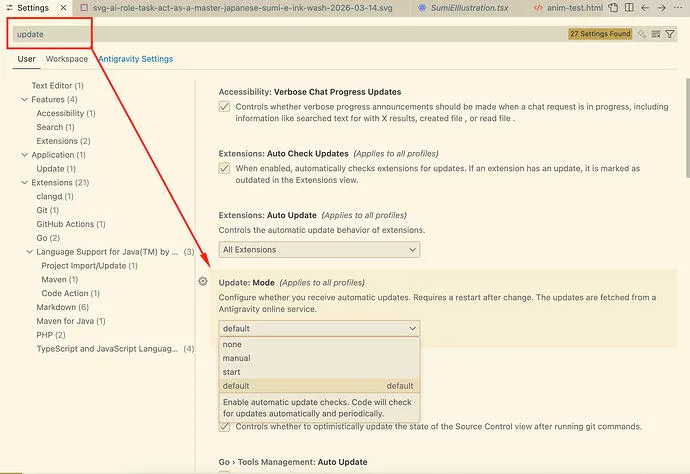
Note: Some users report the app prompts to re-update. If you must stay on 1.19.6 temporarily, avoid automatic updates until an official fix is announced.
4) Reduce load and avoid spikes while the quota recovers
- Test with a single model and small prompts.
- Avoid parallel/concurrent requests.
- If you previously enabled any auto-run or background workflows, disable them for now.
5) Contact support if your quota remains locked If you still see the “quota refresh limit” message after the steps above, open a support ticket with your account ID and timestamps of failures. Ask for:
- A quota reset, and
- Confirmation that your account is not forced onto AI Credits.
Reference: It may take up to ~7 days for some quota windows to refresh under load. Check official quota concepts here: Gemini API quotas.
Alternative Fixes & Workarounds
Wait for the next quota window (up to 7 days)
- Several users were told to wait until the next refresh window. Not ideal, but it works if you can pause usage.
Create a clean workspace/project
- If your org allows, test from a fresh workspace without AI Credits enabled. This can isolate the issue to configuration vs. account limits.
Use a different model or provider temporarily
- If one model family is blocked, try a different one while your primary quota resets.
Throttle or serialize requests
- If you’re batch processing, switch to 1-at-a-time requests with backoff to avoid re-triggering limits.
Troubleshooting Tips
- Verify the AI Credits toggle is Off after restart; some settings can revert post-crash.
- Check for background automation that replays failed jobs, causing hidden spikes.
- Try a different device or network to rule out cached/session issues.
- If you encounter sign-in loops or expired sessions while switching versions, see this quick help: fix common Antigravity login problems.
- Keep a minimal reproduction: one prompt, one model, no files. Collect timestamps and any error text for support.
- Review general quota guidance to set expectations: Gemini API quotas.
Best Practices
- Keep a rollback plan. Before upgrading, snapshot settings and keep an installer for the last stable version.
- Stage updates. Roll out new builds to a test environment first and observe quota usage for 24–48 hours.
- Avoid sudden concurrency spikes. Introduce rate limiting and exponential backoff in your automation.
- Monitor usage. Track daily request counts and error rates so you can react before hitting hard limits.
- Document settings. Record model, quota, and credit configurations so you can quickly revert problematic toggles.
- For more operational context and mitigation checklists, see our short read: common Antigravity quota pitfalls.
Final Thought
The fastest path is to disable AI Credits, restart, and if needed, temporarily roll back to v1.19.6. This restores normal quotas for most users while you wait for an official patch and prevents surprise lockouts.
Read More: Practical steps to resolve Antigravity quota lockouts
Subscribe to our newsletter
Get the latest updates and articles directly in your inbox.

Related Posts
How to fix Agent stuck and can't be stopped error in Antigravity?
How to fix Agent stuck and can't be stopped error in Antigravity?
How to fix Agent is not responding error in Antigravity?
How to fix Agent is not responding error in Antigravity?
How to fix Antigravity won't work with any Gemini models error?
How to fix Antigravity won't work with any Gemini models error?