
Table Of Content
- GELab-Zero with Ollama: A 4B GUI Agent Model
- How GELab-Zero Works
- Local Execution and Hardware Fit
- Primary Focus on Phones
- Local Installation of GELab-Zero with Ollama
- Model Availability
- Downloading the Model
- Preparing the Model for Ollama
- Check and Run the Model
- VRAM Usage and Quantization Options
- Quantized Variants
- Using GELab-Zero with Ollama to Control an Android Device
- Step 1 - Inference Environment with Ollama
- Step 2 - Android Device Execution Environment
- Observed Performance
- Licensing
- Step-by-Step Summary
- Environment and Download
- Build and Serve with Ollama
- Resource Considerations
- Android Integration
- Notes and Expectations
How to Run GELab‑Zero on Ollama?
Local LLM Hardware Calculator
Enter your GPU VRAM and system RAM to see which LLMs you can run in Ollama — at Q4, Q8, or full precision — with estimated tokens-per-second speed.
Table Of Content
- GELab-Zero with Ollama: A 4B GUI Agent Model
- How GELab-Zero Works
- Local Execution and Hardware Fit
- Primary Focus on Phones
- Local Installation of GELab-Zero with Ollama
- Model Availability
- Downloading the Model
- Preparing the Model for Ollama
- Check and Run the Model
- VRAM Usage and Quantization Options
- Quantized Variants
- Using GELab-Zero with Ollama to Control an Android Device
- Step 1 - Inference Environment with Ollama
- Step 2 - Android Device Execution Environment
- Observed Performance
- Licensing
- Step-by-Step Summary
- Environment and Download
- Build and Serve with Ollama
- Resource Considerations
- Android Integration
- Notes and Expectations
GELab-Zero with Ollama: A 4B GUI Agent Model
Step One has released a GUI agent called GELab-Zero. It is a 4 billion parameter vision language model trained to control Android phones using only screenshots.
This is not new in concept. There are other models for UI control, such as UI-TARS, which remains one of the better options for manipulating browser and mobile UI elements. However, the information Step One has shared for GELab-Zero looks promising.
How GELab-Zero Works
You provide a screen image and a plain text goal. The model decides the next action, such as:
- Tap here
- Type this
- Swipe up
It selects UI elements and performs actions step by step. It can scroll, swipe, type, and click based on the instructions and the visible interface.
Local Execution and Hardware Fit
GELab-Zero runs fully local on a normal phone or a computer. It does not need any app-specific code.
It is designed to be suitable for consumer-grade GPUs. That has been a challenge for some of Step One’s previous models, such as their recent audio model. GELab-Zero seems better in terms of connectivity and practicality on mainstream hardware.
Primary Focus on Phones
The model is primarily geared toward phones. You can install GELab-Zero and configure it with your device. I will first focus on the model itself and install it locally, then outline the steps to connect it to a phone.
Local Installation of GELab-Zero with Ollama
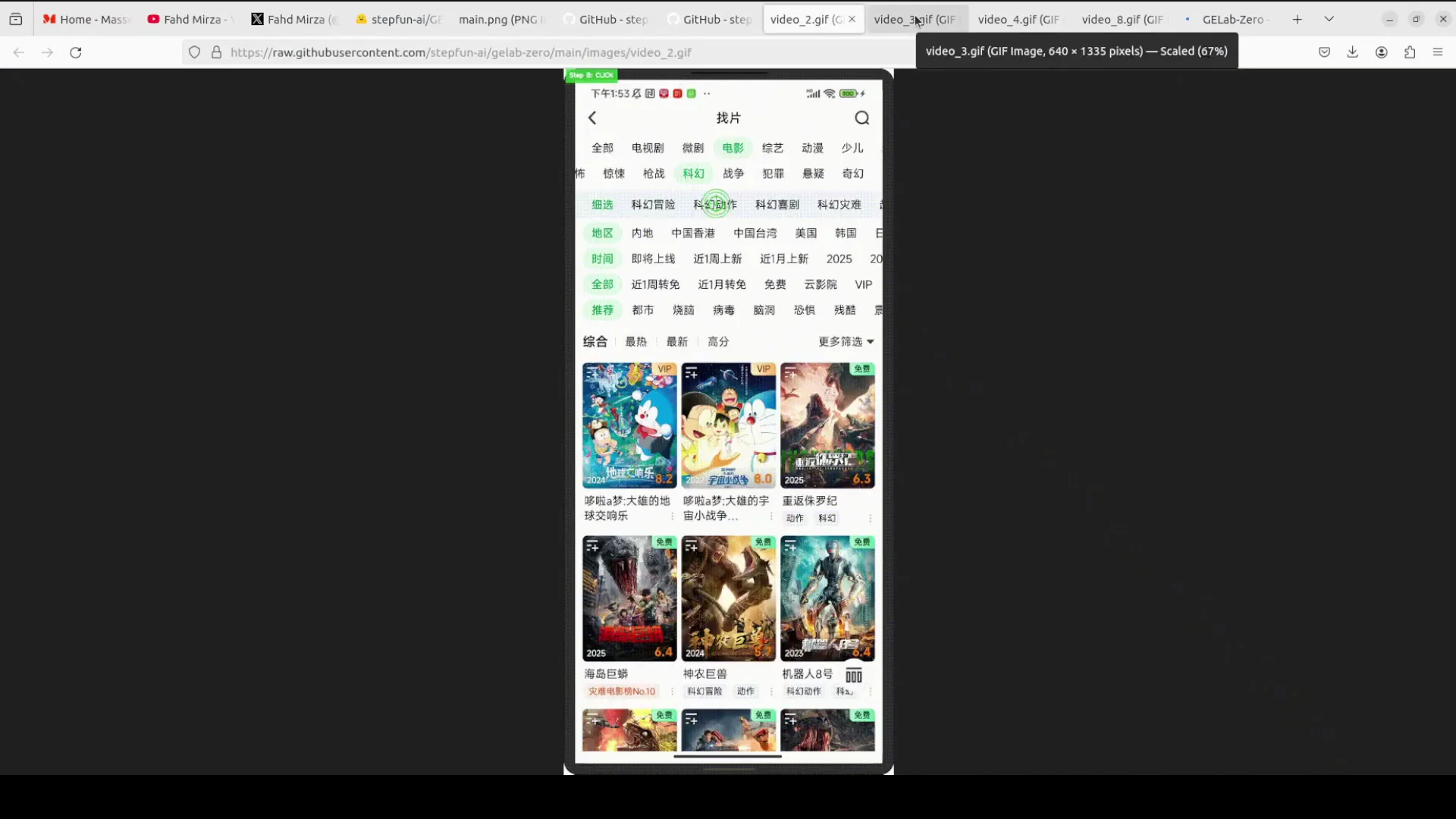
I am using an Ubuntu system with a single NVIDIA RTX 6000 GPU with 48 GB of VRAM. I am creating a virtual environment and will run the model locally.
Model Availability
The model is available on Hugging Face.
Downloading the Model
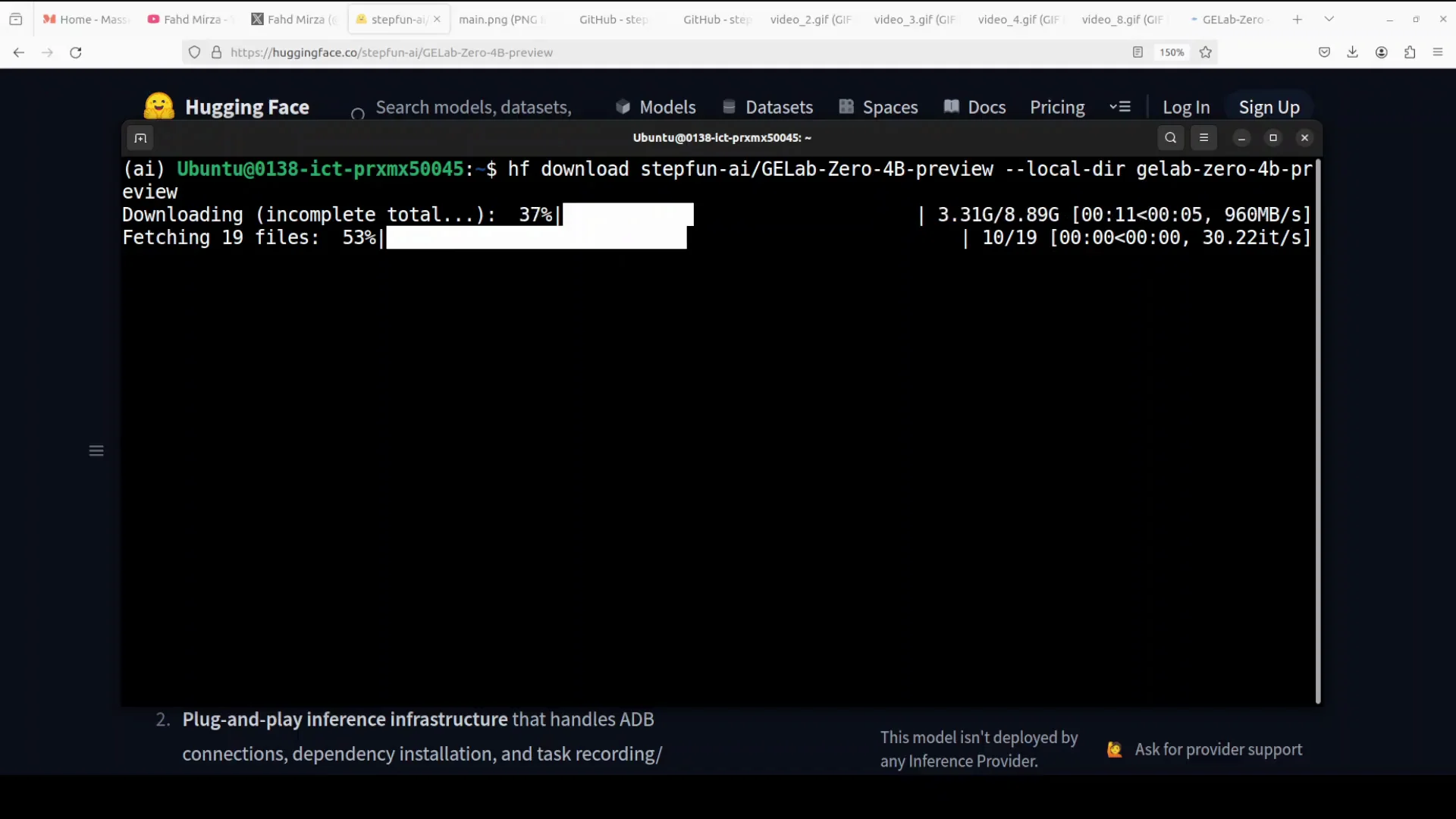
Set up a Python environment and install the Hugging Face Hub client. Then use the Hugging Face CLI to download the model. The CLI command format recently changed. If you used an older command, replace it with the newer hf command.
-
Install the client:
pip install huggingface_hub -
Use the updated CLI to download:
hf download <model-repo>
The model size is just under 9 GB.
Note that the model was released recently, and some instructions on its Hugging Face page still show older CLI commands. Use the updated hf command instead.
Preparing the Model for Ollama
After download, go into the directory containing the model files. You will find a Modelfile provided, which means you can create an Ollama model from it.
- Create the model in Ollama:
ollama create gelab-zero -f Modelfile
This gathers the model components and builds the Ollama model. It does not take long.
Check and Run the Model
-
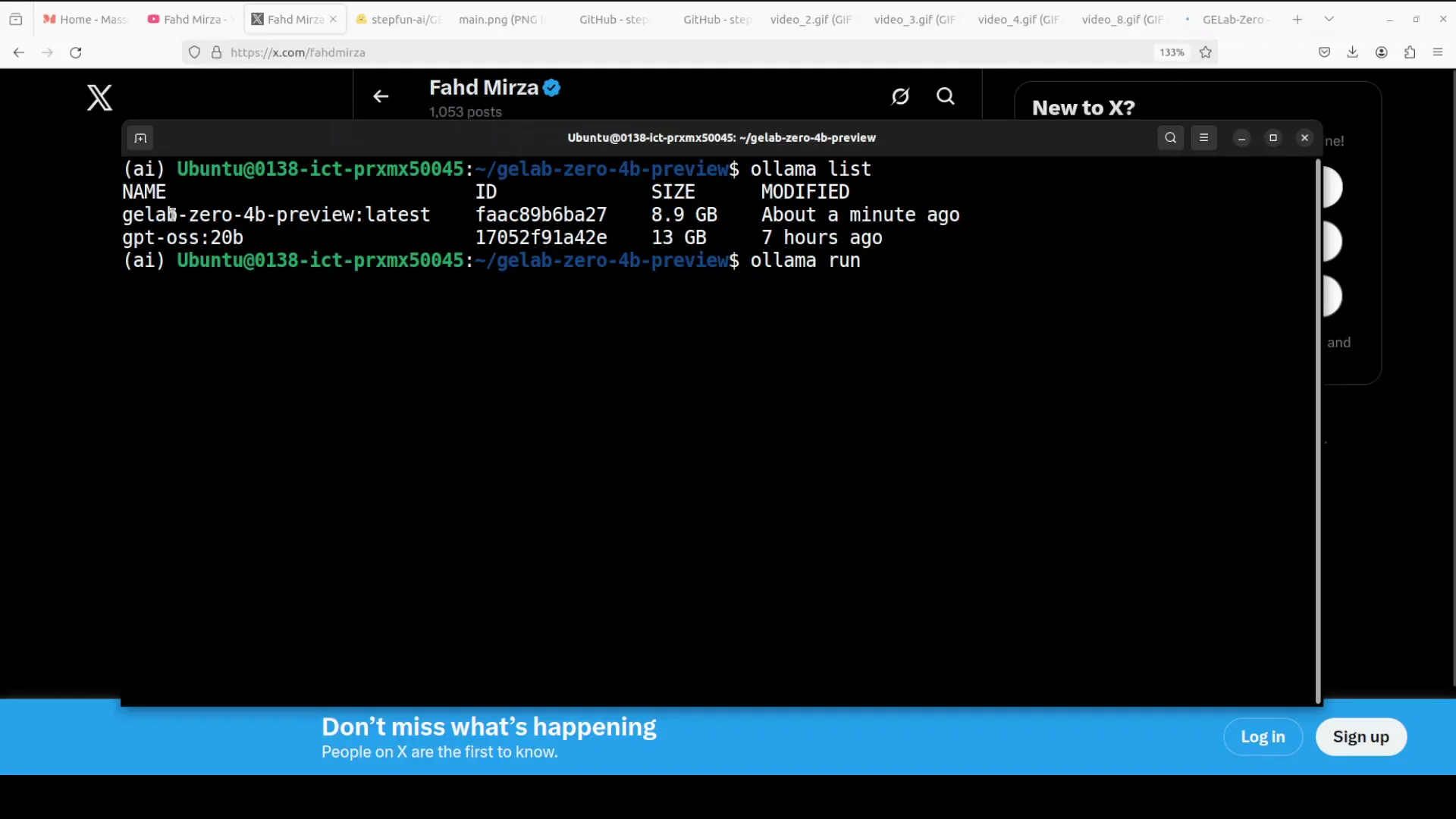
List your available models:
ollama list -
Run the model interactively:
ollama run gelab-zero -
You can also access the model with a curl command on Ollama’s default port 11434.
This lets you send prompts and receive responses from the local model server.
VRAM Usage and Quantization Options
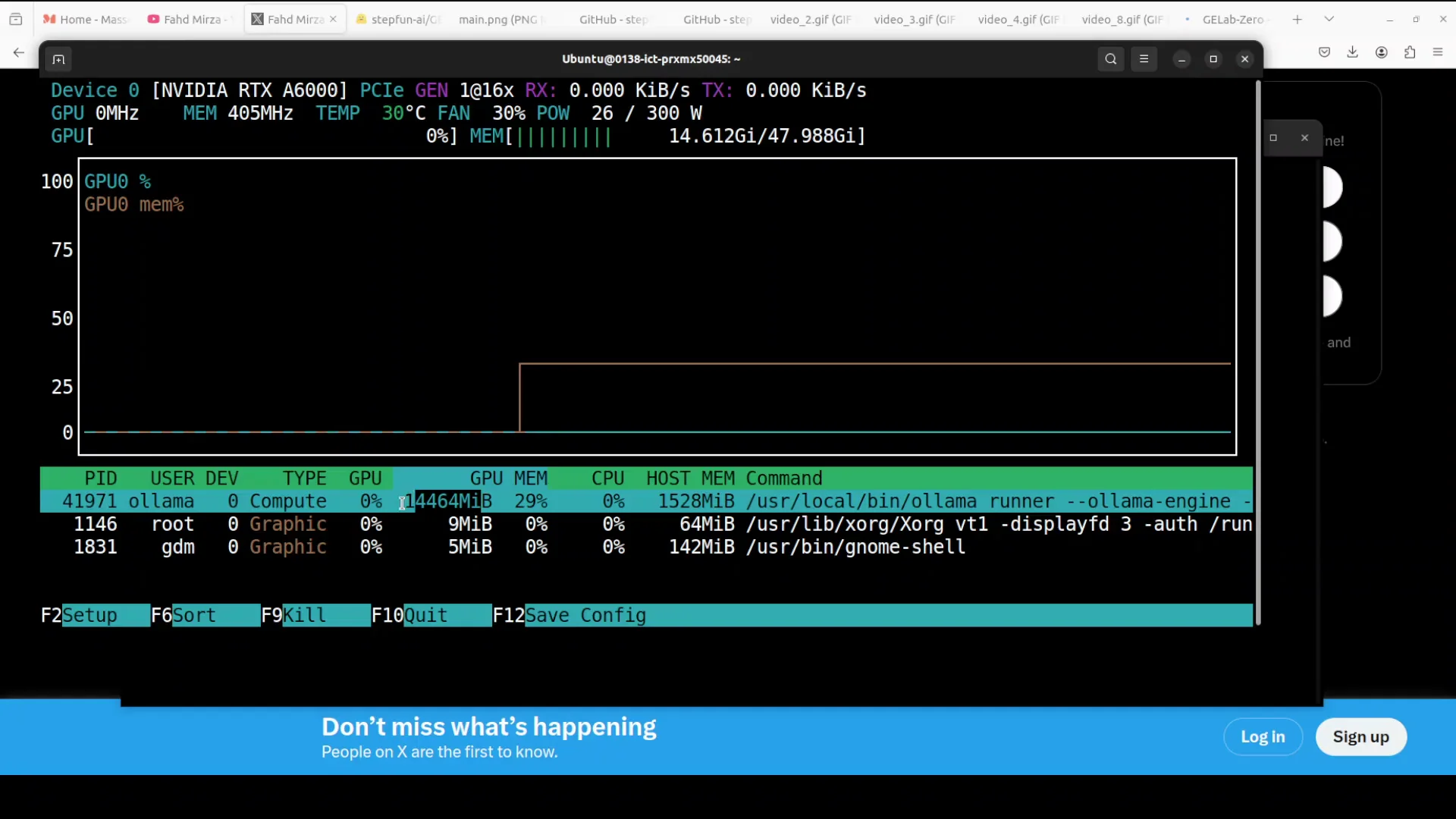
VRAM consumption for the 4B model is under 15 GB in this setup. For consumer GPUs, a target below 8 GB would be preferable, and ideally under 4 GB. There is room to optimize VRAM usage.
Quantized builds are available if your GPU memory is limited. These options make deployment feasible on lower VRAM environments.
Quantized Variants
| Variant | Notes |
|---|---|
| Full 4B | Under 15 GB VRAM in this setup |
| Q8 | Smaller memory footprint |
| Q4 | Smallest memory footprint among listed options |
Choose a quantized version if you need to stay within tighter VRAM limits.
Using GELab-Zero with Ollama to Control an Android Device
To use the model for its intended purpose of controlling on-screen elements in a mobile environment, follow these high-level steps.
Step 1 - Inference Environment with Ollama
- Set up the inference environment with Ollama.
- Download the GELab-Zero model.
- Serve the model locally.
This covers the core inference layer.
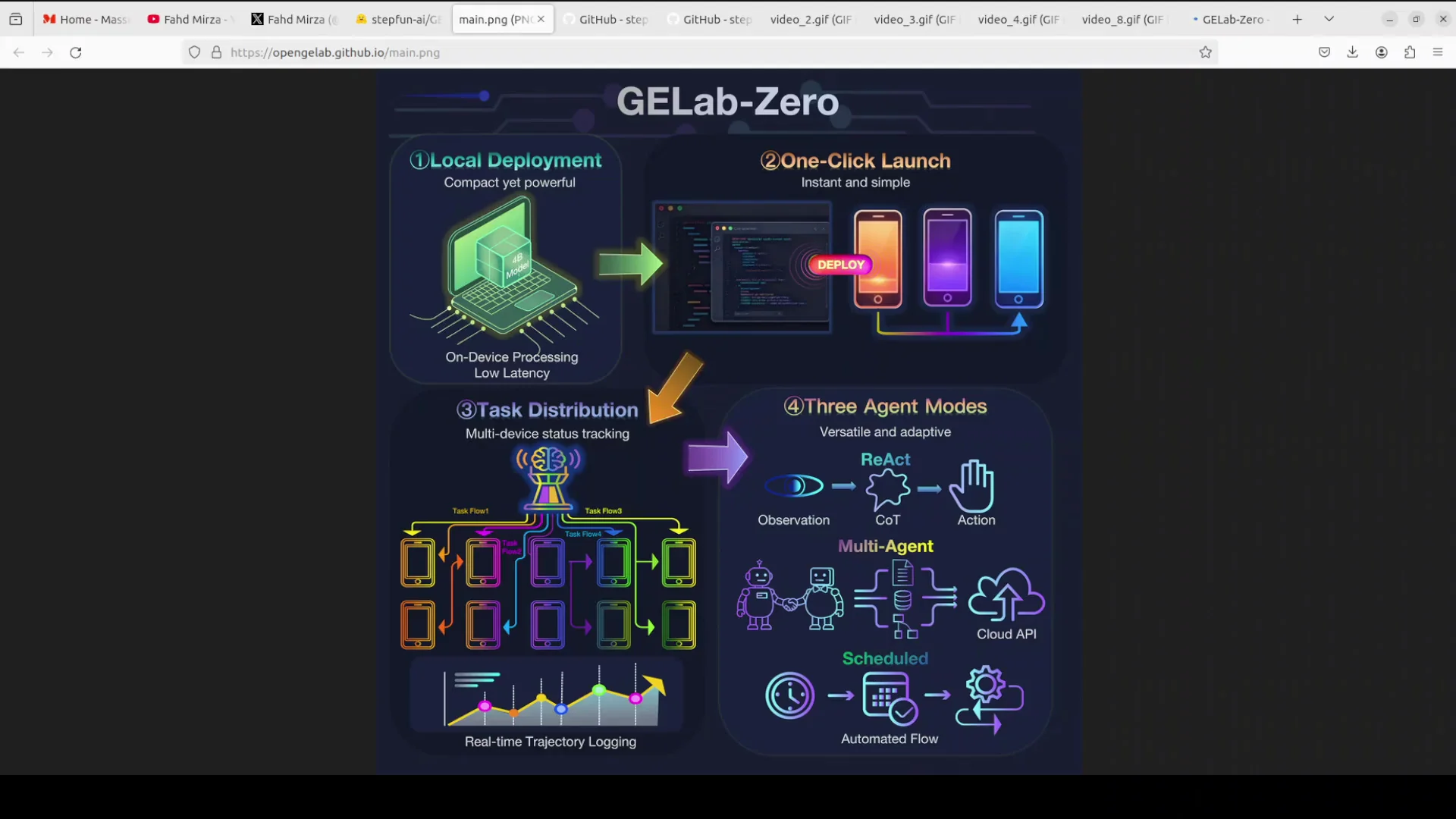
Quantized versions such as Q4 and Q8 are available if you do not have much VRAM. They are smaller and easier to run on limited hardware. Test them and pick what fits your system.
Step 2 - Android Device Execution Environment
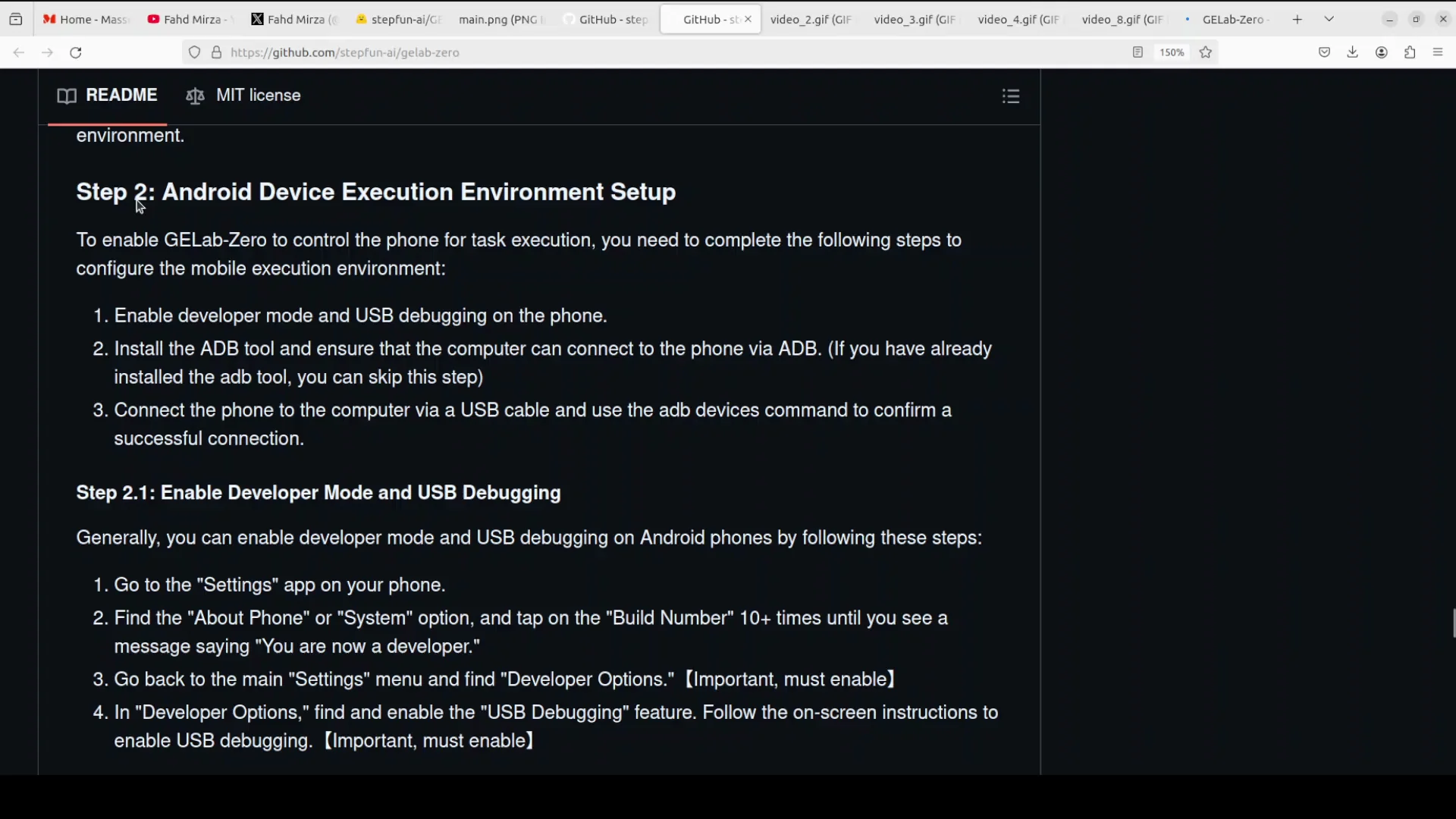
- Set up your Android device execution environment.
- Use an ADB tool.
- Install ADB, follow the relevant steps for your operating system, and ensure your device is ready for debugging.
With the device connected, build a mobile experience app that interfaces with the model, similar to the demonstration. The model follows a text prompt and controls the mobile screen based on what you ask it to do.
Observed Performance
GELab-Zero appears responsive and capable in the UI control setting. It was tested on a static benchmark called Android Daily, and the results shared by Step One show it outperforming UI-TARS by a large margin. The same results indicate gains over Gemini and GPT-4.0.
If you are a mobile app developer testing on your phone, assess how these benchmarks align with your use case. Do not believe anything blindly.
Licensing
GELab-Zero is released under the Apache 2 license.
Step-by-Step Summary
Use this checklist to mirror the flow above.
Environment and Download
- Prepare a Linux machine or a compatible system. A single GPU is sufficient.
- Create a Python virtual environment.
- Install the Hugging Face Hub client:
pip install huggingface_hub - Download the model with the updated hf CLI:
hf download <model-repo> - Verify that the model files are present and that a Modelfile is included.
Build and Serve with Ollama
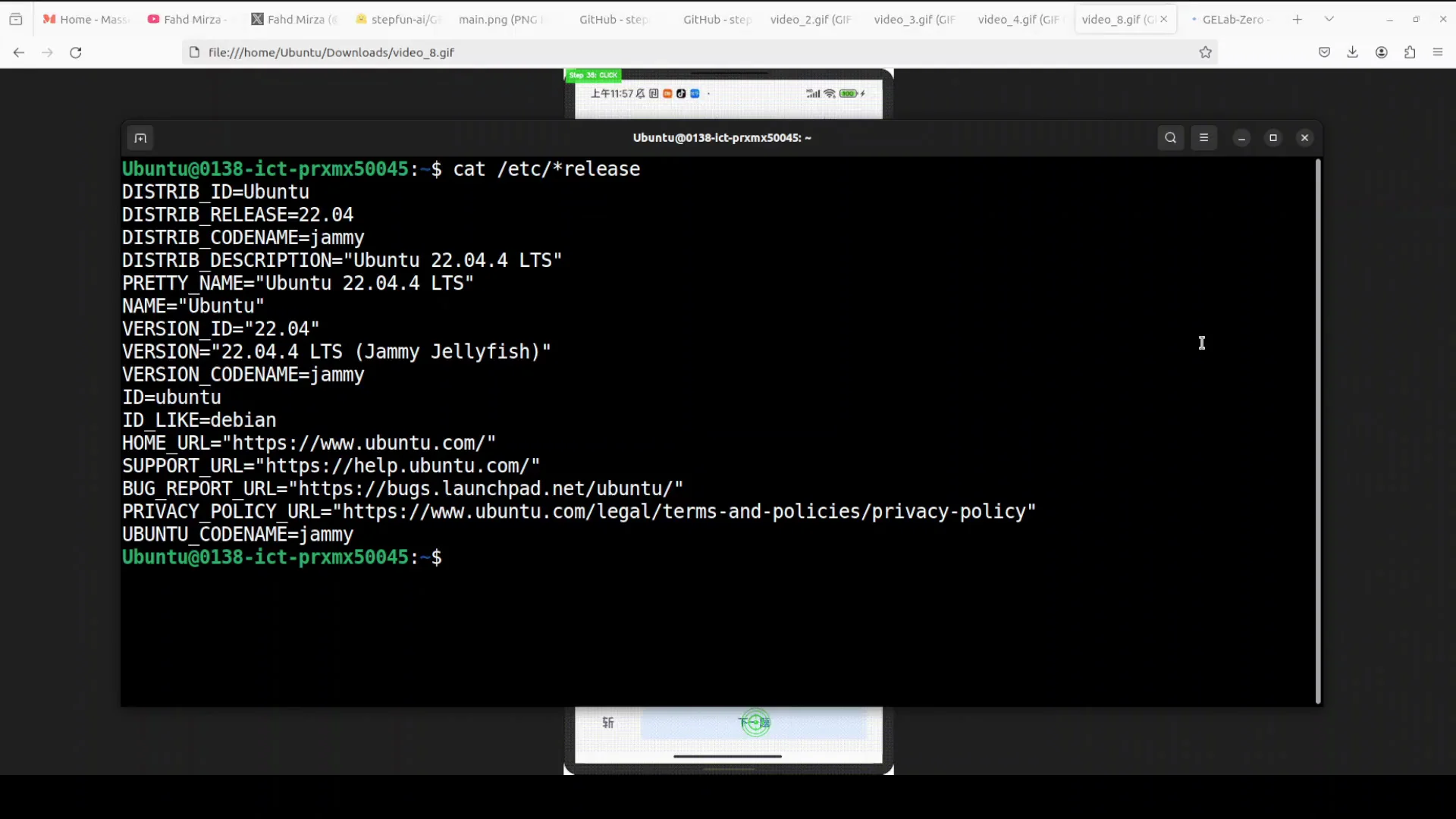
- Create the Ollama model:
ollama create gelab-zero -f Modelfile - Verify the model is available:
ollama list - Run the model:
ollama run gelab-zero - Optionally, interact via HTTP on port 11434.
Resource Considerations
- Expect VRAM usage under 15 GB for the full model in a typical setup like the one described.
- Prefer quantized builds such as Q8 or Q4 if VRAM is tight.
Android Integration
- Set up ADB on your operating system.
- Connect your Android device and prepare it for debugging.
- Build the app layer that feeds screenshots and text goals to the model.
- Execute actions like tap, type, and swipe based on the model’s outputs.
Notes and Expectations
- The model processes screenshots plus a text instruction to decide the next UI action.
- It can select elements, scroll, swipe, type, and click.
- It runs fully local on phones and computers, requiring no app-specific code.
- It targets consumer-grade GPU scenarios, with quantization options for systems with limited VRAM.
- Benchmarks reported by Step One indicate strong results against UI-TARS, Gemini, and GPT-4.0 on Android Daily.
- Apache 2 licensing makes it accessible for many use cases.
GELab-Zero with Ollama provides a practical path to local, screenshot-driven GUI control, especially for Android workflows, with a simple setup, local serving, and flexible deployment on consumer hardware.
Subscribe to our newsletter
Get the latest updates and articles directly in your inbox.

Related Posts

8 Best Claude Code Plugins in 2026 (You Need to Know)
8 Best Claude Code Plugins in 2026 (You Need to Know)

7 Best Claude Code Skills (You Need to Know)
7 Best Claude Code Skills (You Need to Know)

Claude Code Desktop IDE Features (You Need to Know)
Claude Code Desktop IDE Features (You Need to Know)