
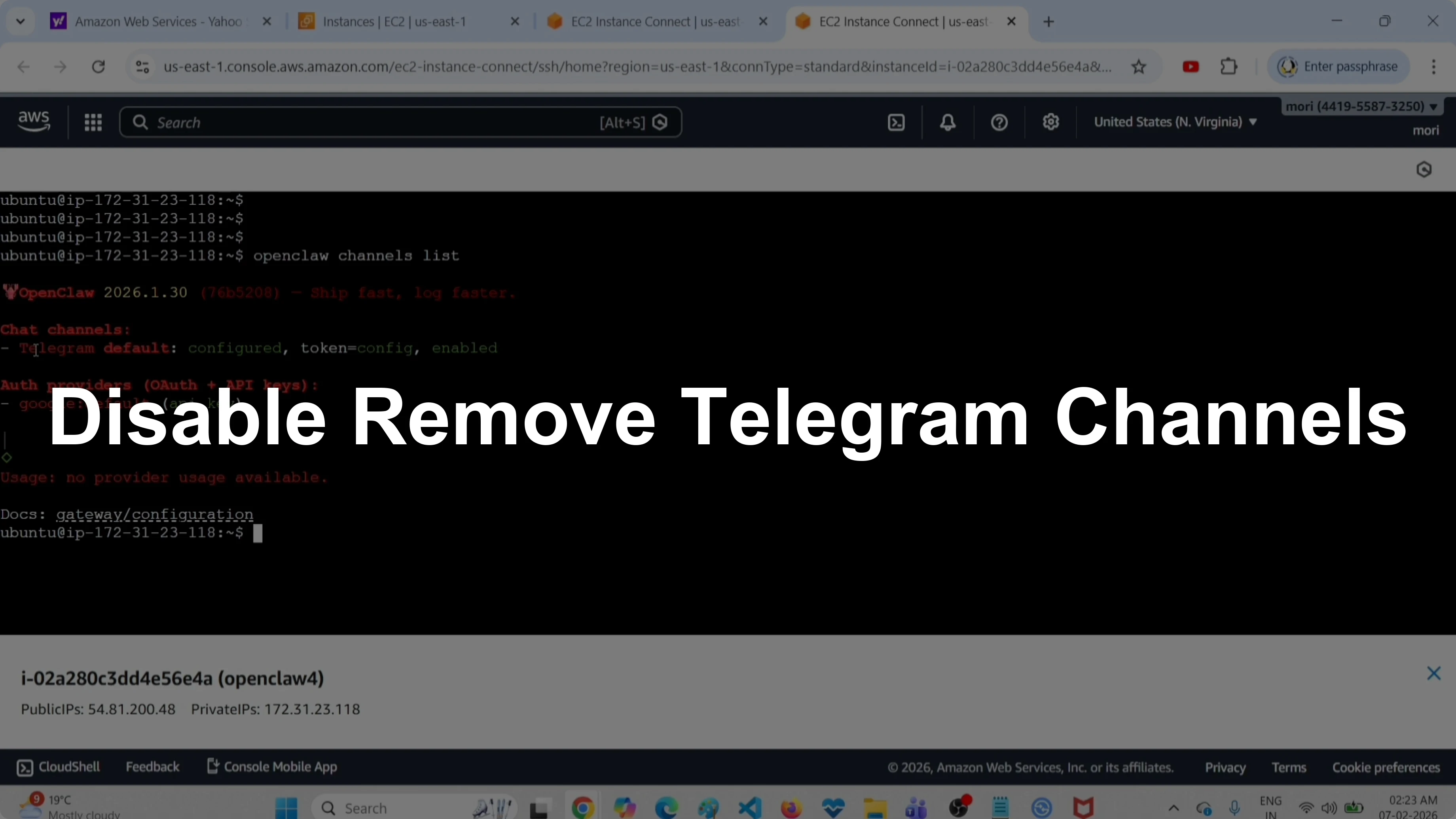
How to Disable or Remove Channels Like Telegram with ClawdBot
I am going to show how I remove a single channel from my OpenClaw setup. I will first list all configured channels, then disable the Telegram channel that is set as the default. If you are still setting up Telegram with OpenClaw, see this setup guide.
Disable or Remove Channels Like Telegram with ClawdBot
Read More: 3D
List channels
First I list all channels configured in this setup. I run this command:
openclaw channels list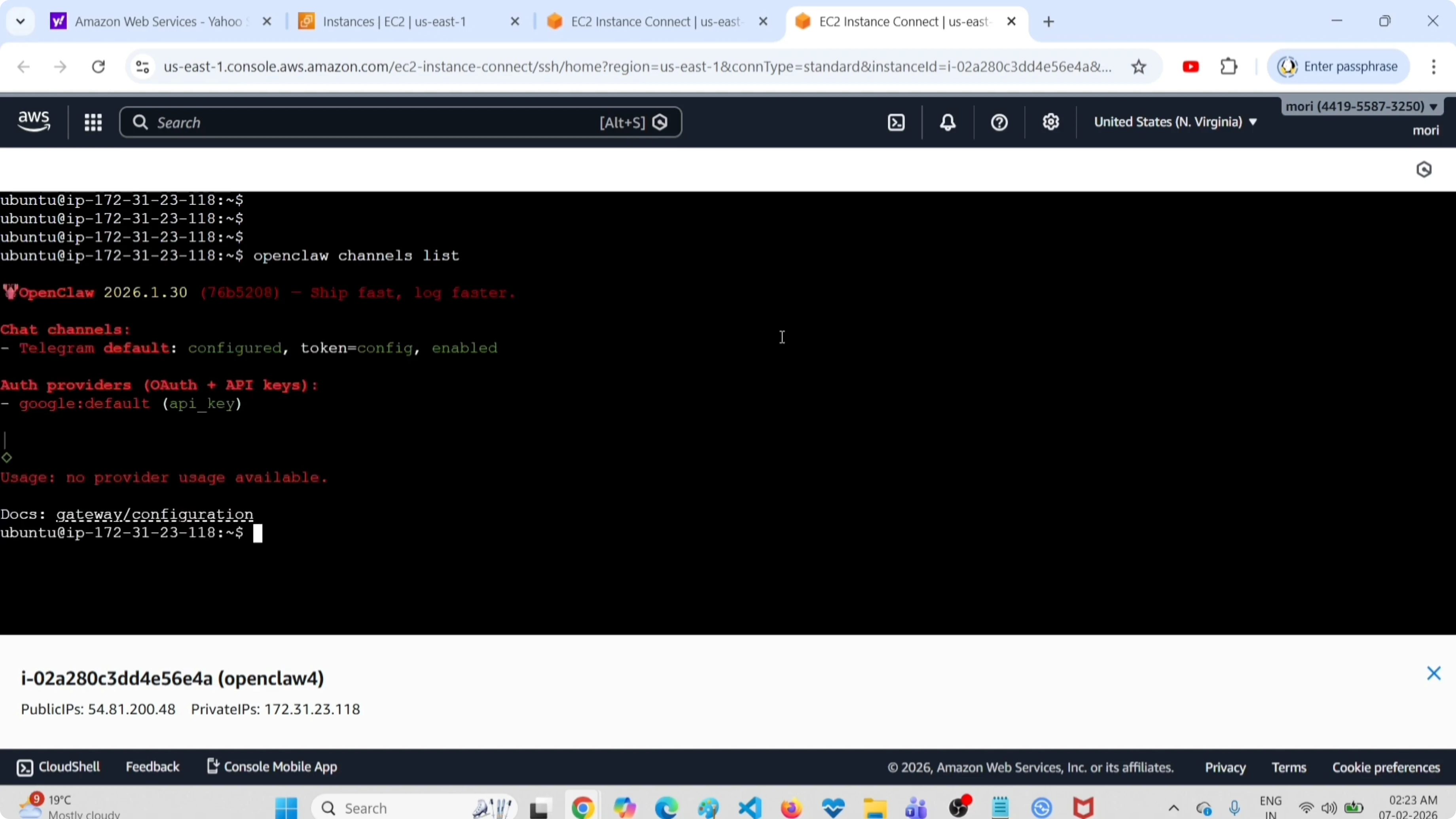
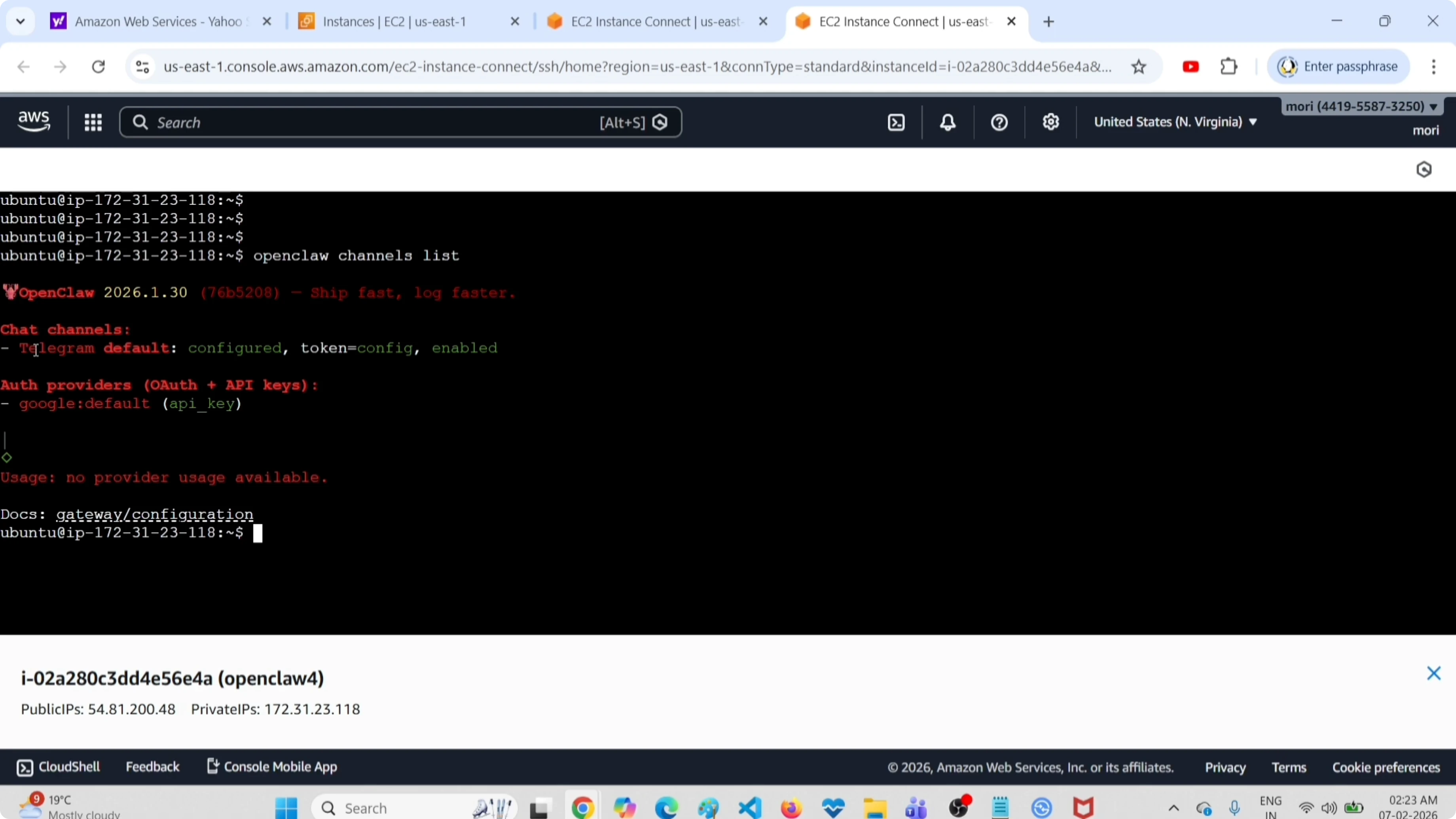
Right now I have the Telegram channel configured as the default channel.
Remove or disable the channel
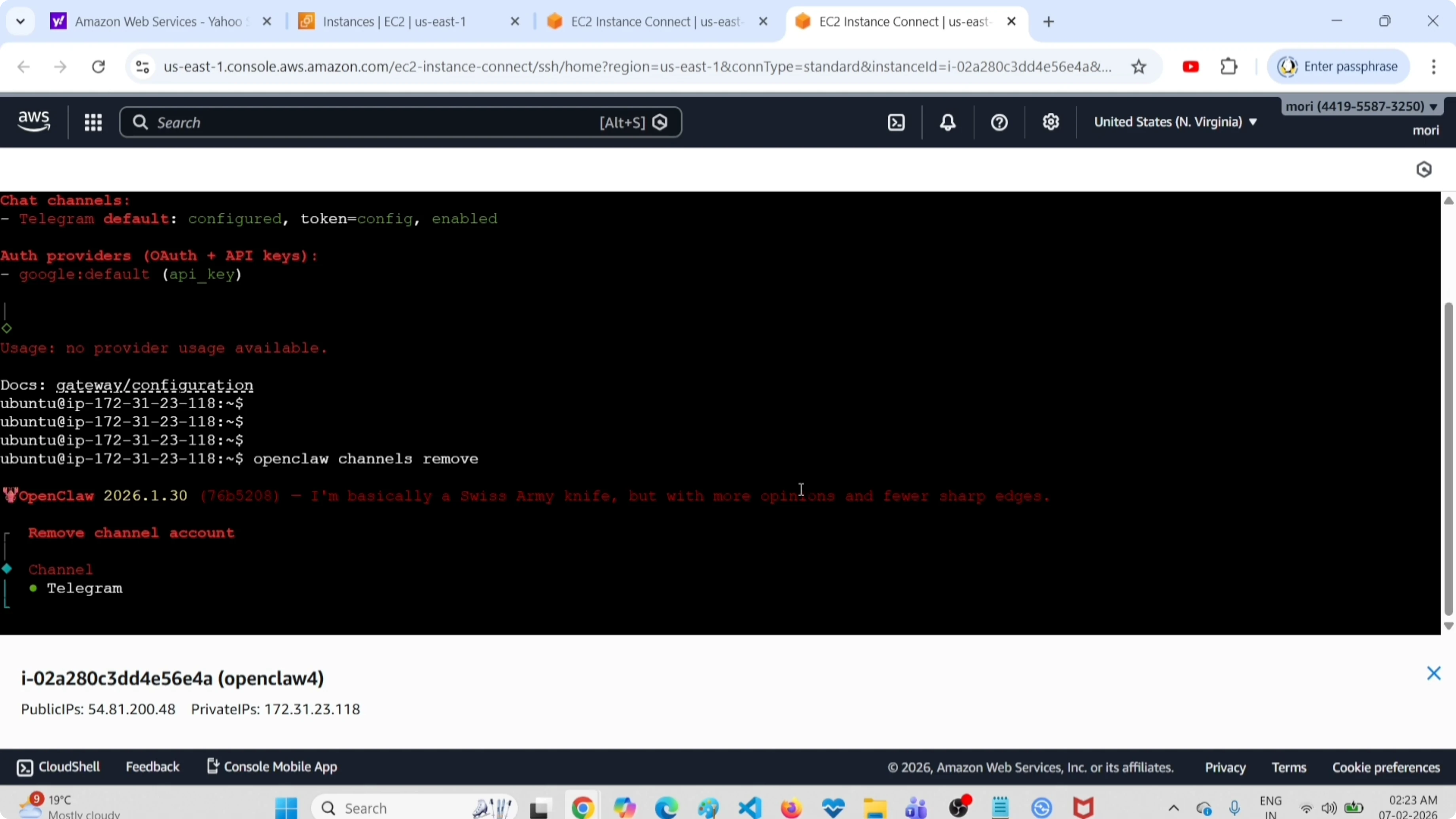
Next I remove one channel. I run this command:
openclaw channels remove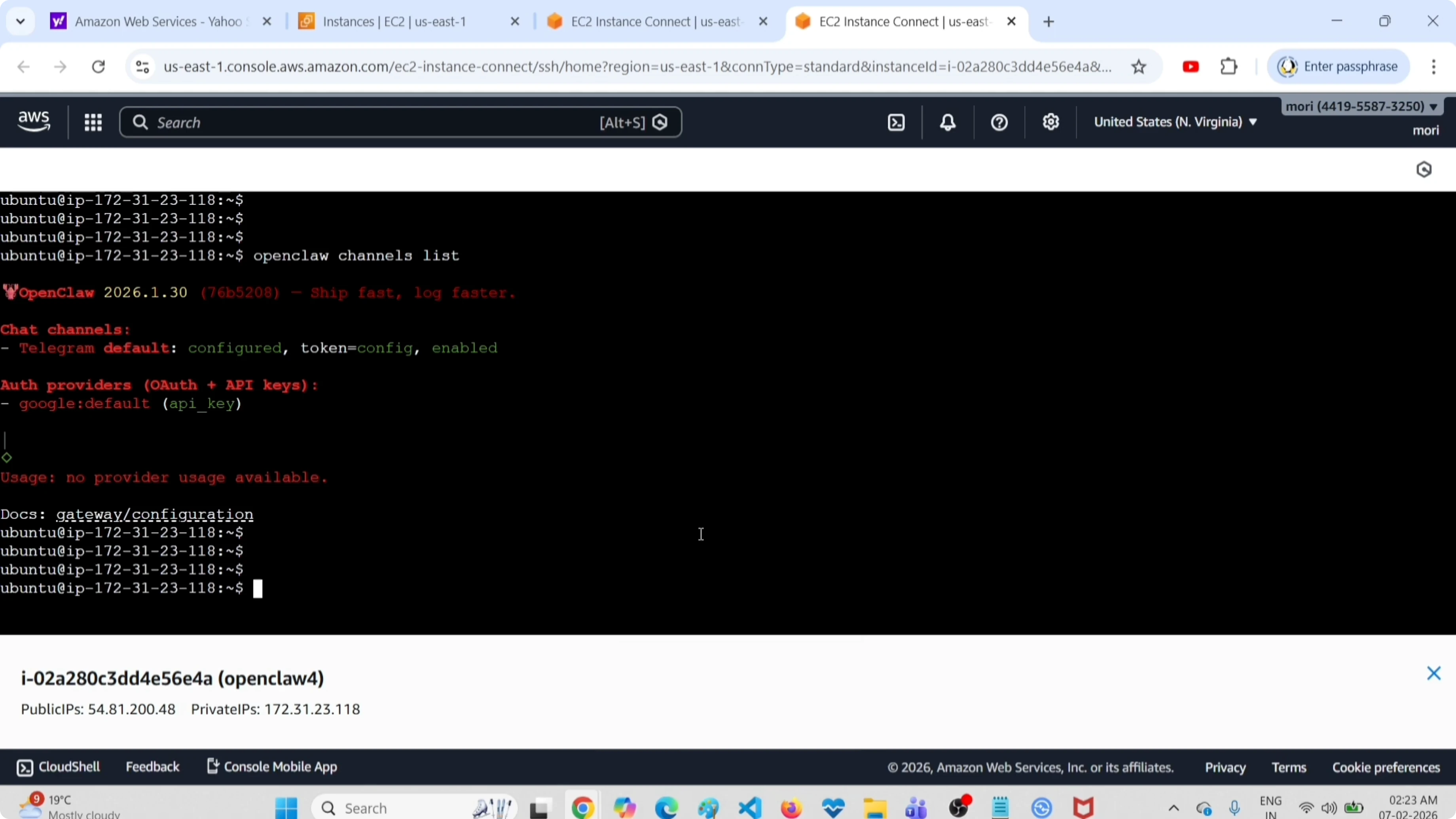
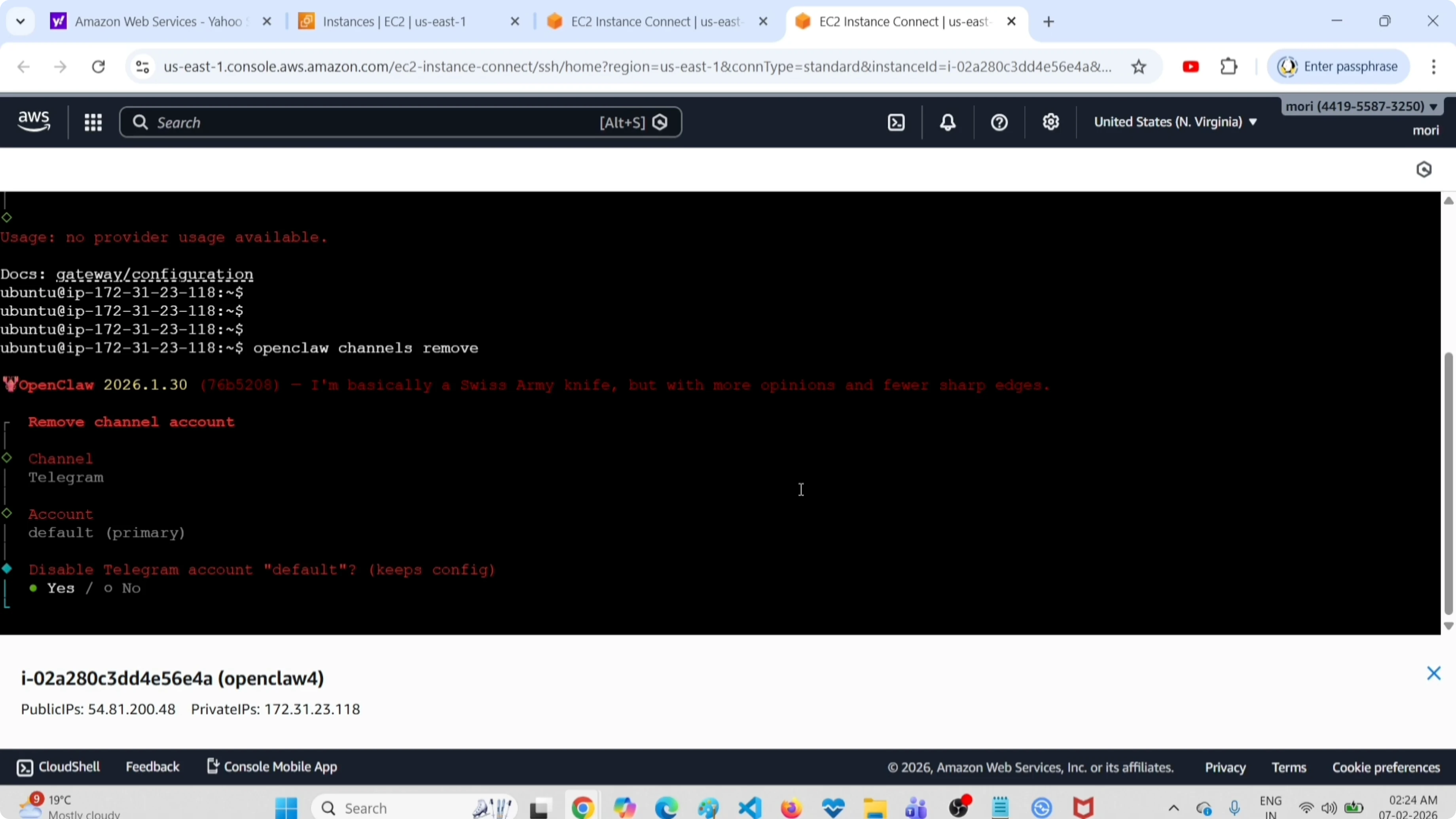
I select the channel I want to delete, so I select telegram. I press Enter. I select the account default.
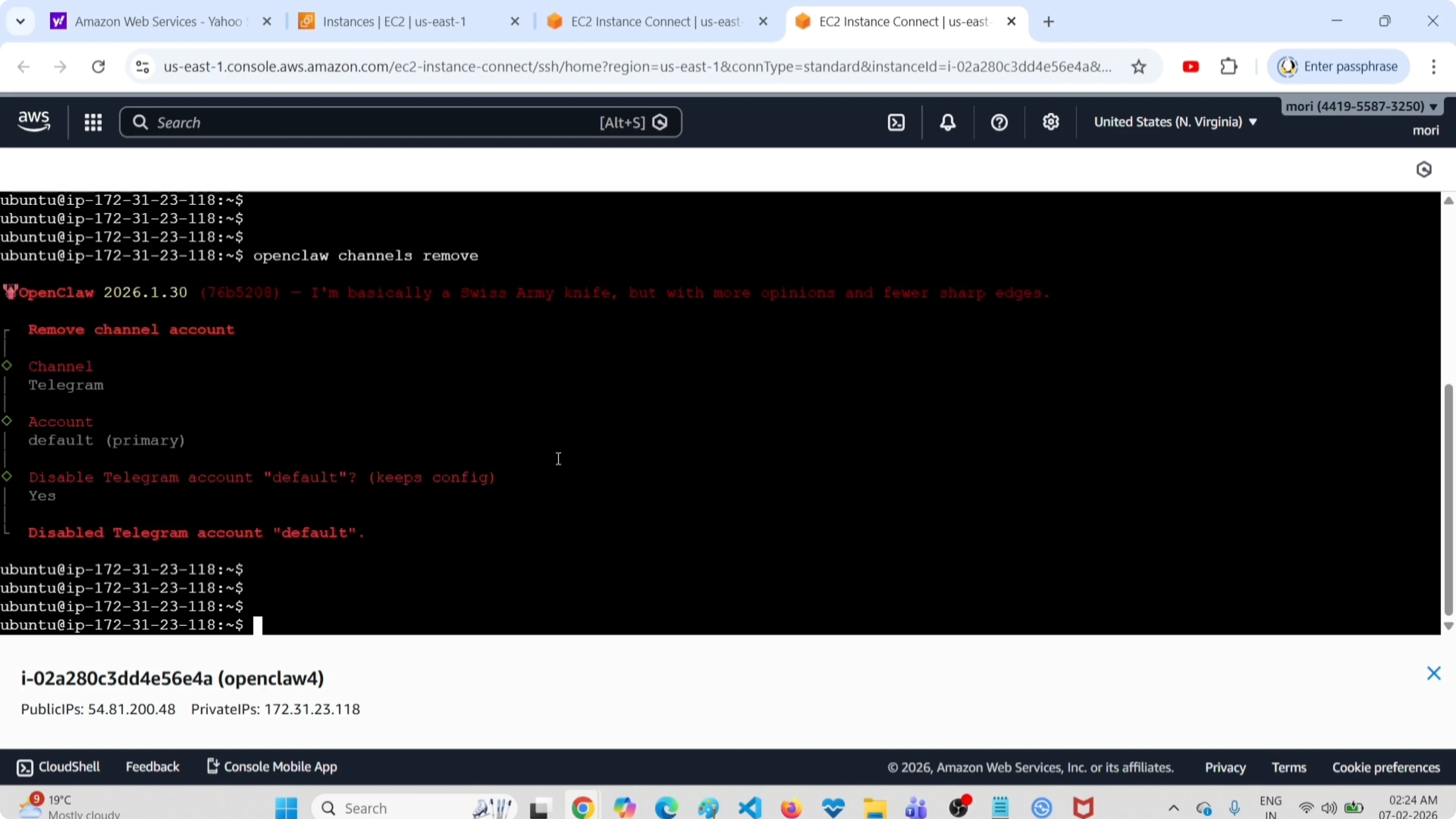
I choose Yes when prompted to disable the Telegram account. The tool confirms with the message: disabled telegram account. If you hit an error during this step, check these troubleshooting notes.
Read More: Ai Video Editing
Confirm the change
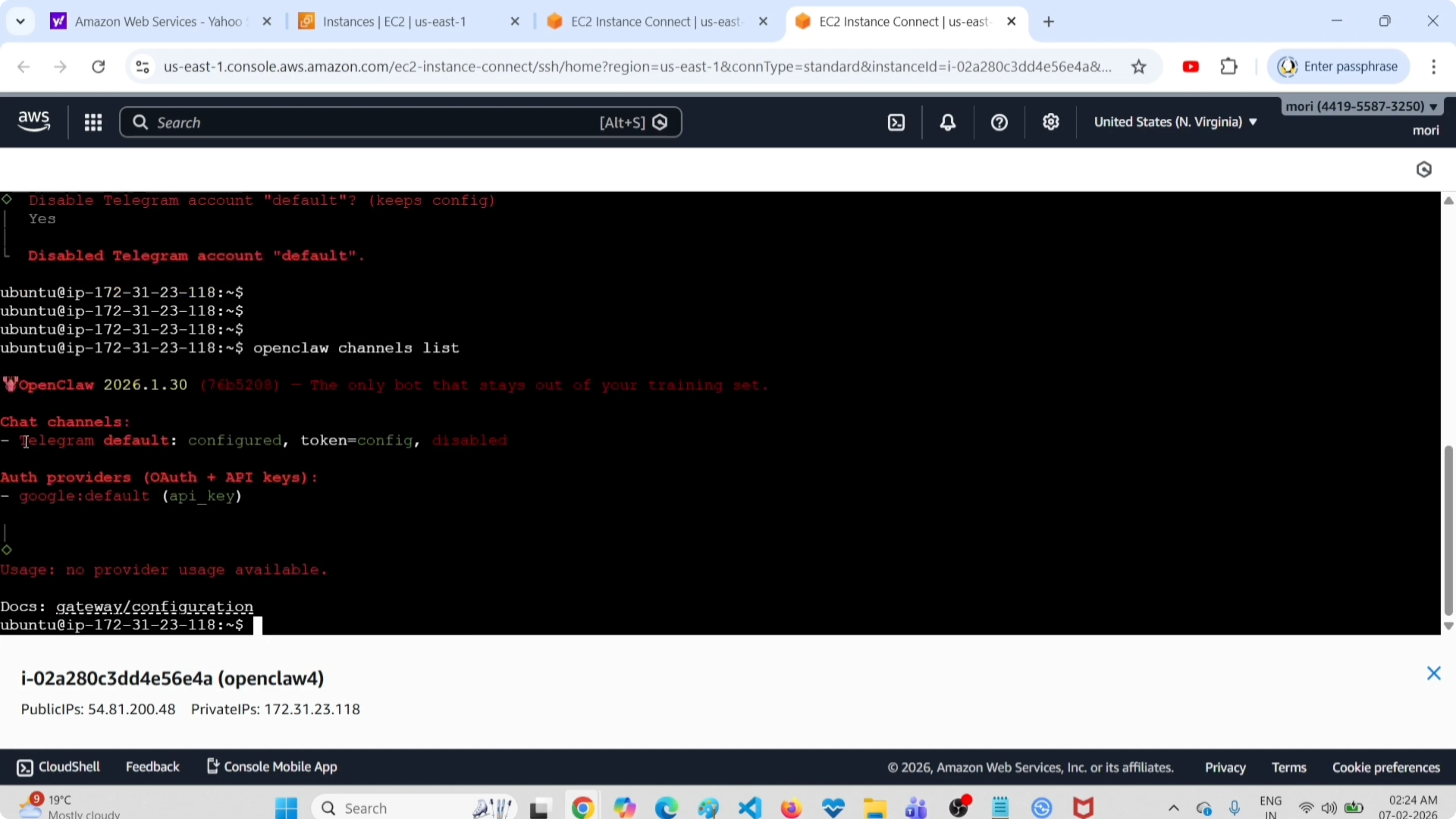
After that I run the list command again to confirm the status:
openclaw channels listIt shows the Telegram channel, and it is marked as disabled. Earlier it was enabled.
Final thoughts on Disable or Remove Channels Like Telegram with ClawdBot
Listing channels first makes it clear which one is set as default before you remove it. Using the remove command here disables the Telegram account and keeps it visible for reference. If you need a full cleanup or want to start over with Telegram, follow these clean reinstall steps.
Subscribe to our newsletter
Get the latest updates and articles directly in your inbox.

Related Posts

8 Best Claude Code Plugins in 2026 (You Need to Know)
8 Best Claude Code Plugins in 2026 (You Need to Know)

7 Best Claude Code Skills (You Need to Know)
7 Best Claude Code Skills (You Need to Know)

Claude Code Desktop IDE Features (You Need to Know)
Claude Code Desktop IDE Features (You Need to Know)