
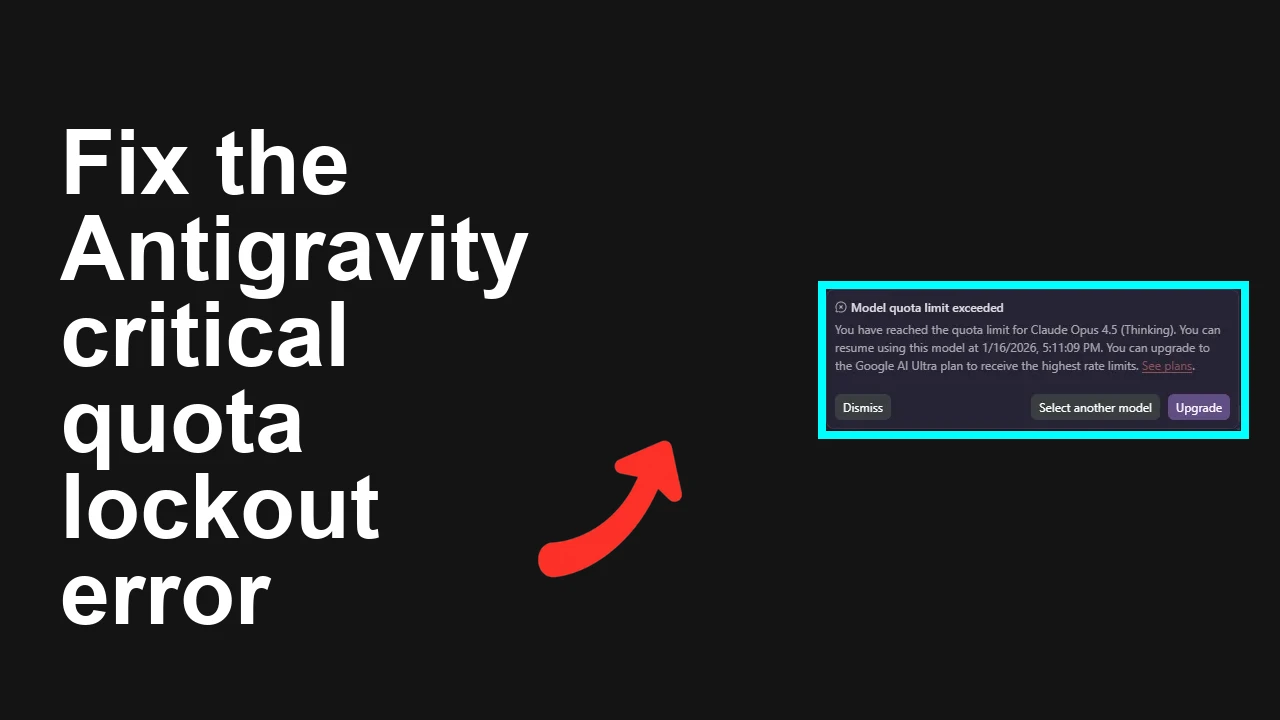
How to fix Critical Quota Error and 7-day lockout in Antigravity?
Users on the Google AI Pro plan are seeing a persistent “Model quota limit exceeded” in Antigravity IDE with a 4–7 day lockout instead of the documented 5-hour cooldown. It appears most often when using Claude Opus 4.5 (Thinking) inside existing projects.
How to fix Critical Quota Error and 7-day lockout in Antigravity?
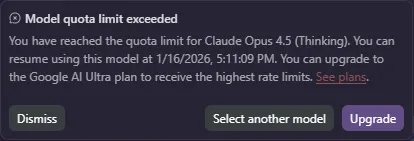
Antigravity shows: “Model quota limit exceeded” with incorrect resume dates (for example, 1/16/2026 in an existing session and 1/13/2026 in a new chat). Multiple users confirm the refresh period incorrectly shows as 4–7 days, not 5 hours.
Environment noted: Windows 11, Chrome, Google AI Pro plan.
For more context on the error pattern and affected tiers, see our quick explainer: how to fix the Critical Quota Error in Antigravity.
Solution Overview
| Aspect | Detail |
|---|---|
| Root Cause | Quota-accounting bug in Antigravity for certain sessions/models (notably Claude Opus 4.5 “Thinking”), causing stale session state and an inflated cooldown window. |
| Primary Fix | Sign out, clear Antigravity site data, start a fresh chat, and switch to a non-“Thinking” model variant; if still stuck, request a quota reset from support. |
| Complexity | Easy |
| Estimated Time | 10–15 minutes |
How to fix Critical Quota Error and 7-day lockout in Antigravity?
Step-by-Step Solution
1) Verify plan and capture evidence
- Confirm your plan shows as Google AI Pro in Account/Billing.
- Take a screenshot of the error message and the incorrect resume date. Note the time, model, and project name.
- This proof speeds up a support-side manual reset if needed.
2) Sign out and clear Antigravity site data (Chrome)
- In Chrome, open the site that shows the error.
- Click the padlock icon in the address bar > Site settings > Clear data, then remove all cookies/storage for the Antigravity domain.
- Close all Antigravity tabs.
- Optional: fully clear the Chrome cache for the profile (Windows PowerShell example; closes Chrome).
- Warning: This removes cache for the Default profile. Back up if needed.
- Commands: PowerShell (run as your user): Stop-Process -Name chrome -Force Remove-Item -Recurse -Force "$env:LOCALAPPDATA\Google\Chrome\User Data\Default\Cache*"
- Sign back in to Antigravity.
3) Start a new chat in a fresh project and change the model
- Create a new project/workspace.
- Open the Model dropdown and select a non-“Thinking” variant (for example, “Claude Opus 4.5” without Thinking) or a different vendor/model (e.g., Gemini 2.0).
- Send a very short test message (e.g., “test”).
- If the error disappears, migrate your ongoing work into the new chat.
4) Force a model/session refresh if the banner persists
- Switch to another model vendor, send one short message, then switch back to your preferred model.
- If your Antigravity account supports orgs/workspaces, switch to a different workspace, send a short message, then return.
5) If still blocked, request a manual quota reset
- Open a support ticket with:
- Your plan (Google AI Pro)
- Affected model (Claude Opus 4.5 Thinking)
- Incorrect resume date(s)
- Project ID/URL
- Timezone and local system time
- Screenshots
- Sample message:
- “Pro plan shows ‘Model quota limit exceeded’ with a 4–7 day lockout for Claude Opus 4.5 (Thinking). Documented cooldown is 5 hours. Please reset my quota and purge any stale session state for my account.”
6) Temporary workaround: use API or another model until reset
- If your work is blocked, call the model via API (Anthropic or Google) while support resets your quota. Examples:
Anthropic (Claude) via cURL:
curl https://api.anthropic.com/v1/messages \
 -H "x-api-key: $ANTHROPIC_API_KEY" \
 -H "anthropic-version: 2023-06-01" \
 -H "content-type: application/json" \
 -d '{
 "model": "claude-3-opus-20240229",
 "max_tokens": 256,
 "messages": [{"role": "user", "content": "Hello"}]
 }'
Google Generative Language API (Gemini) via cURL:
curl -s -X POST \
-H "Content-Type: application/json" \
-d '{"contents":[{"parts":[{"text":"Hello"}]}]}' \
"https://generativelanguage.googleapis.com/v1beta/models/gemini-1.5-flash:generateContent?key=$GEMINI_API_KEY"If you encounter related agent crashes during recovery, check this quick fix: Read More: Fix Agent Terminated Due To Error.
Alternative Fixes & Workarounds
Use an Incognito window or a new browser profile
- Fresh Chrome profile often clears the stuck quota banner faster than generic cache clears.
Try a different browser
- Test in Edge/Firefox to rule out extension conflicts or Chrome profile issues.
Sync your system clock
- Incorrect local time can compound session/accounting issues.
- Windows (Command Prompt as admin): w32tm /resync
- macOS: sudo sntp -sS time.apple.com
- Linux: sudo timedatectl set-ntp true
For a shorter walkthrough focused only on the quota banner, see this quick note: Read More: background on the Antigravity quota banner.
Troubleshooting Tips
- Check current quotas and limits for your plan to confirm the 5-hour expectation: Google AI pricing and quotas.
- Disable VPNs/proxies and privacy extensions that might block session refresh calls.
- Remove or pause extension-based content filters (script blockers) for the Antigravity domain.
- Reproduce in a brand-new chat with a different base model to isolate the issue from a single stuck thread.
- Track known incidents on provider status pages: Anthropic Status and Google Cloud Status.
Need a condensed, step-by-step version? Read More: repair steps for Critical Quota Error.
Best Practices
- Prefer non-“Thinking” variants for long-running conversations; switch to “Thinking” only when needed.
- Keep conversations modular; start a new chat for major context shifts to avoid stale session state.
- Maintain a secondary model configured for overflow so work doesn’t stall.
- Periodically sign out/in to refresh tokens if you run into repeated quota banners.
- Keep evidence (timestamps, screenshots) to speed up support resets.
Final Thought
This issue is caused by a stuck quota state in Antigravity, not your actual Pro plan limits. Clearing site data, starting a fresh chat, and switching models usually fixes it fast; and support can reset any lingering 4–7 day lockouts.
Subscribe to our newsletter
Get the latest updates and articles directly in your inbox.

Related Posts
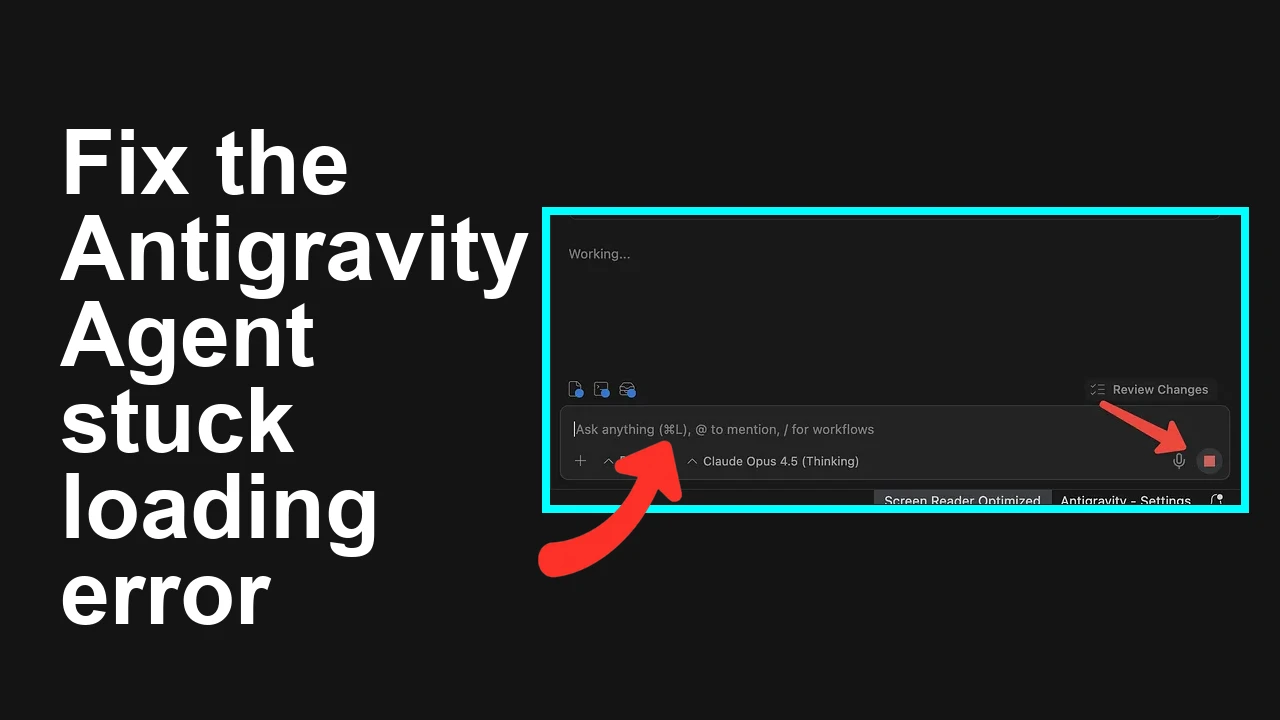
How to fix Agent stuck and can't be stopped error in Antigravity?
How to fix Agent stuck and can't be stopped error in Antigravity?
How to fix Agent is not responding error in Antigravity?
How to fix Agent is not responding error in Antigravity?
How to fix Antigravity won't work with any Gemini models error?
How to fix Antigravity won't work with any Gemini models error?