
Table Of Content
- How-To Run Chatterbox Turbo Locally: Free Challenger to ElevenLabs
- What Chatterbox Turbo Is Doing Differently
- System Setup for How-To Run Chatterbox
- How-To Run Chatterbox From Source
- Step-by-step installation
- Initial Generation and Resource Usage
- Testing Prompts and Emotions
- Storytelling and Suspense
- Romantic Style and Emotion Tokens
- Voice Cloning With a Reference Audio
- Female Voice Cloning Test
- Observations From Local Testing
- Quick Start Summary for How-To Run Chatterbox
- Configuration Tips
- Performance and Fit For Use
- Reference Notes on How-To Run Chatterbox
- Quick Table: Practical Stats From This Session
- Final Thoughts
How to setup Chatterbox Turbo | A Free ElevenLabs Alternative
Table Of Content
- How-To Run Chatterbox Turbo Locally: Free Challenger to ElevenLabs
- What Chatterbox Turbo Is Doing Differently
- System Setup for How-To Run Chatterbox
- How-To Run Chatterbox From Source
- Step-by-step installation
- Initial Generation and Resource Usage
- Testing Prompts and Emotions
- Storytelling and Suspense
- Romantic Style and Emotion Tokens
- Voice Cloning With a Reference Audio
- Female Voice Cloning Test
- Observations From Local Testing
- Quick Start Summary for How-To Run Chatterbox
- Configuration Tips
- Performance and Fit For Use
- Reference Notes on How-To Run Chatterbox
- Quick Table: Practical Stats From This Session
- Final Thoughts
How-To Run Chatterbox Turbo Locally: Free Challenger to ElevenLabs
The field of text-to-speech models has progressed significantly in the last two years. One of the most promising open-source models is Chatterbox. I have been following this model for a long time and it shows strong potential for realistic voice. In this guide, I install it locally and test it on a range of prompts.
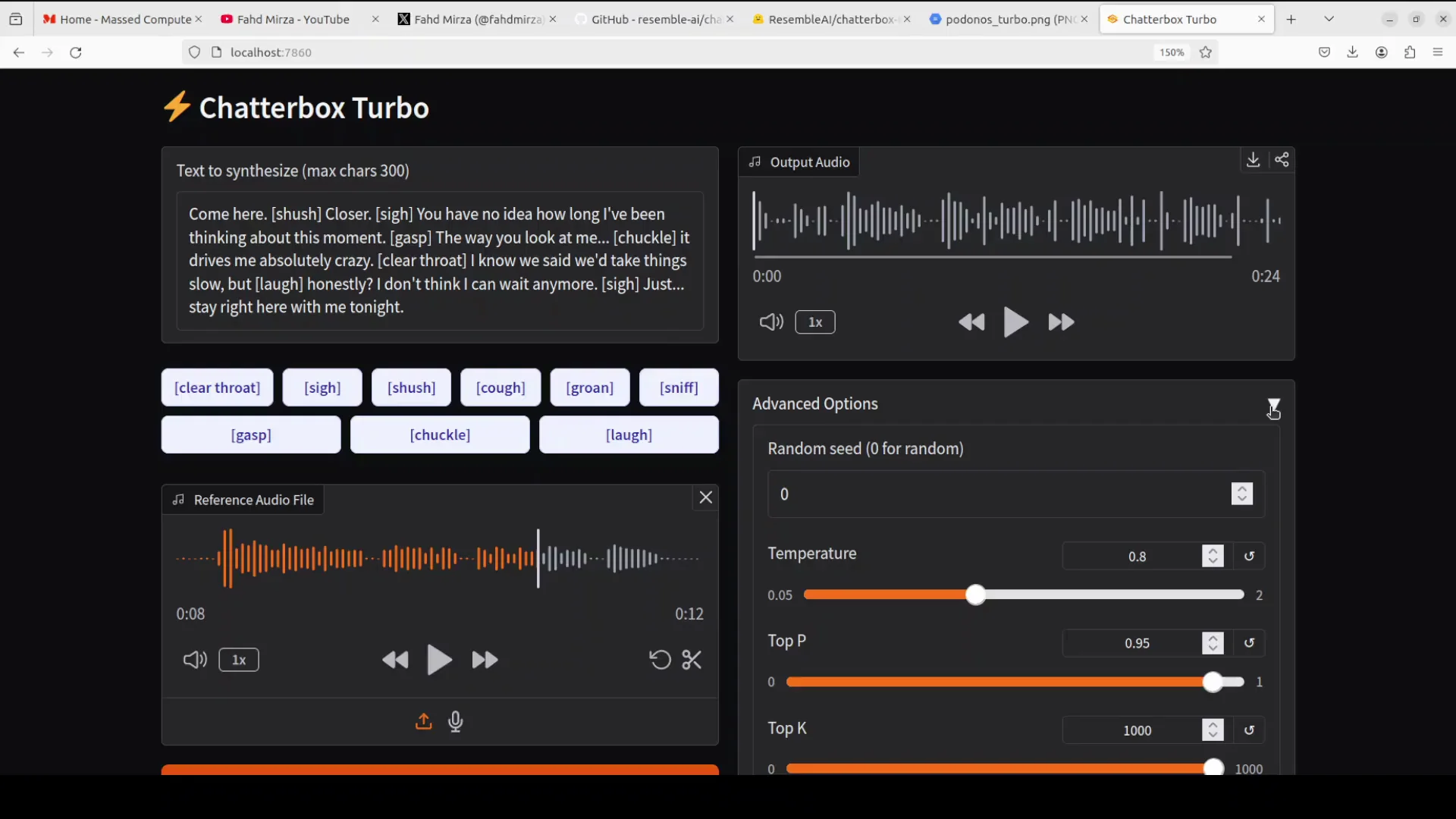
Before starting the installation, I walk through what the model offers. Chatterbox Turbo is positioned as a major step forward in text-to-speech, optimized for real-time applications and voice agents aiming for realistic human voice, as described in its model card. I will test it with its compact 350 million parameter architecture. The model delivers notable efficiency gains over its predecessors while maintaining high quality audio output.
What Chatterbox Turbo Is Doing Differently
One key innovation lies in its streamlined MEL decoder. It has been distilled from a 10-step process down to a single step, which dramatically reduces computational overhead and VRAM requirements. This makes it well suited for deployment in production environments where low latency is critical.
Chatterbox Turbo maintains quality while targeting conversational AI agents and interactive voice applications. My goal here is to install it locally, run some tests, and observe performance, voice quality, and responsiveness.
System Setup for How-To Run Chatterbox
I am using an Ubuntu system. You can install and run it on CPU, but I am using a GPU server with an Nvidia RTX 6000 and 48 GB of VRAM. CPU-only is possible for testing, though performance and latency expectations will differ.
If you prefer renting compute, there are affordable GPU and CPU virtual machines available from various providers. Choose based on your budget and memory needs for TTS workloads.
How-To Run Chatterbox From Source
You can install the package directly with pip, but I recommend installing from source for better control and reliability. Below is the approach I used, in the same order as in the original walkthrough.
Step-by-step installation
- Step 1 - Clone the repository
Get the Chatterbox repository locally.
-
Step 2 - Install dependencies from source
Install everything from the source. This is recommended over quick pip install. -
Step 3 - Launch the demo
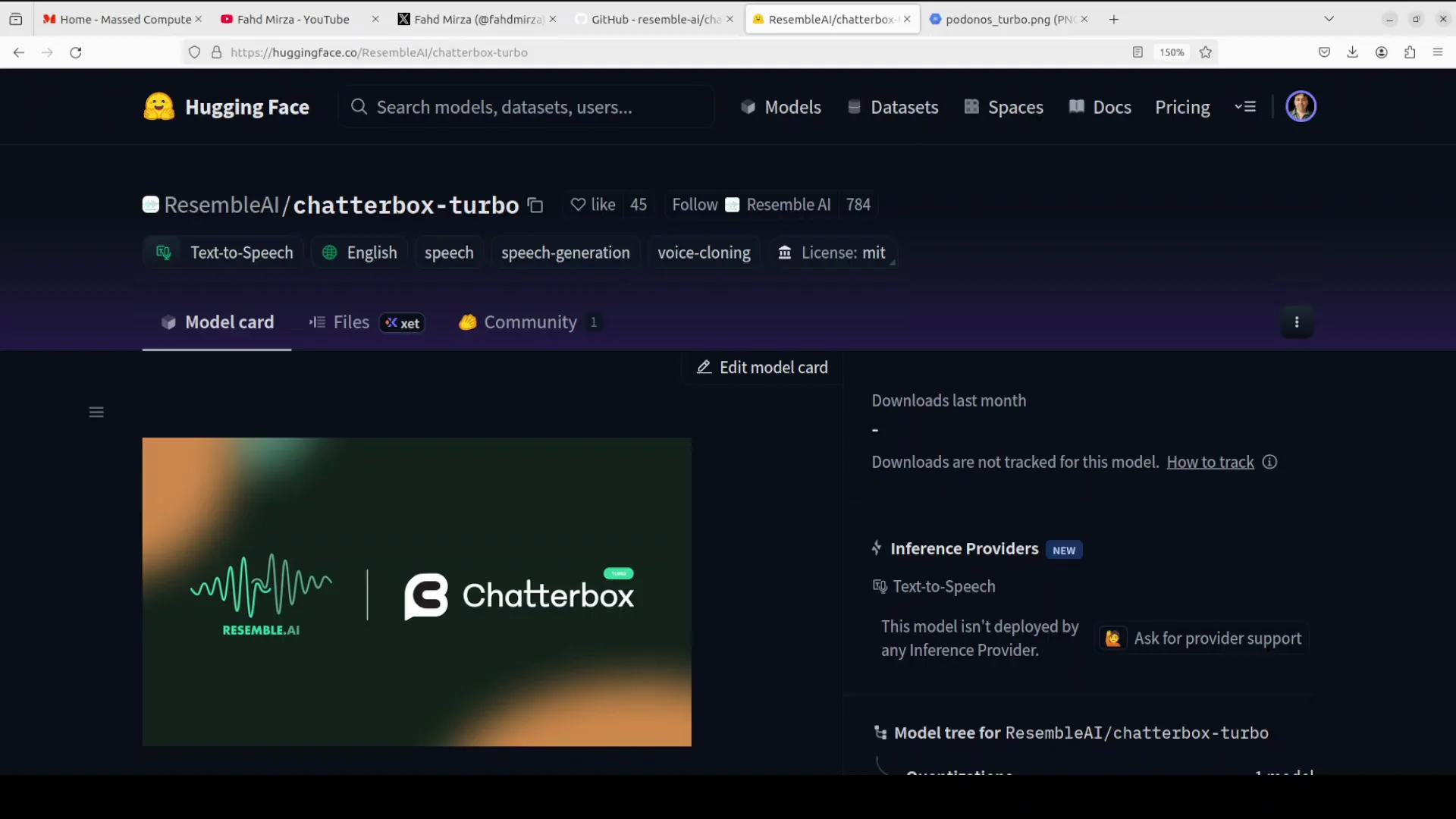
From the root of the repository, launch the demo with app.py. On the first run, it downloads the model, which is just over 1 GB. It is a small model for a TTS system of this quality.
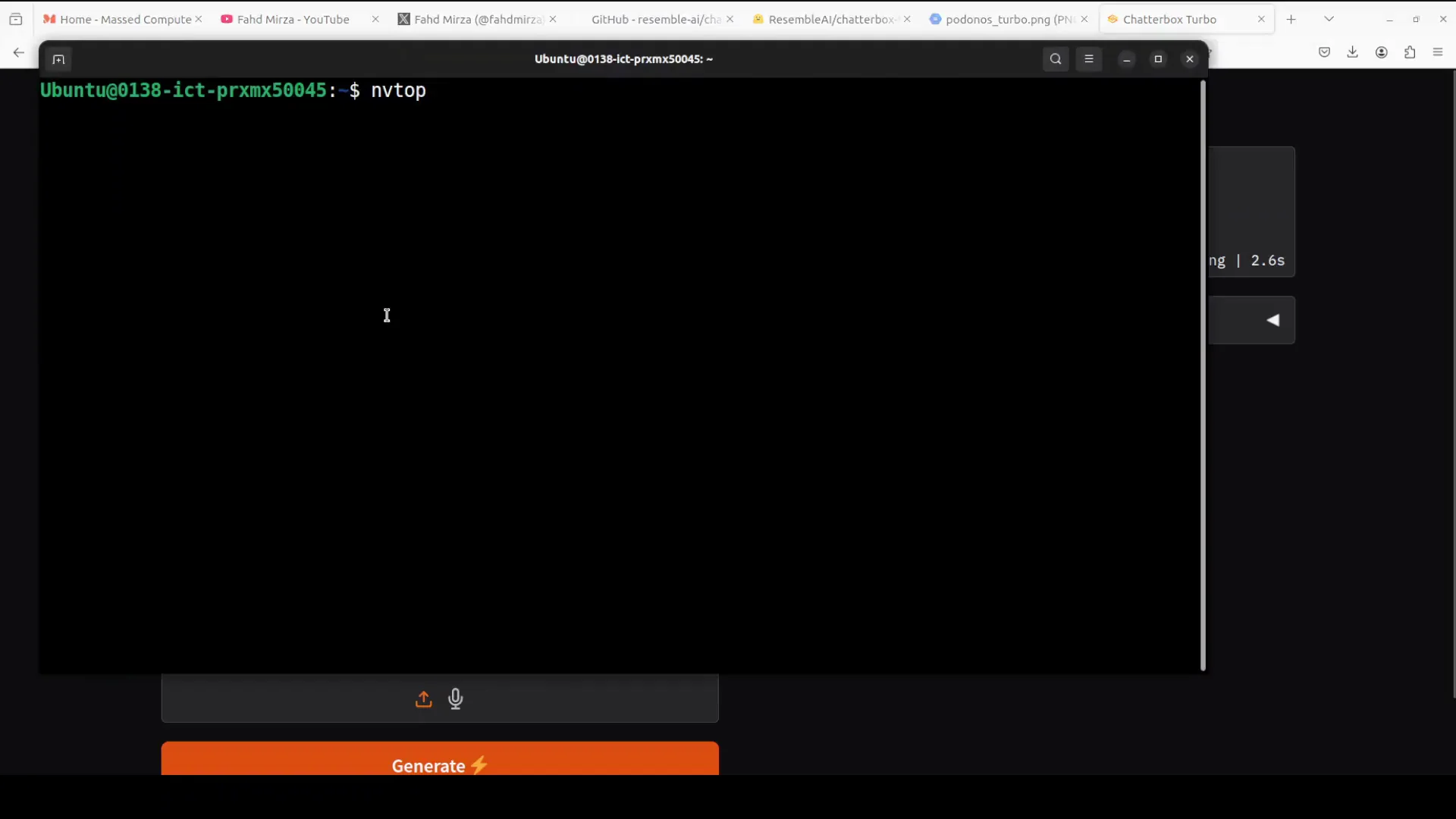
After the first run, the demo is active and accessible from your local browser. With that, Chatterbox Turbo is up and running.
Initial Generation and Resource Usage
I started with a small 300 letter script to test the generation. You can increase the input length if you prefer installing through pip and adjusting relevant settings, but I kept things simple to begin with.
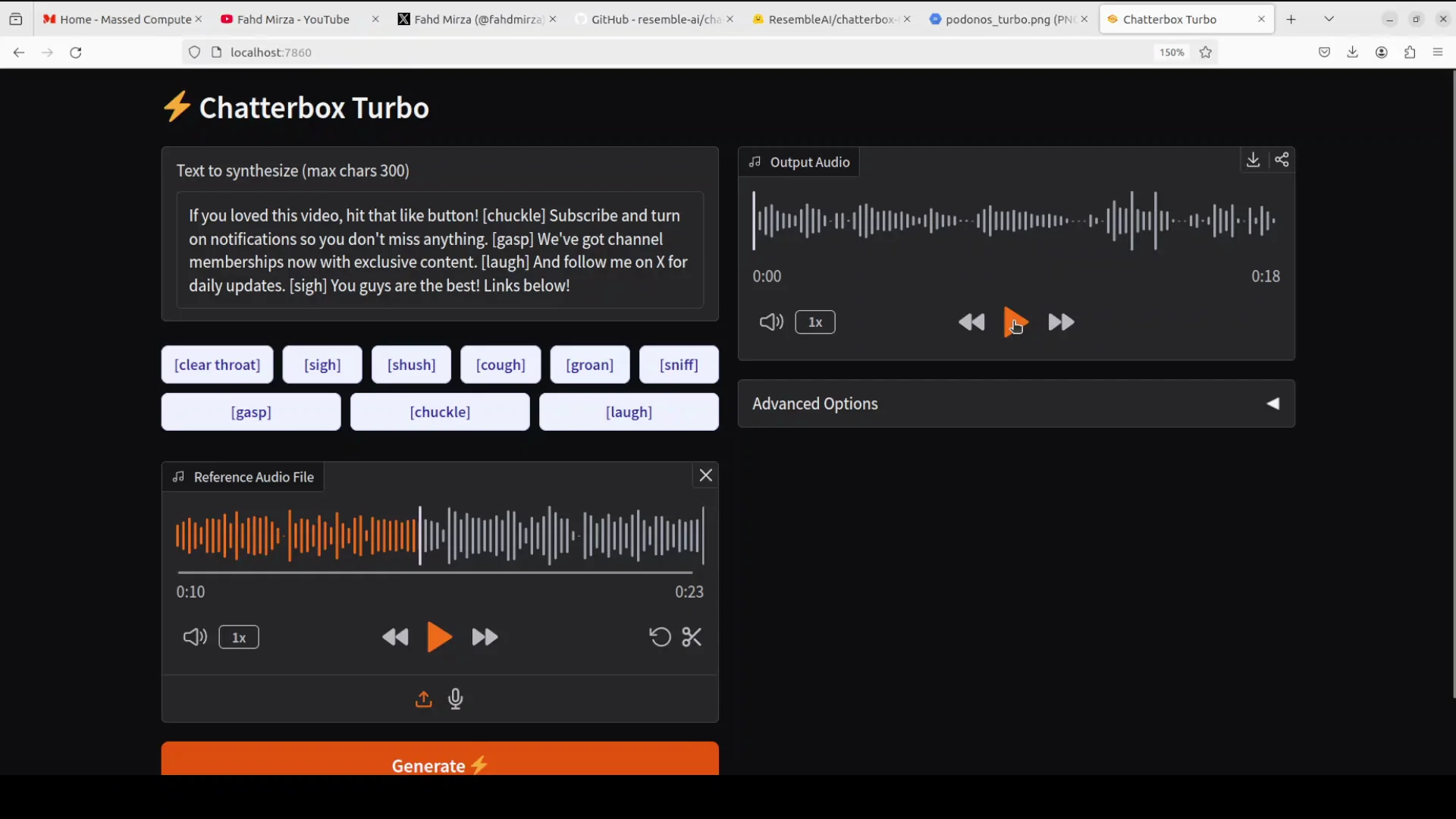
While the model generates audio, I track VRAM consumption. It uses about 4.5 GB of VRAM on my system. That is well within the capacity of modest GPUs. As mentioned, you can also run it on CPU.
One note on playback: I am running through a VNC client, which can occasionally introduce pauses during playback. Here is an early output that demonstrates the tone and clarity:
Oh, that is hilarious. Anyway, we do have a new model in store. It is the Skynet T800 series, and it has basically everything, including AI integration with chat GPT and all that jazz. Would you like me to get some prices for you?
In my test, the connection did not introduce pauses during this clip. The delivery sounded strong and convincing.
Testing Prompts and Emotions
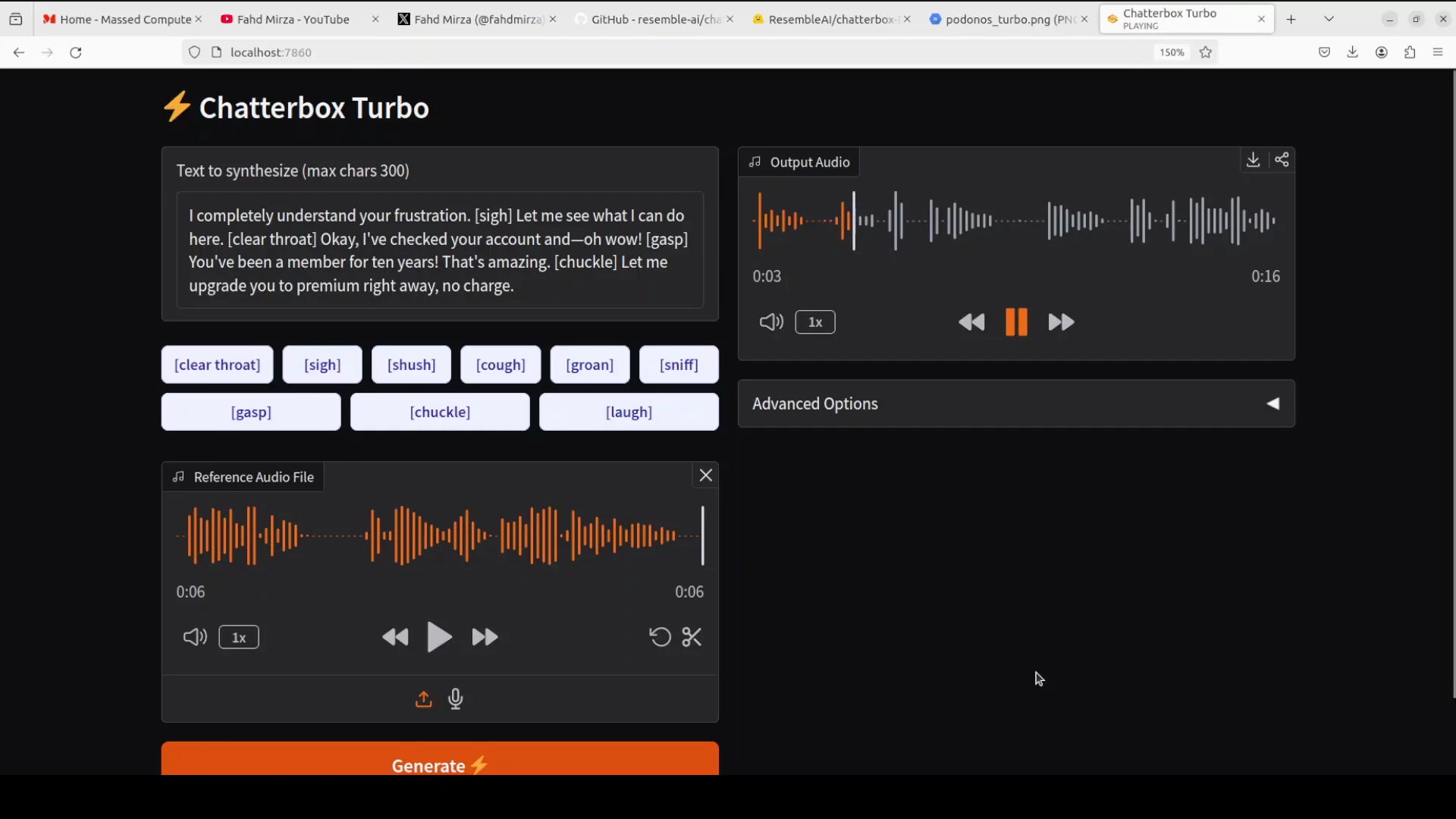
Next, I tried a customer service style prompt. I included instructions like clear throat, chuckle, and gasp to see how it handles nonverbal cues and natural interjections. Output:
I completely understand your frustration. Let me see what I can do here. [clears throat] Okay, I have checked your account and oh wow, you have been a member for 10 years. That is amazing. Let me upgrade you to premium right away. No charge.
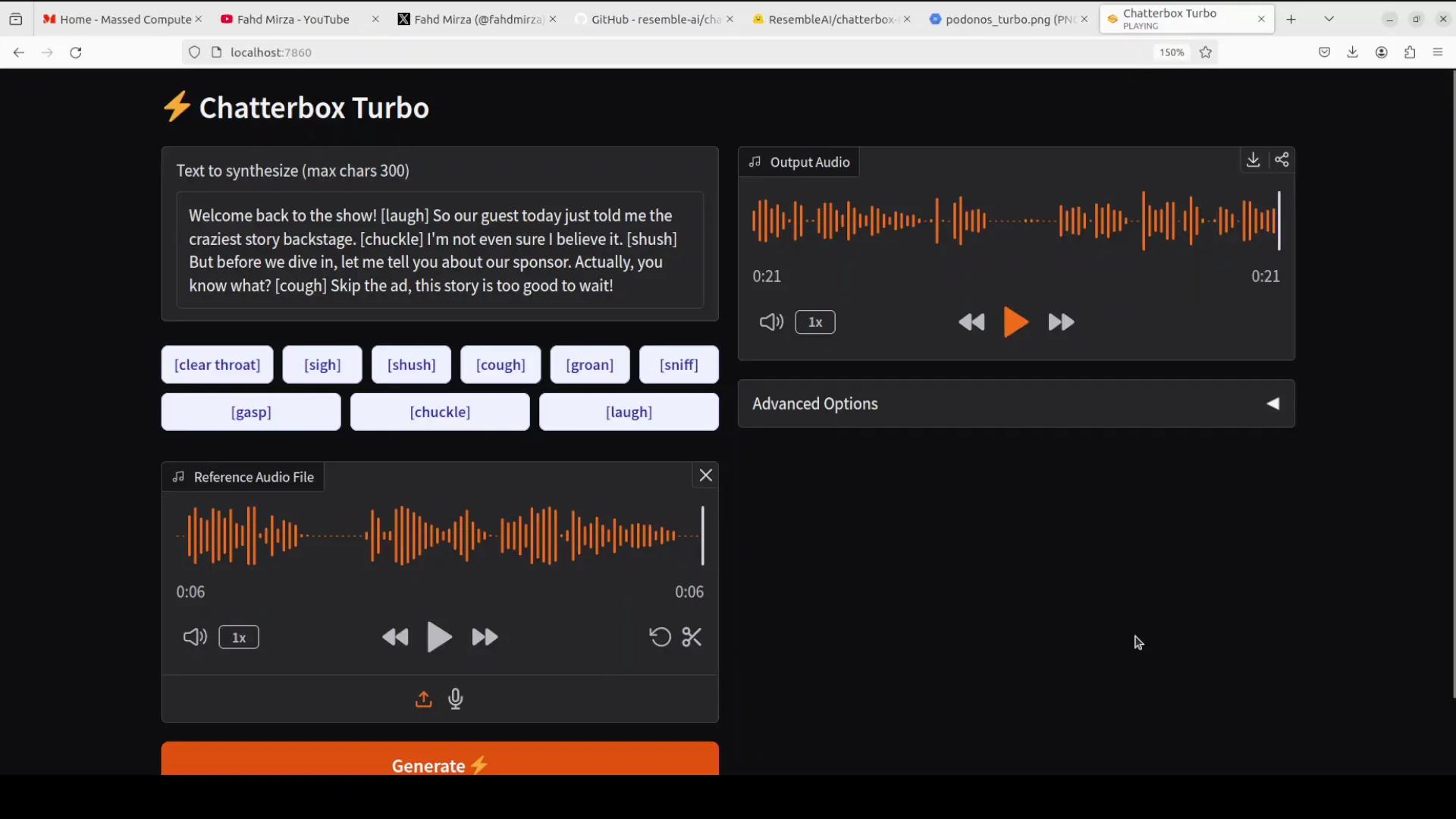
The pacing and clarity were good. I then switched to a podcast-style prompt with higher energy and a few additional emotional cues. Playback:
Welcome back to the show. [laughter] So,
In my case, the VNC playback skipped a word at the start of the clip. When replayed locally, the opening played correctly:
Well, welcome back to the show. So, our guest today just told me the craziest story backstage. I am not even sure I believe it. Sh. But before we get started, let me tell you about our sponsor. Actually, you know what? [laughter] Skip the ad. This story is too good to wait.
The ending sounded natural. The whispered sh felt less natural in this take, but overall delivery quality was good. Emotions and nonverbal cues appear to work, but consistency varies depending on the token and context.
Storytelling and Suspense
I tested a brief storytelling sample to see how it manages suspense and dramatic timing. Output:
The old house creaked in the wind. [clears throat] I pushed open the door and there it was. A shadow moved across the wall. Sh. [sighs] I held my breath trying not to make a sound. Then I heard it. A low coming from the basement. Okay, maybe I watch too many horror movies.
The result is okay, but not really earth chattering. The suspense is serviceable, with clear articulation and timing. Some of the nonverbal elements still feel a bit synthetic in certain spots.
Romantic Style and Emotion Tokens
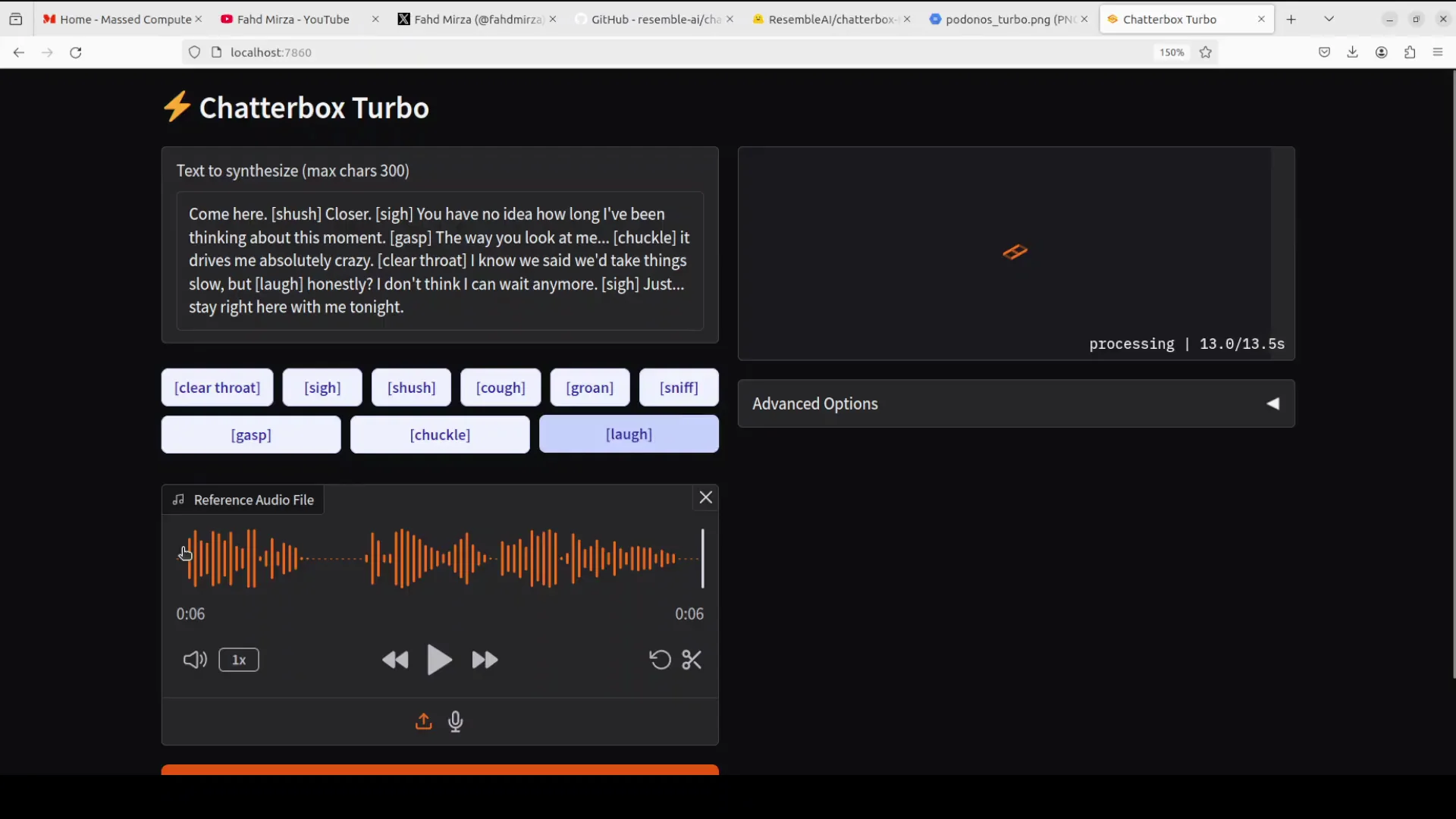
I moved to a romantic style prompt with emotional cues to assess how it handles intimacy, pacing, and breath. In the previous storytelling test, a laugh cue did not trigger properly, so I looked out for consistency again. Output:
Come here. Sh. Closer. You have no idea how long I have been thinking about this moment. The way you look at me, it drives me absolutely crazy. I know we said we would take things slow, but honestly, I do not think I can wait anymore. [sighs] Just stay right here with me tonight.
The delivery is clear and expressive. Some cues trigger well, though not all nonverbal tokens consistently render as intended. The overall style conveys the intended tone.
Voice Cloning With a Reference Audio
Next, I tested voice cloning. I provided a reference audio of my own:
Joy is found in simple moments of gratitude and true contentment comes when we truly value the small.
I then generated the same romantic style text while keeping the default generation settings. There are advanced options like temperature, top p, and top k if you want to control the output more precisely, but I left defaults for this test. Result:
Come here. Shh. Closer. You have no idea how long I have been thinking about this moment. The way you look at me, huh, it drives me absolutely crazy. I know we said we would take things slow, but honestly, I do not think I can wait anymore. Huh? Just stay right here with me tonight.
Sigh and laugh could be improved, but the voice cloning is really good. The timbre and cadence captured from the reference audio are convincing.
Female Voice Cloning Test
I then generated a female voice using another reference audio:
Happiness is a fleeting feeling that can be found in life’s simplest moments.
That opening word was happiness. The reference continues:
A warm conversation with a loved one, a beautiful sunset, or a good cup of coffee can instantly lift our mood.
For the test text, I used a brief promotional line and confirmed the cloned voice remained consistent across segments. The model maintained clarity and tone well across this different voice profile.
I also ran an English-only test here. The team has released a multilingual model as well, which I plan to cover next. In this session, the voice cloning stood out. Emotions can be improved, but overall it performed well across diverse styles.
Observations From Local Testing
Here are my key observations from these runs, in the same order as the tests:
-
Setup and model size
The first run downloads just over 1 GB. The footprint is small for a model that offers voice cloning and expressive delivery. -
VRAM consumption
About 4.5 GB of VRAM during generation on my GPU. It can run on CPU if needed. -
Real-time potential
The single-step MEL decoder reduces compute and VRAM demands, which helps low latency use cases. This is important for interactive applications and voice agents. -
Emotions and nonverbal tokens
Clear throat, sigh, and laughter work in some contexts but can be inconsistent. Whispered cues sometimes sound less natural. -
Voice cloning
Voice cloning quality is a standout. It faithfully reflects the reference voice with strong timbre and pacing alignment. -
Playback environment
VNC can introduce pauses or skips during playback. Local playback avoids that and shows the model’s actual output quality.
Quick Start Summary for How-To Run Chatterbox
Use this compact set of actions if you want a short checklist.
-
Environment
Ubuntu works well. GPU recommended for low latency. CPU-only possible, with slower generation. -
Install
Clone the repo and install from source. You can pip install chatterbox, but source install is recommended. -
Launch
From the repo root, run app.py. The model downloads on first run. Access the local demo in your browser. -
Generate
Start with short scripts and gradually test emotions, nonverbal cues, and voice cloning with reference audio. -
Tune
Adjust temperature, top p, and top k to control variability and style. Defaults work for initial testing.
Configuration Tips
While defaults are reasonable, small adjustments can help shape delivery.
-
Temperature
Lower values produce more stable output. Higher values increase variability in tone and pacing. -
Top p and top k
Use these to constrain or widen the sampling space. Narrower settings make output more predictable. -
Prompt design
Keep emotion tokens consistent. Place nonverbal cues in brackets and in context where they feel natural.
Performance and Fit For Use
Chatterbox Turbo feels ready for local experimentation and early-stage voice agent prototypes. The efficient decoder and low VRAM draw make it viable on a wide range of GPUs. The quality remains high even with a compact 350 million parameter architecture. That efficiency, combined with realistic voice cloning, makes it particularly attractive for real-time applications.
In local testing with varying prompt styles, pacing and clarity were consistently good. Emotion tokens can improve in naturalness and reliability. Voice cloning is strong and held up across different styles and voices.
Reference Notes on How-To Run Chatterbox
- Model size on first download is just over 1 GB.
- VRAM usage during generation measured about 4.5 GB on my setup.
- It can run on CPU although latency will increase.
- Best practice is installing from source rather than only pip installing.
- Playback over VNC may misrepresent pauses, so test locally when assessing quality.
- Nonverbal cues like [clears throat], [sighs], and laughter may require prompt tweaking to trigger reliably.
- Multilingual support exists in a separate release and will be evaluated next.
Quick Table: Practical Stats From This Session
| Item | Observation |
|---|---|
| Parameter count | 350 million |
| First download size | Just over 1 GB |
| VRAM during generation | About 4.5 GB |
| Decoder steps | Single-step MEL decoder |
| Install method | Source install recommended |
| CPU support | Yes, with higher latency |
| Best use | Real-time agents, interactive voice |
| Emotion token reliability | Mixed consistency |
| Voice cloning quality | Really good |
Final Thoughts
Chatterbox Turbo is a compact and efficient TTS model that produces high quality audio locally with modest VRAM needs. The single-step MEL decoder makes it practical for real-time applications where latency matters. In my tests, emotions can be improved, but the voice cloning stood out for its quality.
I also compared it mentally to their prior GTS model from about six months ago, which was quite good. This newer model has the promise to be a strong challenger to ElevenLabs and other hosted closed paid tools. Try it locally, evaluate the prompts and emotions you care about, and refine your setup based on your needs.
Subscribe to our newsletter
Get the latest updates and articles directly in your inbox.

Related Posts

8 Best Claude Code Plugins in 2026 (You Need to Know)
8 Best Claude Code Plugins in 2026 (You Need to Know)

7 Best Claude Code Skills (You Need to Know)
7 Best Claude Code Skills (You Need to Know)

Claude Code Desktop IDE Features (You Need to Know)
Claude Code Desktop IDE Features (You Need to Know)