
Table Of Content
- How to fix Something unexpected happened and Stitch couldn't complete your generation error?
- Solution Overview
- How to fix Something unexpected happened and Stitch couldn't complete your generation error?
- Step-by-Step Solution
- Alternative Fixes & Workarounds
- Troubleshooting Tips
- Best Practices
- Final Thought
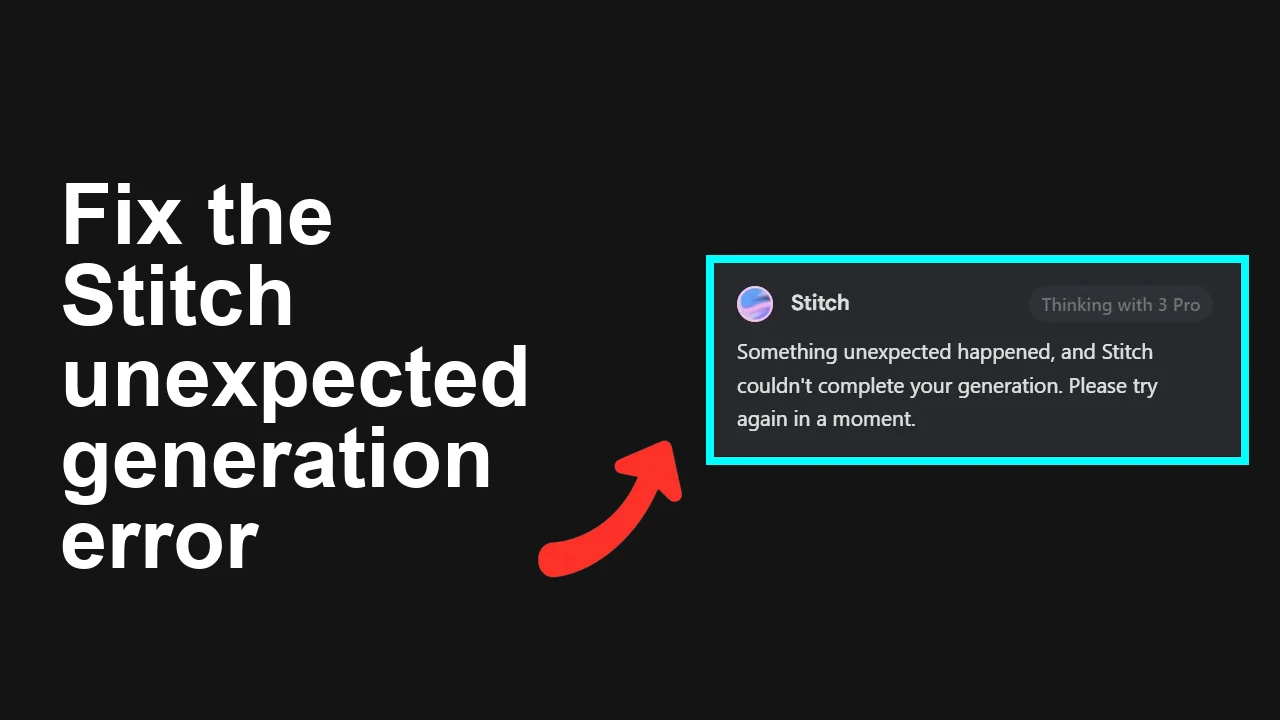
How to fix Something unexpected happened and Stitch couldn't complete your generation error?
Table Of Content
- How to fix Something unexpected happened and Stitch couldn't complete your generation error?
- Solution Overview
- How to fix Something unexpected happened and Stitch couldn't complete your generation error?
- Step-by-Step Solution
- Alternative Fixes & Workarounds
- Troubleshooting Tips
- Best Practices
- Final Thought
You’re seeing the Stitch error and can’t complete generations. This is usually a quota/rate-limit or a temporary backend issue that resolves with a few targeted checks.
How to fix Something unexpected happened and Stitch couldn't complete your generation error?
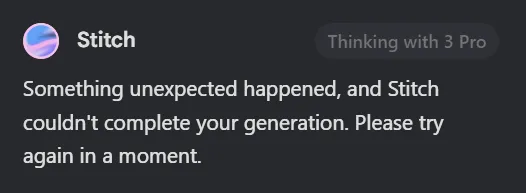
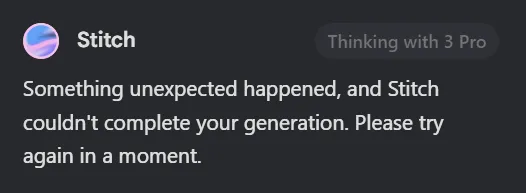
You may see: “Something unexpected happened, and Stitch couldn’t complete your generation. Please try again in a moment.” This often appears mid-prompt, persists for hours, and sometimes clears on its own after a while.
Solution Overview
| Aspect | Detail |
|---|---|
| Root Cause | Transient backend outage or hitting daily quota/rate limits for the underlying model/service |
| Primary Fix | Verify service status and quota usage; reduce load; retry with a fresh session or project |
| Complexity | Easy |
| Estimated Time | 5–10 minutes |
How to fix Something unexpected happened and Stitch couldn't complete your generation error?
Step-by-Step Solution
-
1) Check Google service status first
-
Visit the Google Cloud Status Dashboard to rule out a wider incident: Google Cloud Status.
-
If there’s an incident affecting generative services, wait until it shows “Service available” and try again.
-
2) Confirm you didn’t hit daily quota or rate limits
-
If you’re using AI Studio, check your current usage and daily limits from your account’s usage/billing section: Google AI Studio.
-
If you’re on Google Cloud, open Console > IAM & Admin > Quotas, then filter for “generativelanguage.googleapis.com” or relevant Vertex AI quotas. If usage is at or near the cap, wait for the daily reset or raise limits.
-
Reference limits and backoff guidance: Rate limits for Gemini API.
-
Tip: HTTP 429 in DevTools Network usually means quota/rate limits.
-
3) Retry from a clean session
-
Close extra Stitch tabs.
-
Sign out, then sign back in.
-
Open a private/incognito window and retry the same prompt.
-
If your workspace supports it, start a fresh project (users reported this sometimes bypasses the issue).
-
4) Clear site data for the app
-
In your browser, clear cookies and cached data for the specific Stitch/AI Studio domain.
-
Chrome steps: Settings > Privacy and security > Cookies and other site data > See all site data and permissions > search the domain > Remove.
-
Then reload and try again.
-
5) Reduce prompt load and concurrency
-
Shorten your prompt, remove large attachments, and avoid multiple parallel generations.
-
If you previously saw token-limit symptoms, see our notes here: Read how token limits can break generations.
-
6) Switch the environment variables you control
-
If possible, try a different Google Cloud project or region (quotas and incidents can vary by project/region).
-
Rotate your API key (if applicable) and retry.
-
7) Inspect errors via DevTools (optional, but very helpful)
-
Open DevTools > Network, trigger a generation, and check the response:
-
429 = quota/rate-limited → wait/raise limits/reduce concurrency.
-
5xx = backend issue → retry later; watch status page.
-
401/403 = auth or key permissions → re-authenticate, check key roles/entitlements.
-
8) If it persists, gather details and contact support
-
Include request timestamp, project ID, model name, response code, and any request ID from headers.
-
Note: Intermittent spikes are expected during rollouts; many users reported it “disappears on its own” after some time.
If you’re also facing broader generation failures in other tools, you might find this helpful: Read how to resolve general failed generation errors.
Alternative Fixes & Workarounds
- Throttle your attempts
- Add a manual wait of 30–90 seconds between retries; stagger requests to avoid bursts that trigger rate limits.
- Try a known-working model/path
- If Stitch lets you pick a model or mode, try a smaller/cheaper model (often lower queue times).
- Disable extensions interfering with requests
- Ad blockers, privacy filters, and script injectors can block request payloads. Temporarily disable and retry.
- Different network or VPN
- Some corporate networks or VPNs can throttle or block requests. Test from a home network without VPN.
- Rollback prompt changes
- If the error started right after a big prompt change, revert to the last known-good prompt and expand gradually.
If your workflow uses agents and you’re getting agent aborts alongside Stitch failures, see: Read how to recover from agent termination errors.
Troubleshooting Tips
- Daily reset timing
- Quotas often reset on a 24-hour rolling window. If you’re near the cap, wait at least a few hours before retrying.
- Consolidate tabs
- Multiple open sessions can unintentionally create parallel requests that hit rate limits.
- Watch token counts
- Extremely long prompts or many attachments can trigger server-side safety/size checks. Trim until stable.
- Retry strategy
- Use exponential backoff (e.g., 2s, 4s, 8s, up to 60s) to reduce transient failures.
- Authentication drift
- After permissions changes, refresh your sign-in session; stale sessions can cause authorization errors.
Best Practices
- Monitor usage regularly
- Review usage graphs at least daily during heavy sprints; increase quotas before peak loads.
- Keep prompts modular
- Build prompts in layers and cache intermediate results; this cuts token usage and failure blast radius.
- Limit concurrency
- Queue generations and cap simultaneous jobs to stay under per-minute limits.
- Document known-good configs
- Record the model, parameters, and prompt variants that are stable. Reuse them after incidents.
- Have a fallback path
- Maintain a smaller model or alternative flow for time-sensitive tasks.
For persistent token-related stalls, our short guide can help you diagnose quickly: Read diagnosing token-limit stalls.
Final Thought
In most cases, this Stitch error is either a temporary backend blip or a quota/rate-limit hit. Work through the quick checks above—status, quota, clean session, and reduced load—and you should be unblocked fast. If it resurfaces, use DevTools to identify the exact cause (429 vs 5xx) and apply the matching fix.
Subscribe to our newsletter
Get the latest updates and articles directly in your inbox.

Related Posts
How to fix Issues with code export and Figma copying in Antigravity?
How to fix Issues with code export and Figma copying in Antigravity?
How to fix Exporting Stitch to Figma issues?
How to fix Exporting Stitch to Figma issues?
How to fix My Stitch project is not loading in Antigravity?
How to fix My Stitch project is not loading in Antigravity?