
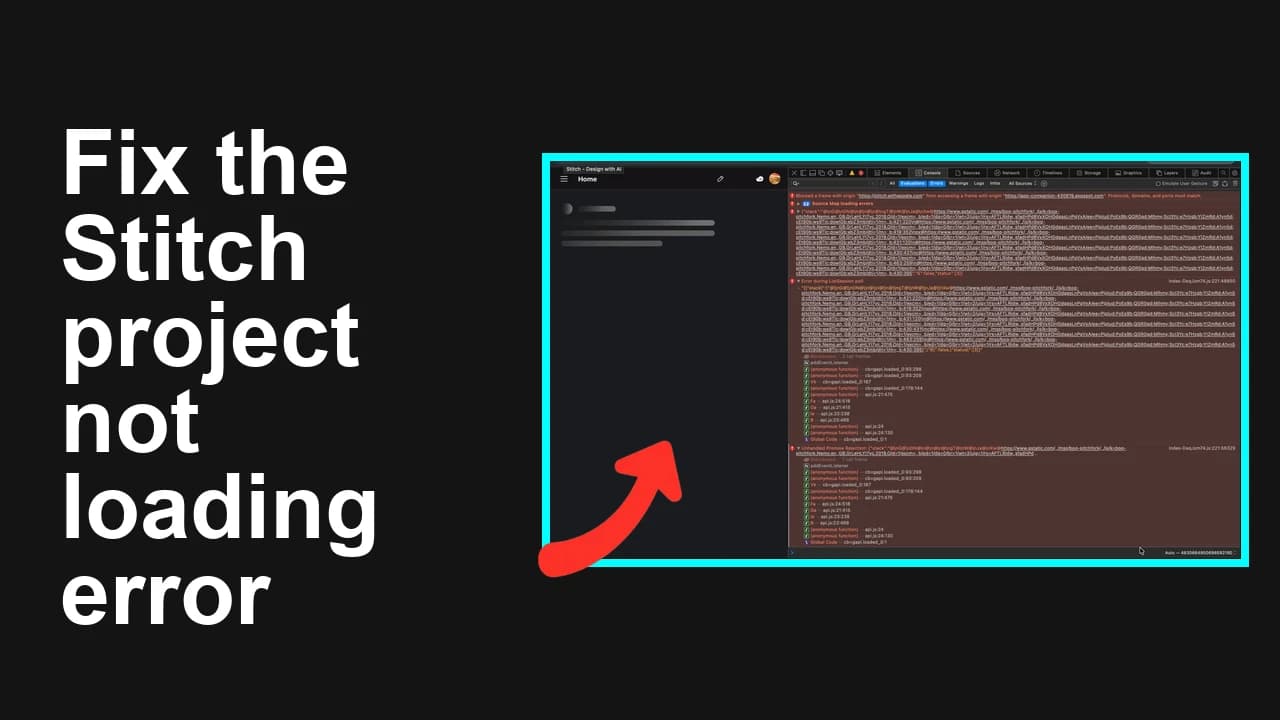
How to fix My Stitch project is not loading in Antigravity?
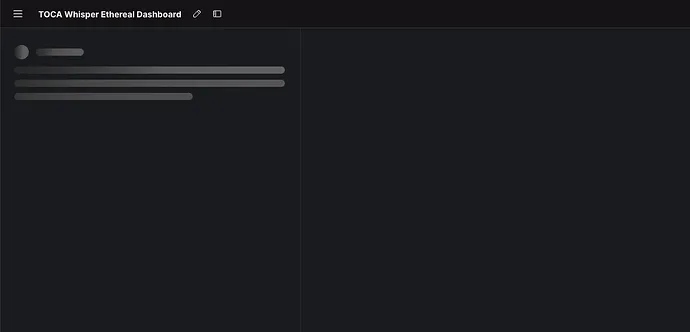
Your Stitch project opens to a black loading screen in Antigravity, and attempts to duplicate or download it fail (ZIP shows 0 files). This often happens on larger, multi‑page projects and blocks any progress.
How to fix My Stitch project is not loading in Antigravity?
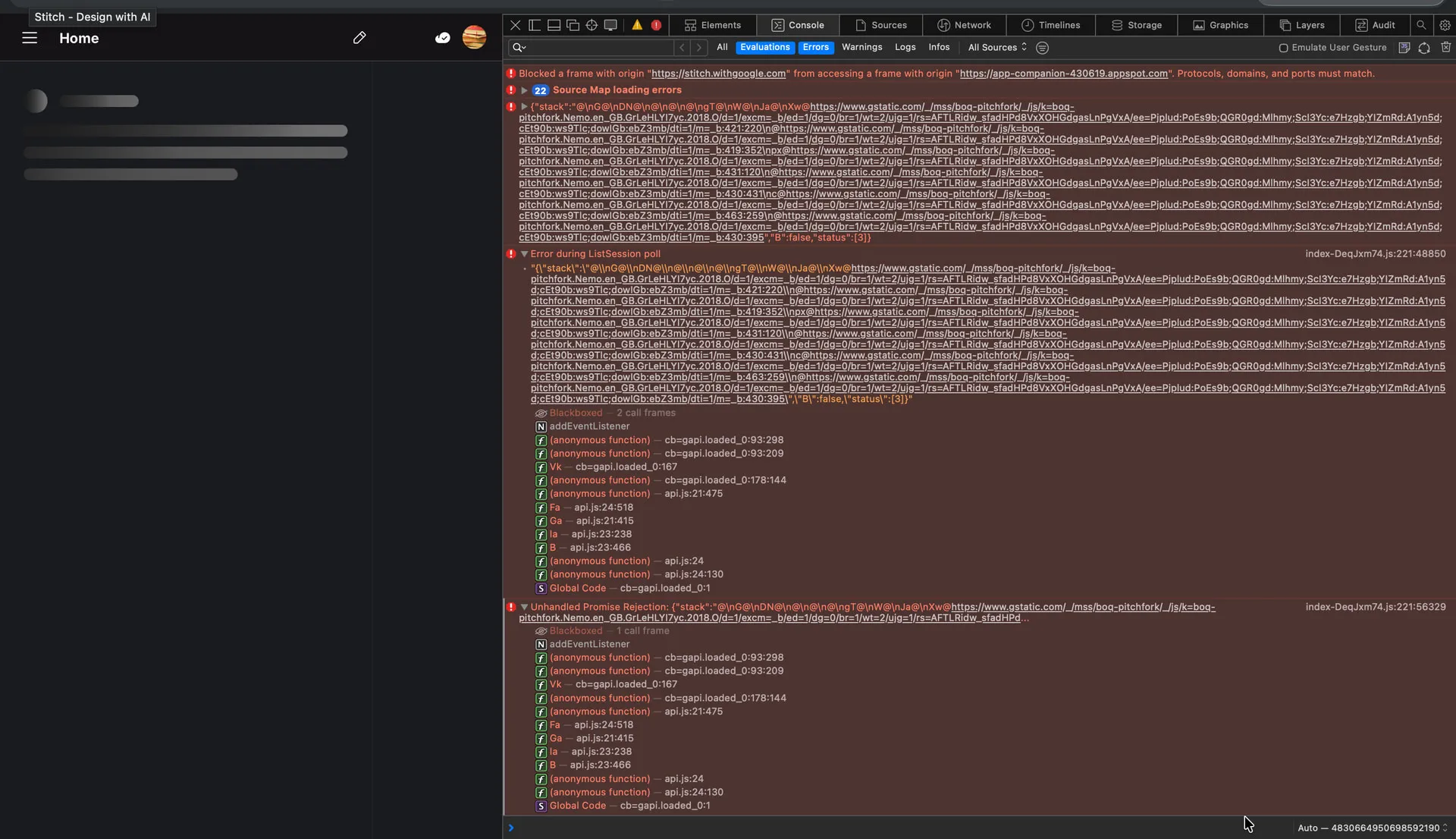
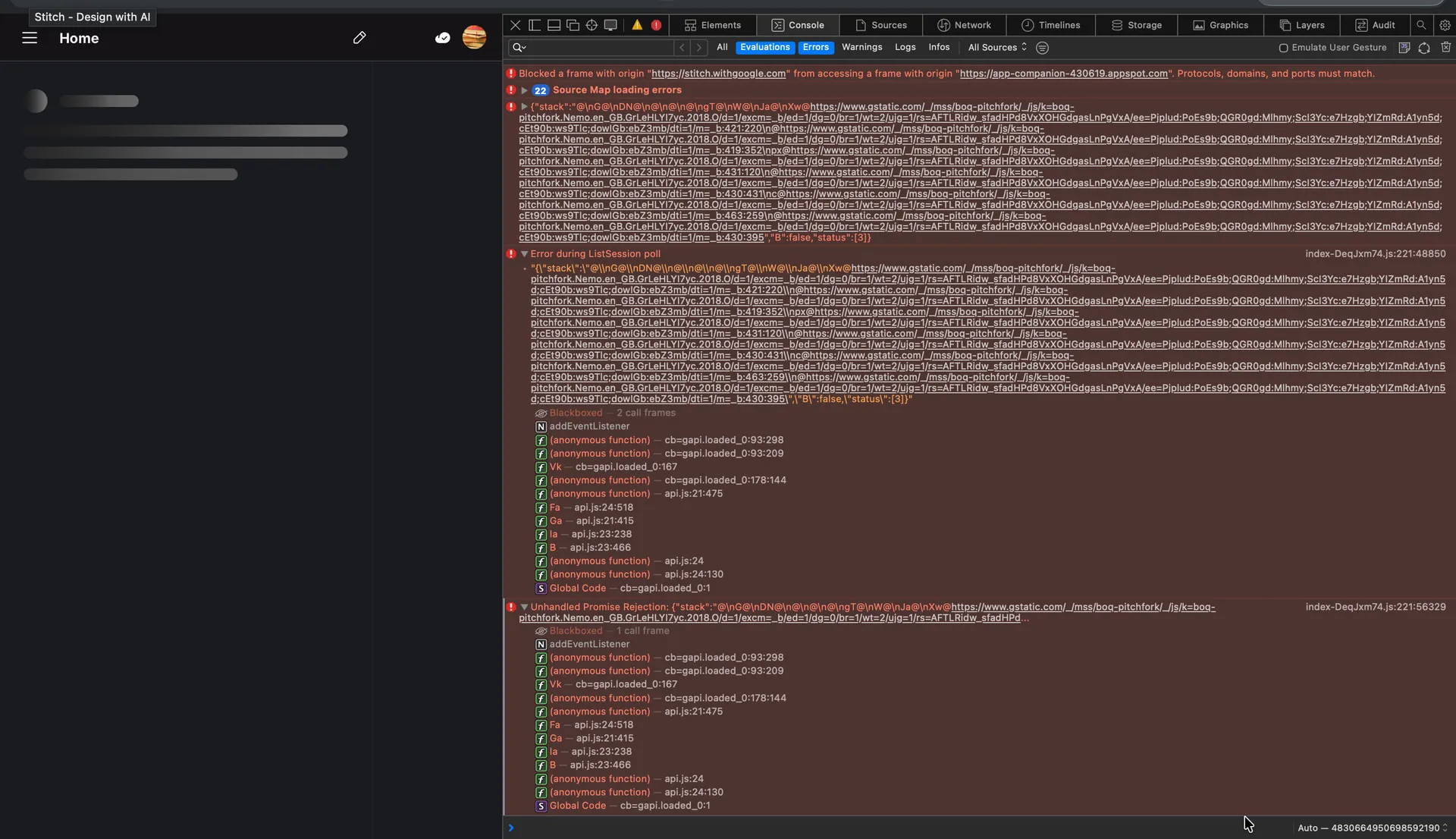
If your project is stuck on a loading spinner, won’t open the canvas, and both “Duplicate” and “Download” produce errors or an empty ZIP, you’re seeing a common load failure. Multiple users reported it affects their largest projects first, while smaller ones still open.
Errors you may notice:
- loading spinner or a blank/black screen
- “Duplicate” fails with a generic error
- “Download ZIP” completes but the archive contains 0 files
Solution Overview
| Aspect | Detail |
|---|---|
| Root Cause | Temporary backend issue combined with cached/broken site data (service worker, cache, IndexedDB) that blocks large project loads |
| Primary Fix | Clear site data for the Antigravity/Stitch domain (service worker, caches, IndexedDB, storage), then reopen the project in a clean browser profile |
| Complexity | Easy |
| Estimated Time | 5–10 minutes |
Read More: Fix model load issues in Antigravity
How to fix My Stitch project is not loading in Antigravity?
Step-by-Step Solution
1) Check service status first (rule out an outage)
- If there’s a platform-side incident, nothing local will fix it. Check:
- Google Cloud Status Dashboard (look for regional storage or CDN incidents)
- If your team has an internal status page, check it as well.
- If an incident is reported, wait for recovery, then proceed with the cache reset below to clear stale data.
2) Hard reload without cached assets
- In Chrome/Edge: open your project page.
- Press and hold Reload > “Empty Cache and Hard Reload” (or open DevTools with F12, then right-click Reload > Empty Cache and Hard Reload).
- Try opening the problematic project again.
3) Remove the Service Worker and clear site caches (most effective)
- Open the Stitch/Antigravity page.
- Open DevTools (F12) > Application tab.
- Under “Service Workers,” click “Unregister” if present.
- Still in Application tab:
- Storage > check “IndexedDB,” “Local Storage,” “Cookies,” and “Cache Storage.”
- Click “Clear site data.”
You can also clear via the Console with these commands (run them on the affected domain tab):
// 3.a Unregister all service workers
navigator.serviceWorker?.getRegistrations?.().then(regs => Promise.all(regs.map(r => r.unregister())));

// 3.b Clear Cache Storage
caches?.keys?.().then(keys => Promise.all(keys.map(k => caches.delete(k))));

// 3.c Clear IndexedDB (Chromium-based browsers)
if (indexedDB?.databases) {
 indexedDB.databases().then(dbs => Promise.all(dbs.map(db => indexedDB.deleteDatabase(db.name))));
} else {
 // Fallback: delete known DBs if you know their names
 // indexedDB.deleteDatabase('stitch-db');
}

// 3.d Clear Web Storage
localStorage.clear();
sessionStorage.clear();
Reload the page (Ctrl/Cmd + R) and reopen the project.

4) Open in a clean context (Incognito or a fresh profile)
- Open an Incognito/Private window and sign in.
- Alternatively, create a fresh Chrome Profile (chrome://settings/manageProfile).
- Disable extensions (chrome://extensions) that could inject scripts or block requests (privacy, script, or ad blockers).
- Try loading the same project again.
5) Try another network or device
- Switch to a different network or a VPN off/on to rule out a regional CDN edge issue.
- If you can load the project elsewhere, save a backup immediately (export/duplicate) and keep that archive safe.
6) If the canvas opens, reduce initial load for large projects
- Remove or archive very large assets (images, videos, multi-MB JSON).
- Split oversized pages into smaller sections.
- Save and try reopening to confirm stability.
7) If still broken, capture diagnostics and open a support ticket
- Open DevTools > Console and Network tabs. Reproduce the load.
- Export a HAR (Network tab > “Export HAR”) and copy Console errors.
- Include: project ID/URL, time of failure, ZIP export result (0 files), and your region.
- Keep a local note of steps tried (cache cleared, incognito, other network).
Read More: Resolve the 1024‑token “not thinking” stall
Alternative Fixes & Workarounds
Open older revision or autosave (if available)
- If the product supports version history, open a prior save that loads, then re‑apply recent edits in smaller batches.
Duplicate specific pages only
- If the full project fails to duplicate, try duplicating a single page or a subset first, then rebuild incrementally.
Export from a collaborator’s account
- Have a teammate open the project from their machine/profile and export a backup. This often works around profile-bound cache corruption.
Temporary asset detachment
- If a specific heavy asset is suspected, detach or delete references to it (when you can load the project at all), then re-add a compressed version.
Read More: Fix Stitch MCP API key issues that block initialization
Troubleshooting Tips
- Check Console errors in DevTools:
- Repeated 4xx/5xx on project.json, assets, or “manifest” files often mean a bad cache entry—repeat Step 3.
- Storage quota errors (QuotaExceededError) indicate IndexedDB or local storage bloat—clear site data.
- Time skew can break auth tokens. Ensure system time is correct (sync with network time).
- Sign out and sign back in to refresh auth/session.
- If only this project fails, it’s likely a corrupted local cache for its large graph; if all projects fail, suspect account/auth or platform incident.
- If downloads yield empty ZIPs, retry from a different browser or profile right after clearing site data.
Best Practices
- Keep projects modular. Split very large, multi‑page builds into smaller projects or libraries.
- Compress large images/videos and remove unused assets regularly.
- Export a backup (ZIP) at key milestones and store it in version control.
- Avoid keeping experimental branches in the same monolithic project—branch them into separate workspaces.
- Document extension and browser versions known to work with your team and standardize on them.
Final Thought
The fastest win is to clear the service worker, caches, and IndexedDB for the Antigravity/Stitch domain, then load the project in a clean profile. This resolves most black‑screen and empty‑ZIP symptoms and gets you unblocked while you wait out any platform-side fixes.
Subscribe to our newsletter
Get the latest updates and articles directly in your inbox.

Related Posts
How to fix Issues with code export and Figma copying in Antigravity?
How to fix Issues with code export and Figma copying in Antigravity?

How to fix Exporting Stitch to Figma issues?
How to fix Exporting Stitch to Figma issues?
How to fix Agent execution terminated due to error in Antigravity?
How to fix Agent execution terminated due to error in Antigravity?