
How to fix Exporting Stitch to Figma issues?
You’re trying to export a Stitch project to Figma, but the Export to Figma button is missing. This typically occurs when the project wasn’t created in Rapid mode from the start.
How to fix Exporting Stitch to Figma issues?
You may not see the “Export to Figma” option in Stitch if you start a project in a non‑Rapid mode and later switch it to Rapid. The button appears only for projects that are created fresh with Rapid enabled.
There’s usually no error—just the missing button. Users report that creating a brand‑new project with Rapid immediately restores the Figma export option, while switching modes mid‑project does not.

For additional context on common export blockers and checks, see this Stitch → Figma troubleshooting guide.
Solution Overview
| Aspect | Detail |
|---|---|
| Root Cause | Figma export is only enabled for projects initially created in Rapid mode; switching an existing project to Rapid does not backfill the export capability. |
| Primary Fix | Create a new Stitch project with Rapid enabled from the start, migrate your content, then export to Figma. |
| Complexity | Easy |
| Estimated Time | 5–15 minutes |
How to fix Exporting Stitch to Figma issues?
Step-by-Step Solution
- Create a brand‑new project with Rapid enabled
- In Stitch, start a new project and ensure Rapid mode is selected during creation.
- Confirm the “Export to Figma” option is visible in the new project’s toolbar/menu.
- Tip: Name it clearly (e.g., project-rapid-for-figma) to avoid confusion.
- Migrate your content from the old project
- Open your original project and copy over the needed assets, prompts, or screens into the new Rapid project.
- If your original content is prompt‑driven, re‑run the same prompt in the Rapid project to regenerate equivalent UI for export.
- Keep both projects open in separate tabs for faster copy/paste.
- Export to Figma from the Rapid project
- In the new Rapid project, click Export (or the Figma icon) and choose “Export to Figma.”
- Sign in to Figma if prompted and choose the correct team/workspace and destination.
- Confirm the export completes and that a new Figma file is created.
- Verify the result in Figma
- Open the generated Figma file and inspect frames, layers, and Auto Layout where applicable.
- If layer structure looks off, re‑export after simplifying or flattening complex components.
If you also hit code‑export issues during this process, see this short note on avoiding flaky exports: code export issues (Antigravity).
Alternative Fixes & Workarounds
- Import the Stitch .zip into Figma using html.to.design
- In Stitch, download your project as a .zip (code export).
- In Figma:
- Install the plugin html.to.design.
- Open a Figma file, run the plugin (Resources → Plugins → html.to.design).
- Drag and drop the Stitch .zip into the plugin window.
- Choose options like Auto Layout (optional) and import.
-
This will recreate designs in Figma with a clean structure and optional Auto Layout, bypassing the missing built‑in export.
-
Rebuild quickly in a fresh Rapid project
-
If your content is largely prompt‑based, re‑generate in a new Rapid project, then export directly to Figma. This is often faster than manual migration for small/medium scopes.
-
Keep the original project for development, new Rapid project for design handoff
-
Maintain your original project for code or prototyping, while the Rapid‑created project exists solely to enable Figma export.
For a compact checklist of common pitfalls and quick wins, see extra troubleshooting notes for Stitch → Figma.
Troubleshooting Tips
- Confirm project mode:
- Ensure you are in a project that was created with Rapid from the beginning. Switching to Rapid later won’t expose the Figma export.
- Check account/workspace:
- Make sure you’re signed into the correct Figma account and have permission to create files in the chosen team.
- Browser hygiene:
- Hard refresh (Ctrl/Cmd+Shift+R), try an incognito window, and temporarily disable extensions (especially blockers or script modifiers).
- UI visibility:
- Resize the window or zoom to 100% in case the export UI is off‑screen.
- Consistency:
- If the export button still doesn’t appear in a brand‑new Rapid project, log out/in of Stitch and try once more, then contact support with screenshots.
Best Practices
- Start in Rapid when Figma export is a requirement. Decide the mode upfront and create the project accordingly.
- Keep a migration checklist:
- Prompts, components, assets, and any naming conventions needed to re‑generate quickly in a new Rapid project.
- Keep your Figma plugins updated and standardized across the team (e.g., html.to.design).
- Validate export early:
- Run a proof export to Figma at the beginning of a project to catch issues before you invest significant time.
If you need a quick refresher with condensed steps, check this short guide: Stitch → Figma quick fixes.
Final Thought
The missing “Export to Figma” button isn’t a bug in most cases—it’s tied to how the project was created. Start a fresh Rapid project, migrate your content, and export, or use the html.to.design plugin as a reliable workaround when starting over isn’t feasible.
Subscribe to our newsletter
Get the latest updates and articles directly in your inbox.

Related Posts
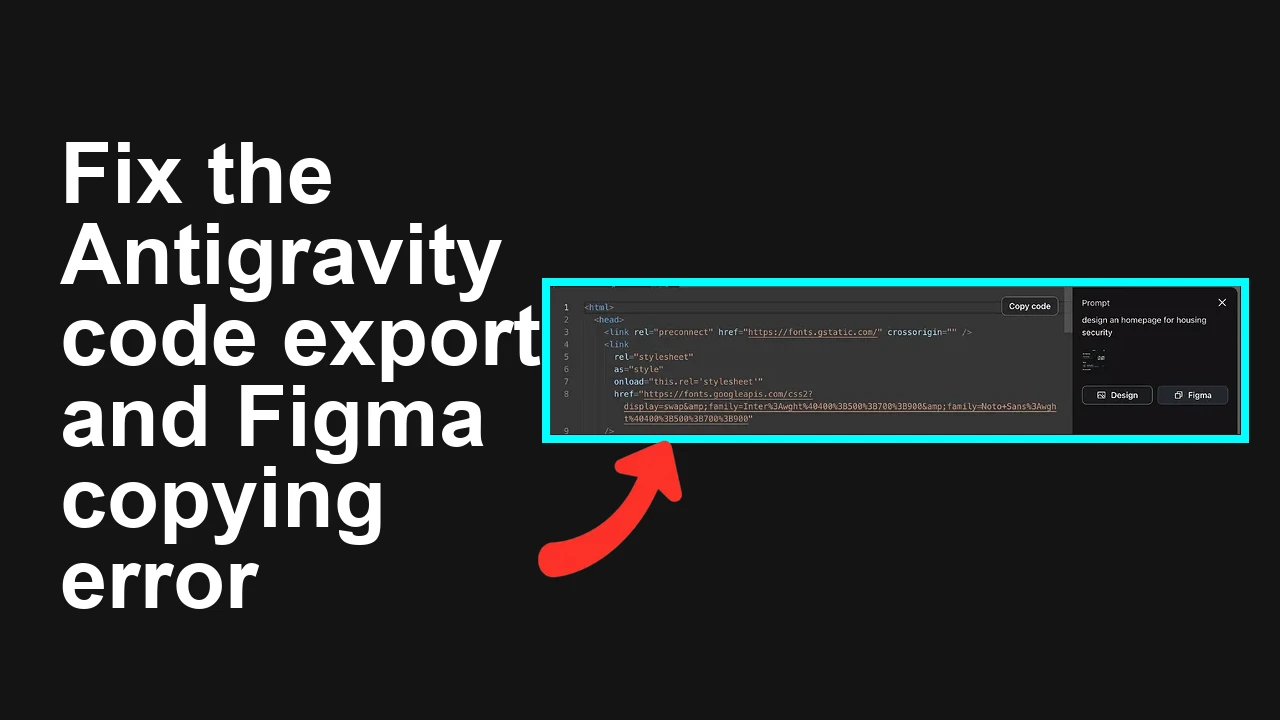
How to fix Issues with code export and Figma copying in Antigravity?
How to fix Issues with code export and Figma copying in Antigravity?
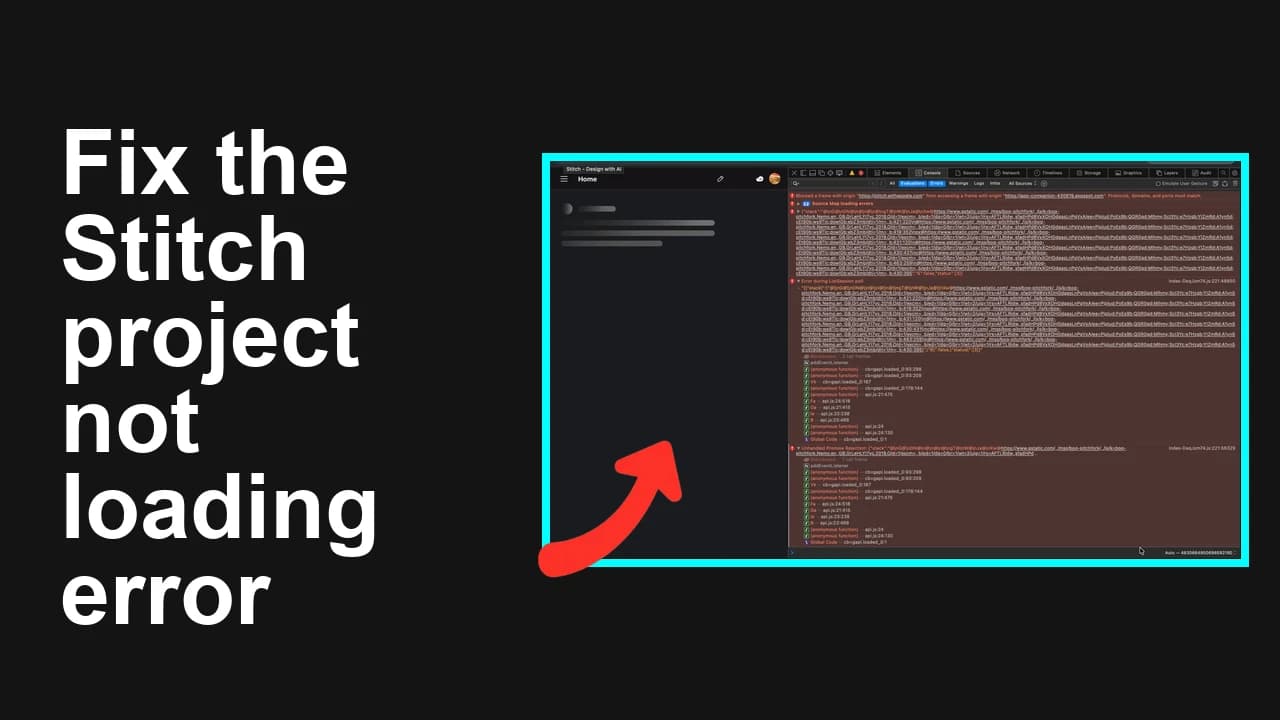
How to fix My Stitch project is not loading in Antigravity?
How to fix My Stitch project is not loading in Antigravity?
How to fix Agent execution terminated due to error in Antigravity?
How to fix Agent execution terminated due to error in Antigravity?