
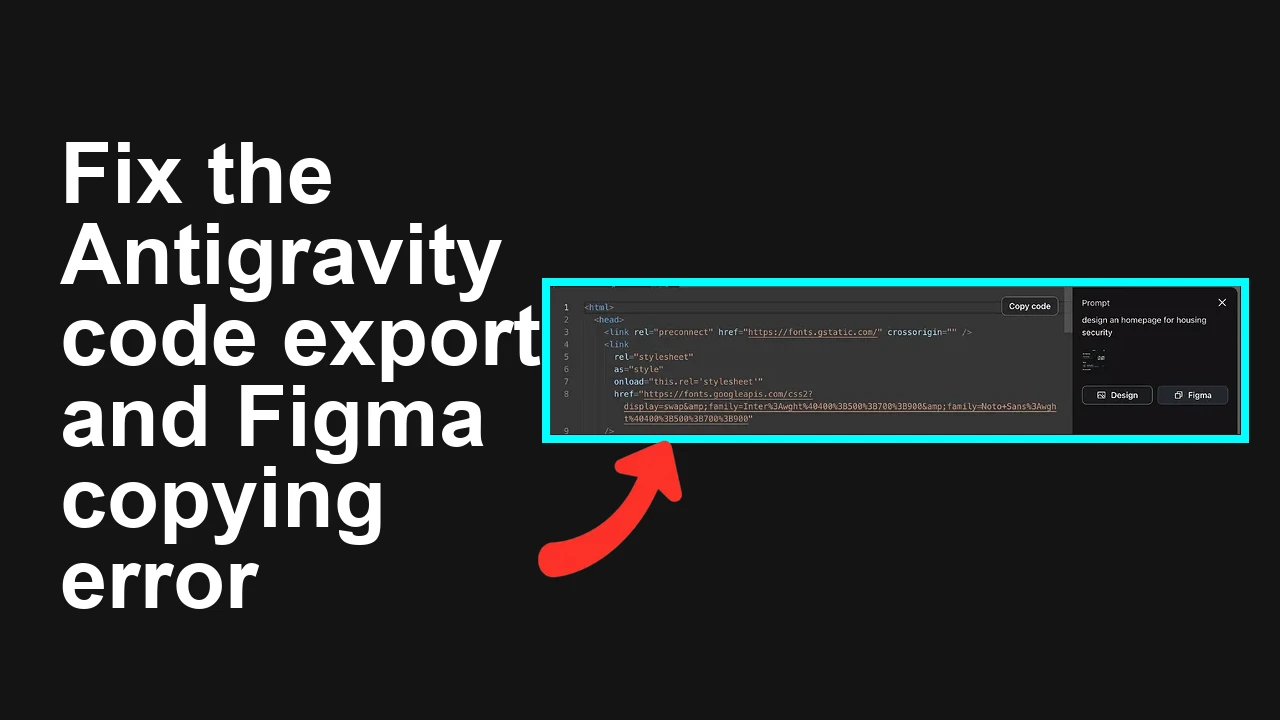
How to fix Issues with code export and Figma copying in Antigravity?
You’re trying to export code and copy designs from Antigravity’s Stitch to Figma, but nothing happens on paste, and some users still see “Coming soon” in the Code panel. Good news: the feature has been fixed—if it’s still failing, it’s almost always cache, permissions, or environment.
How to fix Issues with code export and Figma copying in Antigravity?
![How to fix Issues with code export and Figma copying in Antigravity? ]
Users reported that clicking Copy to Figma does nothing (no toast, no paste) in both Figma Web and Desktop. Others saw the Code tab stuck on “Coming soon” in Chrome. Antigravity confirmed this was fixed, so failures now typically point to outdated cache/build, clipboard permissions blocked, VPN/region blocks, or using an unsupported environment.
Solution Overview
| Aspect | Detail |
|---|---|
| Root Cause | Cached old build, blocked clipboard permissions, region/VPN interference, or pasting into inactive Figma context |
| Primary Fix | Hard-refresh Antigravity, allow Clipboard access, paste into an active Figma file (Desktop preferred), and clear site data if needed |
| Complexity | Easy |
| Estimated Time | 5–15 minutes |
If you also face intermittent Antigravity run failures while testing, you can cross-check common app-side fixes here: troubleshooting a “fail to send” error.
How to fix Issues with code export and Figma copying in Antigravity?
Step-by-Step Solution
1) Refresh to the latest Stitch build
- Close any open Stitch tabs.
- Reopen Stitch, then perform a hard reload:
- Chrome: open DevTools (Cmd+Option+I / Ctrl+Shift+I) → right-click Reload → “Empty cache and hard reload”.
- Sign out and sign in again if the Code panel still shows “Coming soon”.
![image ]
2) Use Figma Desktop and paste into an active design file
- Open the Figma Desktop app and create/open a blank design file.
- Select the Canvas (click on empty space—no text layers selected).
- Press Cmd+V (Mac) or Ctrl+V (Windows).
- If you must use the browser, keep the Figma tab focused on the canvas. Reference: Figma copy/paste basics.
3) Allow Clipboard permissions for Antigravity (Stitch)
- In Chrome, open Stitch, click the site lock icon in the address bar → Site settings.
- Set “Clipboard” to “Allow”.
- Alternatively: Chrome Settings → Privacy and security → Site settings → Permissions → Clipboard → add Stitch’s domain as “Allow”.
- Reload the page and try Copy to Figma again. For context on browser behavior, see the Clipboard API basics.
4) Disable VPN or switch to a supported region
- Some users mentioned using a VPN because the service isn’t available in their country. VPNs can:
- Block clipboard access.
- Route traffic to a region where the feature rollout lags or is geo-restricted.
- Temporarily disable the VPN or switch to a region where Antigravity is supported, then retry.
5) Clear site data for a clean state
- Chrome → Settings → Privacy and security → Site settings → View permissions and data stored across sites → search for Stitch’s domain → Clear data.
- Re-login to Antigravity and test Copy to Figma and the Code panel again.
6) Verify you’re pasting correct content
- Ensure you used the in-app Copy to Figma action just before pasting.
- Paste into Figma within 60 seconds to avoid clipboard expiry on some systems.
- Try pasting into a plain text editor to confirm something is on your clipboard.
7) Update apps and try a supported browser
- Update Chrome to latest stable.
- Update the Figma Desktop app.
- Try an alternate browser (Chrome, Edge) to rule out extension conflicts. Disable extensions like privacy blockers and password managers temporarily.
If you encounter unrelated execution errors while testing exports, you can also review this fix: handling an “agent terminated” crash.
Alternative Fixes & Workarounds
Export assets and import to Figma
- If Copy to Figma still fails, export frames/components as SVG/PNG from Antigravity and drag them into Figma. You can then rebuild components gradually.
Use Figma Web with clipboard permissions enabled
- If Desktop app is restricted on your device, ensure the browser can read/write clipboard and try a different profile or Incognito (with extensions disabled).
Create a new Figma file and paste there
- Some pastes fail due to file/library permissions. Pasting into a brand-new file in your personal space can isolate permission issues.
Troubleshooting Tips
- If Copy to Figma shows no toast and paste does nothing:
- Check DevTools Console for errors like “NotAllowedError: Clipboard read permission denied.”
- Ensure Figma is the active window and the canvas is focused, not a text field.
- If Code still shows “Coming soon”:
- You may be on a cached build—try “Empty cache and hard reload,” then re-login.
- Confirm your account/workspace has access to code export features.
- If network errors appear:
- Test without VPN.
- Try a different network (mobile hotspot).
- Check for corporate firewall/proxy rules blocking clipboard or Web APIs.
If your prompts hit token-related limits while generating code, here’s a practical resource: resolving token budgeting issues in Antigravity.
Best Practices
- Keep Antigravity (Stitch), Chrome, and Figma Desktop updated.
- Avoid VPNs when using features that depend on browser clipboard or geo-gated services.
- Allow site permissions (Clipboard, Pop-ups) for Stitch’s domain.
- Paste into a fresh Figma file first to validate your pipeline, then move into team libraries.
- Clear site data after major feature rollouts to avoid stale UI states.
For persistent sending/connection problems during export sessions, you can also review: steps to resolve “fail to send” issues.
Final Thought
The feature is live and works once you’re on the latest build with Clipboard allowed, Figma Desktop active, and no VPN interference. Follow the steps above and you should move from “nothing happens on paste” or “Coming soon” to a clean, working export in minutes.
Subscribe to our newsletter
Get the latest updates and articles directly in your inbox.

Related Posts
How to fix Exporting Stitch to Figma issues?
How to fix Exporting Stitch to Figma issues?
How to fix My Stitch project is not loading in Antigravity?
How to fix My Stitch project is not loading in Antigravity?
How to fix Agent execution terminated due to error in Antigravity?
How to fix Agent execution terminated due to error in Antigravity?