
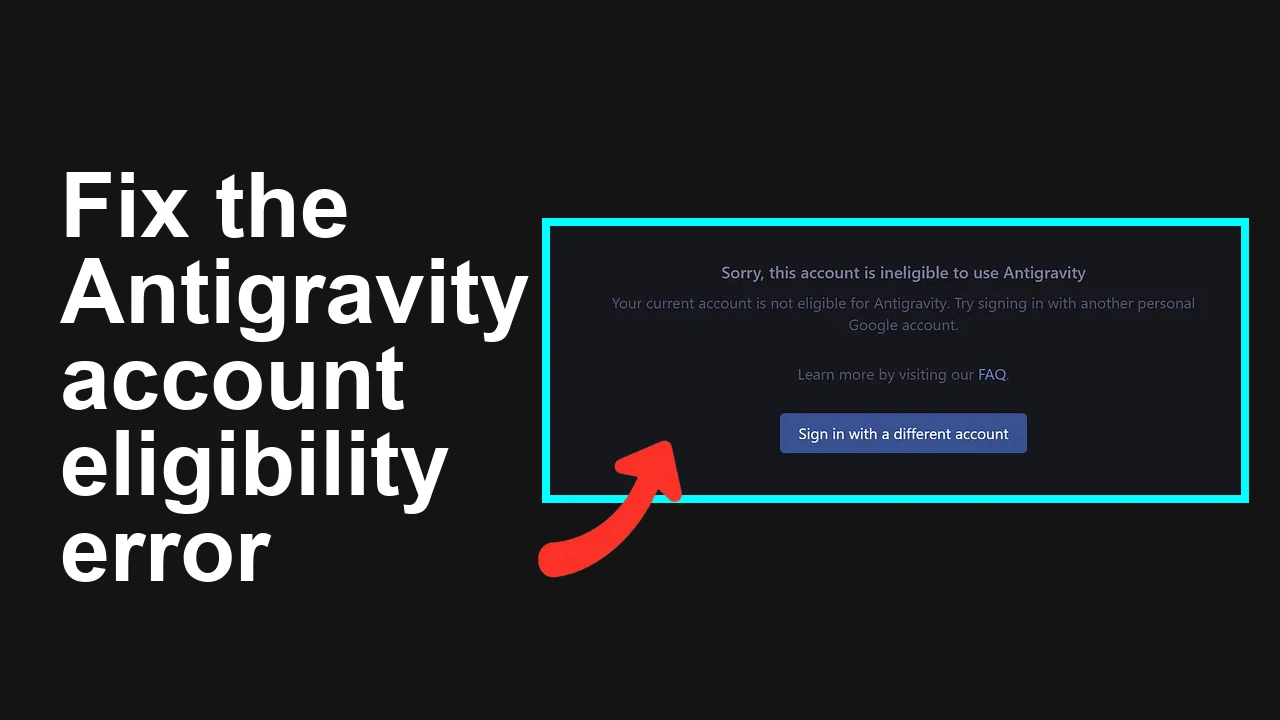
How to fix Antigravity login issue: Your current account is not eligible?
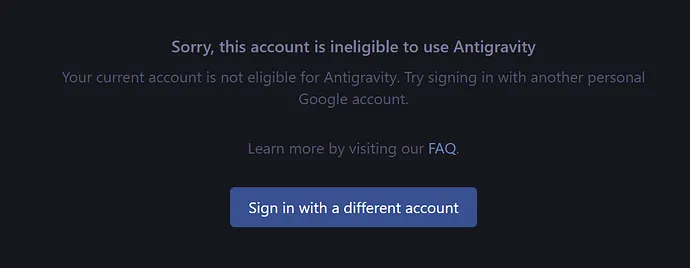
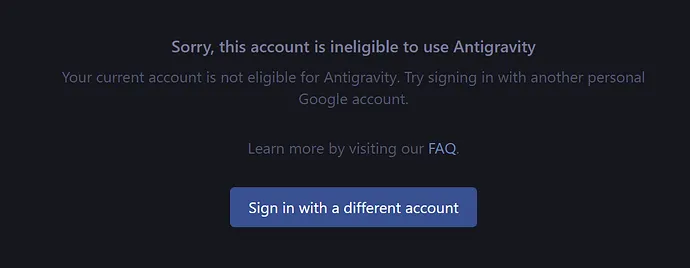
You try to sign in to Antigravity and see “Your current account is not eligible. Try signing in with another.” On one device it worked before, but after signing out you’re blocked everywhere. This points to an account-level eligibility check, not a device issue.
How to fix Antigravity login issue: Your current account is not eligible?
Many users report that Antigravity rejects login with the message: “Your current account is not eligible for Antigravity. Try signing in with another.” In some cases, an older session worked on Windows 10 until the user signed out, after which every device was blocked. Some also noted an internal reference like in logs or screenshots.
Common symptoms:
- Works on one PC, but a fresh sign-in on another fails with “not eligible”
- Reinstalling the app, clearing cache, or unlinking account doesn’t help
- Logging out of a working session causes all devices to fail afterward
- Some see the same error on mobile
Solution Overview
| Aspect | Detail |
|---|---|
| Root Cause | Antigravity enforces eligibility at the account level (age, region, policy, or workspace admin). Logging out forces a fresh eligibility check that then blocks access. |
| Primary Fix | Use an eligible Google account (personal Gmail preferred), confirm age ≥18 and supported region, then re-authenticate after clearing site data and third‑party cookie blocks. |
| Complexity | Easy |
| Estimated Time | 10–20 minutes |
Read More: Login troubleshooting for Antigravity
How to fix Antigravity login issue: Your current account is not eligible?
Step-by-Step Solution
1) Confirm your Google account is eligible (age, region, policy)
- Personal vs. Workspace: If you’re using a work/school Google account, your admin may block Antigravity. Use a personal Gmail or ask IT to allow access.
- Age check (must be 18+): Open Google Account – Personal info and verify your Date of birth.
- Region support: Antigravity may be limited by country. Open Google Payments Profile and confirm your country is supported for the service. If you’re traveling, test from a supported region/network. Do not change your profile to a false country.
- Family/Under 18: Family Link or underage accounts will fail eligibility.
2) Sign out of all Google accounts in the browser, then sign in with only the eligible account
- In your browser profile, sign out from every Google account.
- Close all tabs and windows for the browser.
- Reopen the browser and sign in with just the eligible account (the one you validated above).
3) Clear site data and remove blockers just for the Antigravity site
- In Chrome/Edge:
- Open the Antigravity page, click the padlock icon in the address bar.
- Choose “Site settings” → “Clear data” (remove cookies and local storage for this site).
- Privacy setting: Allow third‑party cookies for this site (temporary) under Settings → Privacy and security → Third‑party cookies.
- Disable extensions that interfere with sign-in (ad/tracker blockers, script blockers, privacy extensions). Test again.
4) Try a clean session
- Open an InPrivate/Incognito window and sign in with the eligible account.
- Or try another browser (Chrome, Edge, Firefox) on the same machine.
5) Flush DNS cache (Windows) in case stale network resolution sticks you to an edge that enforces new policy
- Open Command Prompt as Administrator and run:
- ipconfig /flushdns
6) Reattempt login
- Reload Antigravity and sign in. If you still see “Your current account is not eligible,” use a different eligible account (personal Gmail) to confirm it’s account-level.
7) If you’re on Google Workspace
- Ask your admin to review org policy for experimental/AI services associated with Antigravity. If the org cannot allow it, your reliable path is a personal Gmail that meets age/region rules.
Read More: Fix the setup/login dialog closing issue
Alternative Fixes & Workarounds
- Use mobile to confirm account eligibility: Try Antigravity from mobile Chrome or Safari with the same account. If it fails there too, it’s not a device problem—it’s your account.
- Network check: Disable corporate VPN, firewall filtering, or DNS filtering that may block Google auth endpoints. Test on a home network or hotspot.
- Avoid logging out of a working session: If one device still works, keep that session for now until eligibility is restored. This helps if you need short-term access.
- Wait for policy rollout: Some services flip eligibility gradually. If many users are seeing the error at the same time, it can be a backend policy change. Check again later with the same account.
Read More: Handling token-limit issues in Antigravity
Troubleshooting Tips
- Multiple accounts in one browser profile cause SSO confusion: Keep just one Google account signed in within that profile.
- Third‑party cookies are required for many SSO flows: If you must keep them blocked globally, create a cookie exception for the Antigravity domain and Google accounts.
- Clear the site’s storage instead of nuking the entire browser cache: This limits collateral damage.
- Test another machine or OS user profile: Rules out corrupted local profile data.
- Check for outages or policy notes: If available, review the product’s status or help center. Also check Google Account Help for sign-in restrictions and age/region rules.
- Capture console/network errors: F12 → Console/Network to identify blocked endpoints (extensions, firewall).
Best Practices
- Use a dedicated browser profile for Antigravity to avoid cross-account cookie conflicts.
- Keep your Google profile info accurate (age and country). Incorrect data commonly triggers eligibility failures.
- Avoid aggressive privacy extensions on the login tab; re-enable them after successful sign-in if needed.
- Don’t sign out of a working session during known service issues; wait until access is confirmed stable.
Final Thought
This error is almost always account eligibility, not your device. Confirm age/region, prefer a personal Gmail, clear the site’s data, and re-authenticate with only that account. If it still fails, use a different eligible account or ask your admin to allow access.
Subscribe to our newsletter
Get the latest updates and articles directly in your inbox.

Related Posts
How to fix Browser agent not working in Antigravity?
How to fix Browser agent not working in Antigravity?
How to fix Antigravity CLI (agy) on WSL broken launcher and missing scripts?
How to fix Antigravity CLI (agy) on WSL broken launcher and missing scripts?

How to fix Antigravity model list disappeared and stuck on loading models?
How to fix Antigravity model list disappeared and stuck on loading models?