Table Of Content
- What is Omnishow AI Video Generator by Bytedance?
- Omnishow AI Overview
- Omnishow AI Key Features
- How Omnishow AI Works (Plain-English View)
- The Technology Behind It (Explained Simply)
- Omnishow AI Use Cases
- Performance & Showcases
- Reference Tasks (What You Can Ask It To Do)
- HOIVG-Bench (How They Measure Quality)
- Installation & Setup (Getting Started)
- Tips for Better Prompts and Inputs
- FAQs
- What inputs can I use?
- How long are the videos?
- Does it keep the same person’s look?
- Is the code available now?
- What kinds of actions work best?
Omnishow AI Video Generator by Bytedance
Table Of Content
- What is Omnishow AI Video Generator by Bytedance?
- Omnishow AI Overview
- Omnishow AI Key Features
- How Omnishow AI Works (Plain-English View)
- The Technology Behind It (Explained Simply)
- Omnishow AI Use Cases
- Performance & Showcases
- Reference Tasks (What You Can Ask It To Do)
- HOIVG-Bench (How They Measure Quality)
- Installation & Setup (Getting Started)
- Tips for Better Prompts and Inputs
- FAQs
- What inputs can I use?
- How long are the videos?
- Does it keep the same person’s look?
- Is the code available now?
- What kinds of actions work best?
What is Omnishow AI Video Generator by Bytedance?
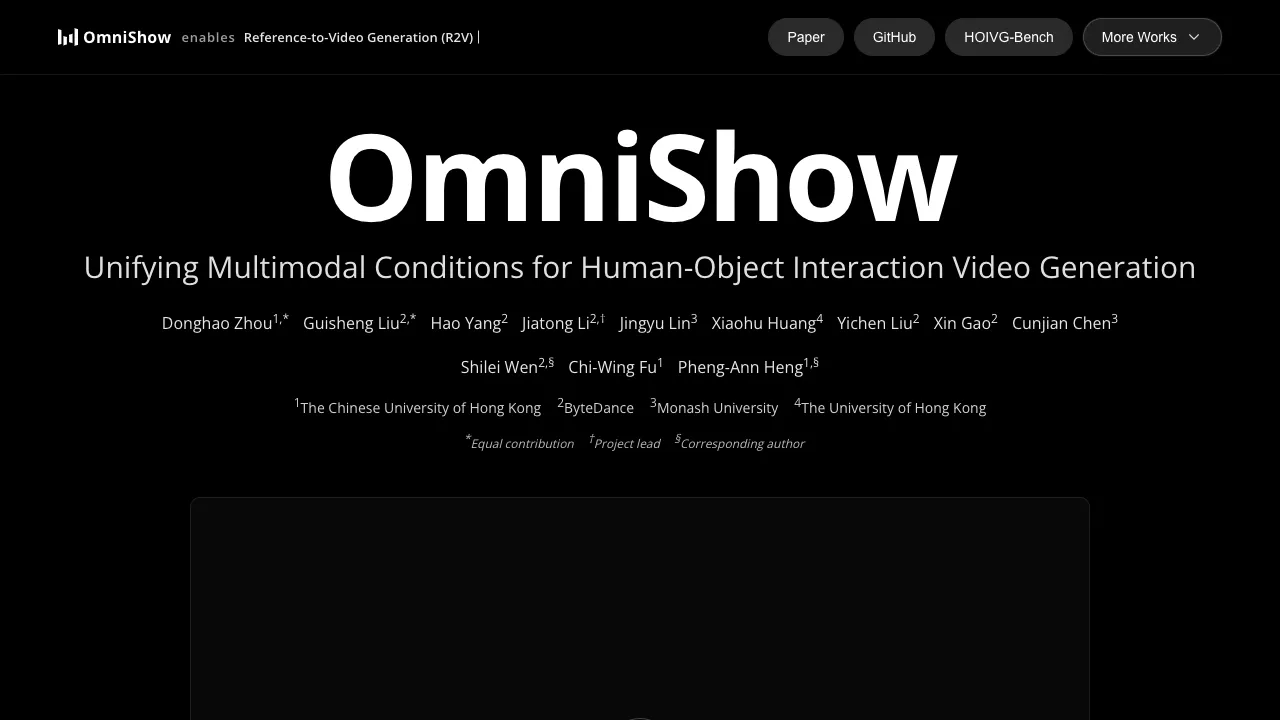
Omnishow AI Video Generator by Bytedance is a research project that turns simple inputs like text, a reference photo, audio, and pose cues into short, dynamic videos. It is built to show people doing everyday actions and handling objects in a natural, believable way.
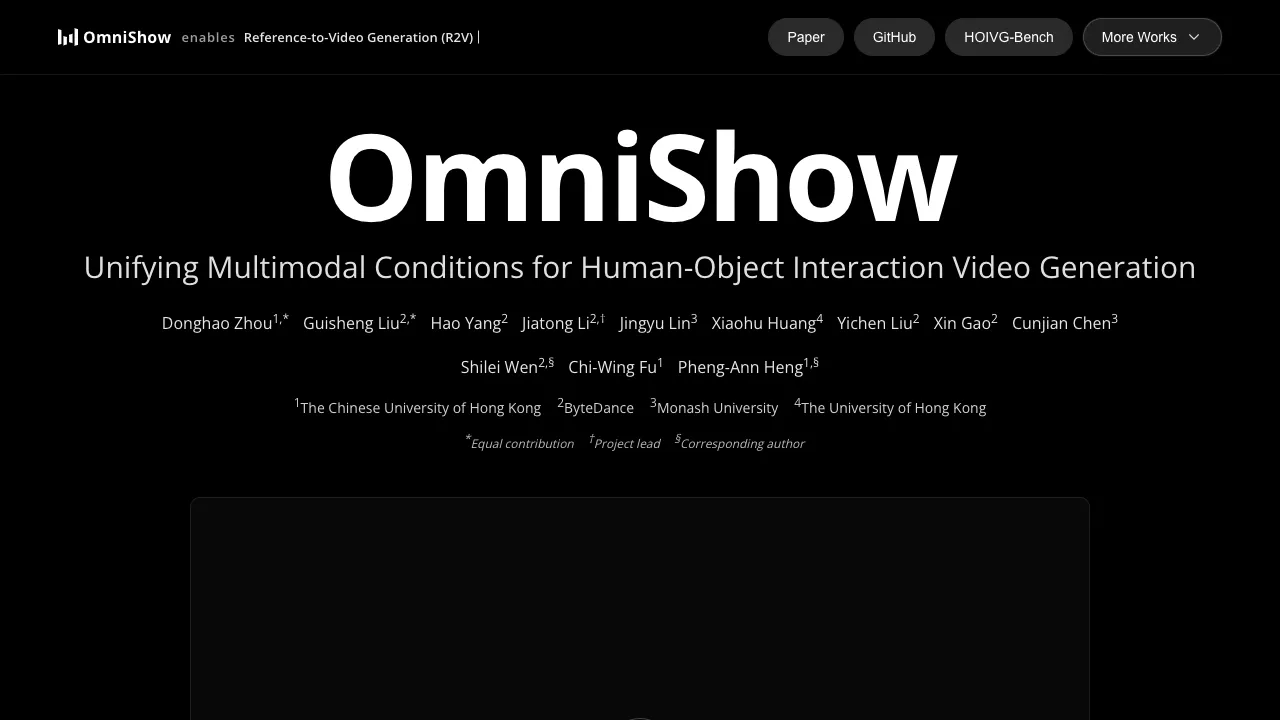
This project comes from a team including Bytedance researchers and university partners. The public demos show strong identity match, smooth motion, and good timing with speech and music.
Omnishow AI Overview
Here is a quick overview with the most important details.
| Item | Details |
|---|---|
| Type | AI video generator for human–object interaction (research project) |
| Inputs | Text, reference image(s), audio, and pose sequence (you can use one or many together) |
| Main Tasks | R2V (Reference-to-Video), RA2V (Reference+Audio-to-Video), RP2V (Reference+Pose-to-Video), RAP2V (Reference+Audio+Pose-to-Video) |
| Output | Short videos with richer motion; native long shots up to about 10 seconds |
| Key Abilities | Strong identity match, smooth motion, stable hand–object contact, good audio sync, longer shots, expressive avatar talking/singing |
| Status | Code under internal review (April 2026); technical report released |
| Benchmark | HOIVG-Bench (135 samples with text, human image, object image, audio, and pose) |
| Who Made It | Bytedance researchers and collaborators (see paper authors on the project page) |
| Project Site | OmniShow project page (opens in a new tab) |
For more helpful tools and comparisons, see our curated Video Generator hub.
Omnishow AI Key Features
- Multimodal inputs: works with any mix of text, image, audio, and pose.
- Strong identity match: keeps the same person’s look across different clips.
- Smoother motion: actions feel natural, with fewer odd frame jumps.
- Better object contact: steadier grasping and fewer body–object overlaps.
- Audio sync: lips and body timing match the voice or music more closely.
- Long shots: can create continuous clips up to around 10 seconds.
- Avatar talking/singing: turn one photo plus audio into a talking or singing face.
How Omnishow AI Works (Plain-English View)
First, you choose what to give the model: a text prompt, one or more reference photos, audio, and/or a pose track. You can use just one input or combine several.
Next, the model reads these inputs together. It then makes a video that follows your text, keeps the person’s look, matches the audio, and follows the pose steps.
Finally, the output is a short clip with the person moving, speaking, or interacting with an object. The demo page shows many examples across tasks.
The Technology Behind It (Explained Simply)
- Unified conditioning for images and pose: The model packs image and pose cues into extra “channels” so it can keep fine details from your photo and follow pose steps more faithfully.
- Local audio focus with gating: The audio is added in a way that helps the model align frames with the right audio parts. A “gate” helps keep early training stable, which improves lip and motion timing.
- Train parts, then join: The team first trains on sub-tasks (like image-to-video and audio-to-video) and then blends the weights and fine-tunes them together. This joins all skills into one model.
If you want a broader view of creative video tools, check our quick take on 3D video generation to see how different methods approach motion and depth.
Omnishow AI Use Cases
- Product explainers: a person shows and talks about a product while handling it.
- Creator videos: short host segments with speaking and hand actions.
- Avatar content: singing or talking avatars from one reference photo plus audio.
- Object swapping: change the hand-held item while keeping the same person.
- Video remix: rebuild a scene to match new text, audio, or pose.
- How-to demos: step-by-step actions, like picking up, turning, placing items.
- Education: role-play, language practice, or gesture-guided lessons.
Performance & Showcases
Showcase 1 — Unifying Multimodal Conditions for Human-Object Interaction Video Generation Credits: Donghao Zhou1,* Guisheng Liu2,* Hao Yang2 Jiatong Li2,† Jingyu Lin3 Xiaohu Huang4 Yichen Liu2 Xin Gao2 Cunjian Chen3 Shilei Wen2,§ Chi-Wing Fu1 Pheng-Ann Heng1,§. This video highlights the core idea and the team behind OmniShow.
Showcase 2 — Gallery Gallery Embrace rse, realistic, and dynamic videos, generated by OmniShow. This set shows many short clips with different people, scenes, and actions.
Showcase 3 — Gallery Gallery Embrace rse, realistic, and dynamic videos, generated by OmniShow. You can see identity stays steady while actions and views change.
Showcase 4 — Gallery Gallery Embrace rse, realistic, and dynamic videos, generated by OmniShow. These examples show longer shots and richer motion.
Showcase 5 — Gallery Gallery Embrace rse, realistic, and dynamic videos, generated by OmniShow. Hand–object contact looks more stable in many cases.
Showcase 6 — Gallery Gallery Embrace rse, realistic, and dynamic videos, generated by OmniShow. Talking and singing clips show tight audio timing.
Reference Tasks (What You Can Ask It To Do)
- R2V (Reference-to-Video): Give a reference image and a short text. The model makes a video that keeps the person’s look and follows the action.
- RA2V (Reference+Audio-to-Video): Add audio, like a voice track. The model lines up mouth and motion to the sound.
- RP2V (Reference+Pose-to-Video): Supply a pose sequence. The person’s movement follows that pose path while keeping appearance.
- RAP2V (Reference+Audio+Pose-to-Video): Use text, image, audio, and pose together. This gives the most control and steady results.
Looking for post-production ideas? Explore tools in our AI video editing collection.
HOIVG-Bench (How They Measure Quality)
The team built a test set called HOIVG-Bench with 135 samples. Each sample has a text caption, a human reference image, an object reference image, an aligned audio clip, and a pose sequence.
This helps measure identity match, motion quality, audio timing, and object contact in a fair way. It also covers all the input mixes above.
Installation & Setup (Getting Started)
- Current status: the authors say “Code is under internal review. Please stay tuned!” (April 2026).
- You can read the technical report and watch demos on the OmniShow project page. Once code arrives, the team will likely share install steps there.
- For now, plan your inputs (text, reference images, audio track, pose). Prepare clean audio and clear photos for best results later.
Tips for Better Prompts and Inputs
- Be clear and specific: say the action and the object, like “pick up the red mug and take a sip.”
- Use 2–3 sharp reference photos with the same person, lighting, and clothing.
- Give clean audio without noise; short clips work best.
- For pose, provide a smooth sequence with steady frame spacing.
Want more tools to compare with OmniShow? Browse our live list of creators and engines on the Video Generator page.
FAQs
What inputs can I use?
You can use text, one or more reference images, an audio track, and a pose sequence. You can use just one of these or combine several for more control.
How long are the videos?
The model supports longer continuous shots, up to about 10 seconds. This helps show a full action from start to finish.
Does it keep the same person’s look?
Yes, identity preservation is a key point. The demos show strong consistency across different actions and scenes.
Is the code available now?
Not yet. The team says the code is under internal review and will be shared later on the GitHub page.
What kinds of actions work best?
Short, everyday actions with clear object contact work well. Speaking, waving, picking up and placing items are common examples in the demos.
Image source: Omnishow AI Video Generator by Bytedance
Subscribe to our newsletter
Get the latest updates and articles directly in your inbox.